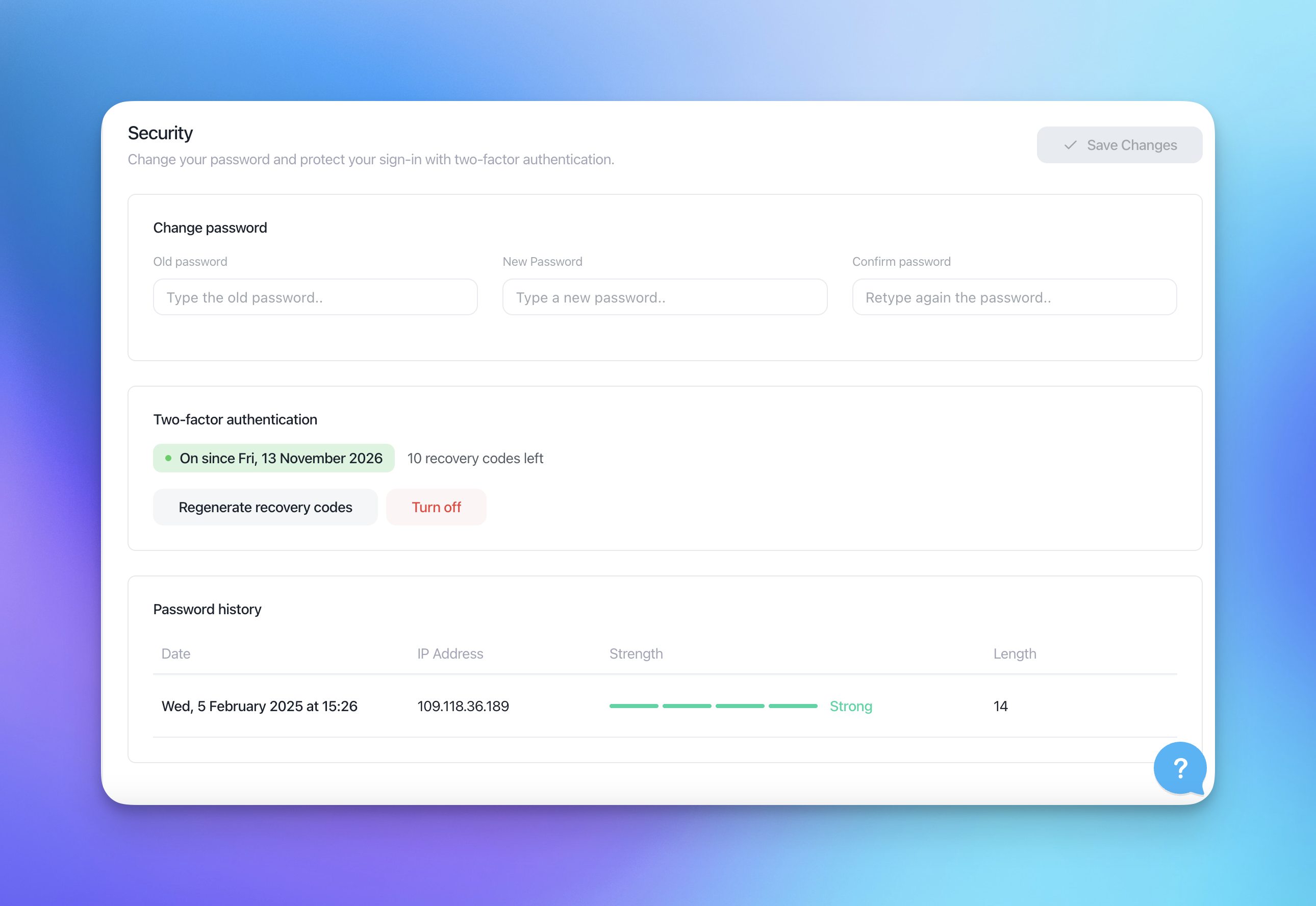
Two-factor authentication adds a second step to your sign-in. Besides your password, Customerly asks for a 6-digit code from an authenticator app, so a stolen password alone can’t open your account.
Before you start
You need an authenticator app on your phone, such as Google Authenticator, 1Password or Authy.
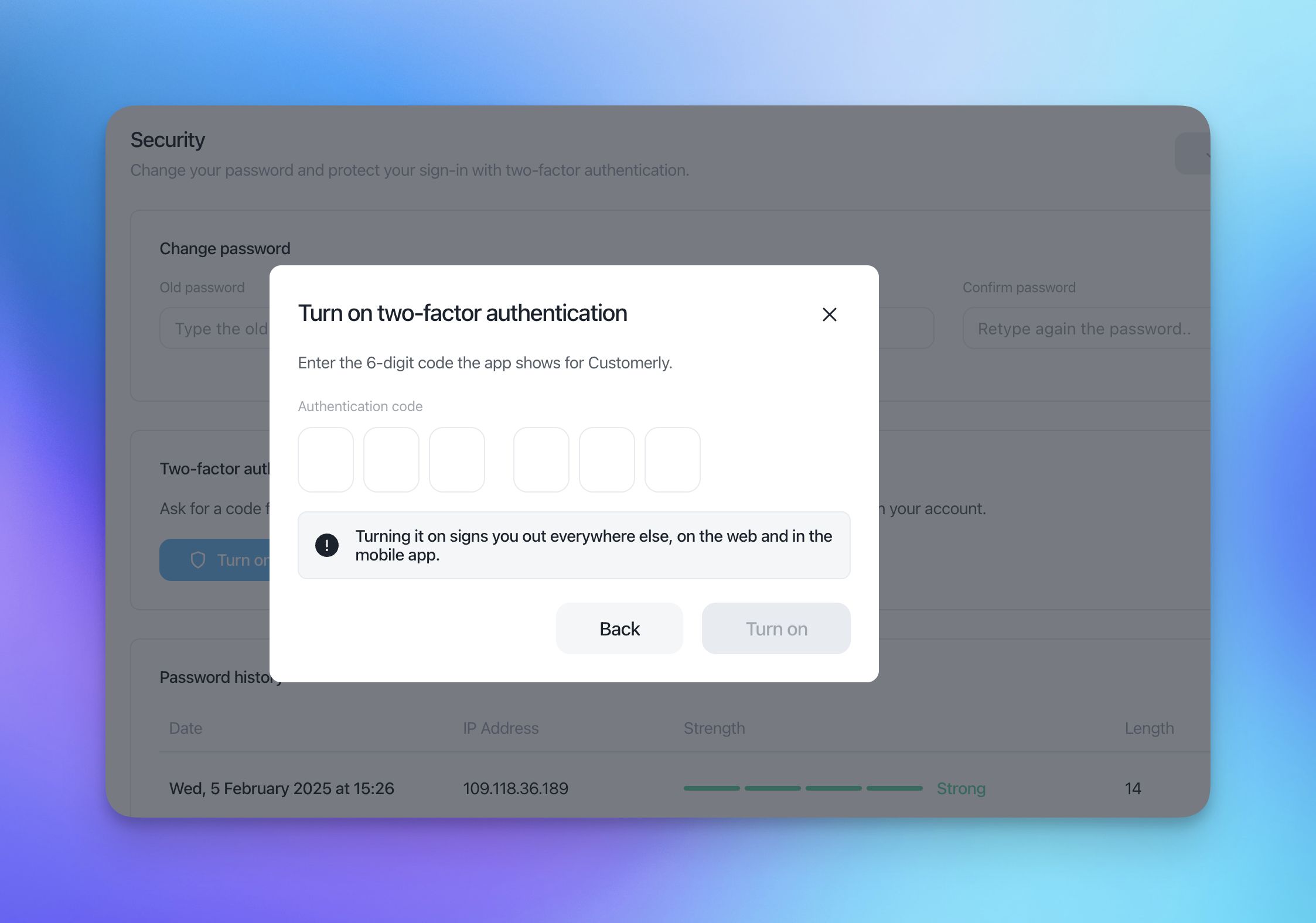
Note: Turning on 2FA signs you out everywhere else, on the web and in the mobile app. You’ll need to sign in again on those devices with your password and a code.
Turn on two-factor authentication
1. Open your security settings
Click the gear icon at the bottom left, go to Account Settings, then select Security.
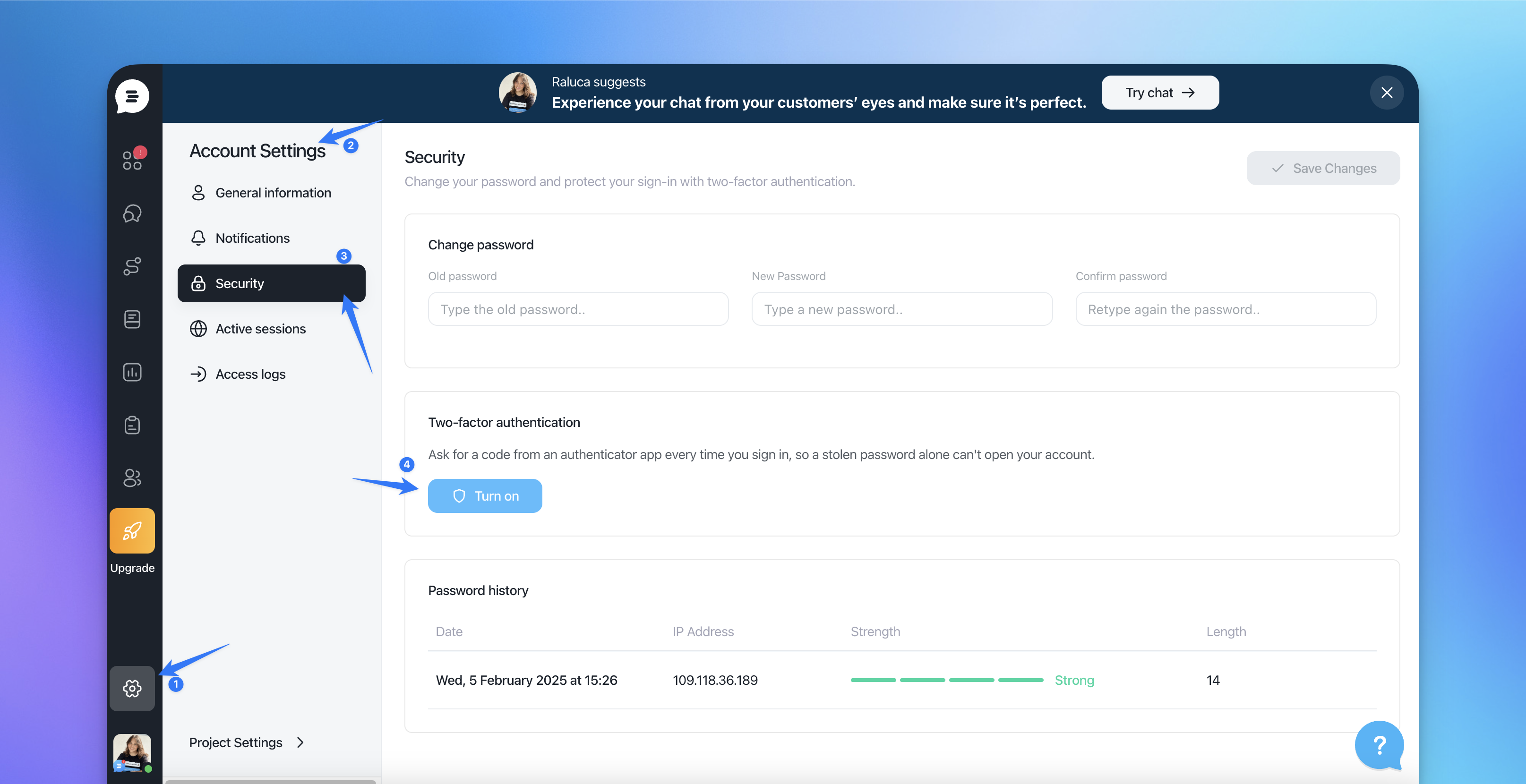
2. Start the setup
In the Two-factor authentication section, click Turn on.
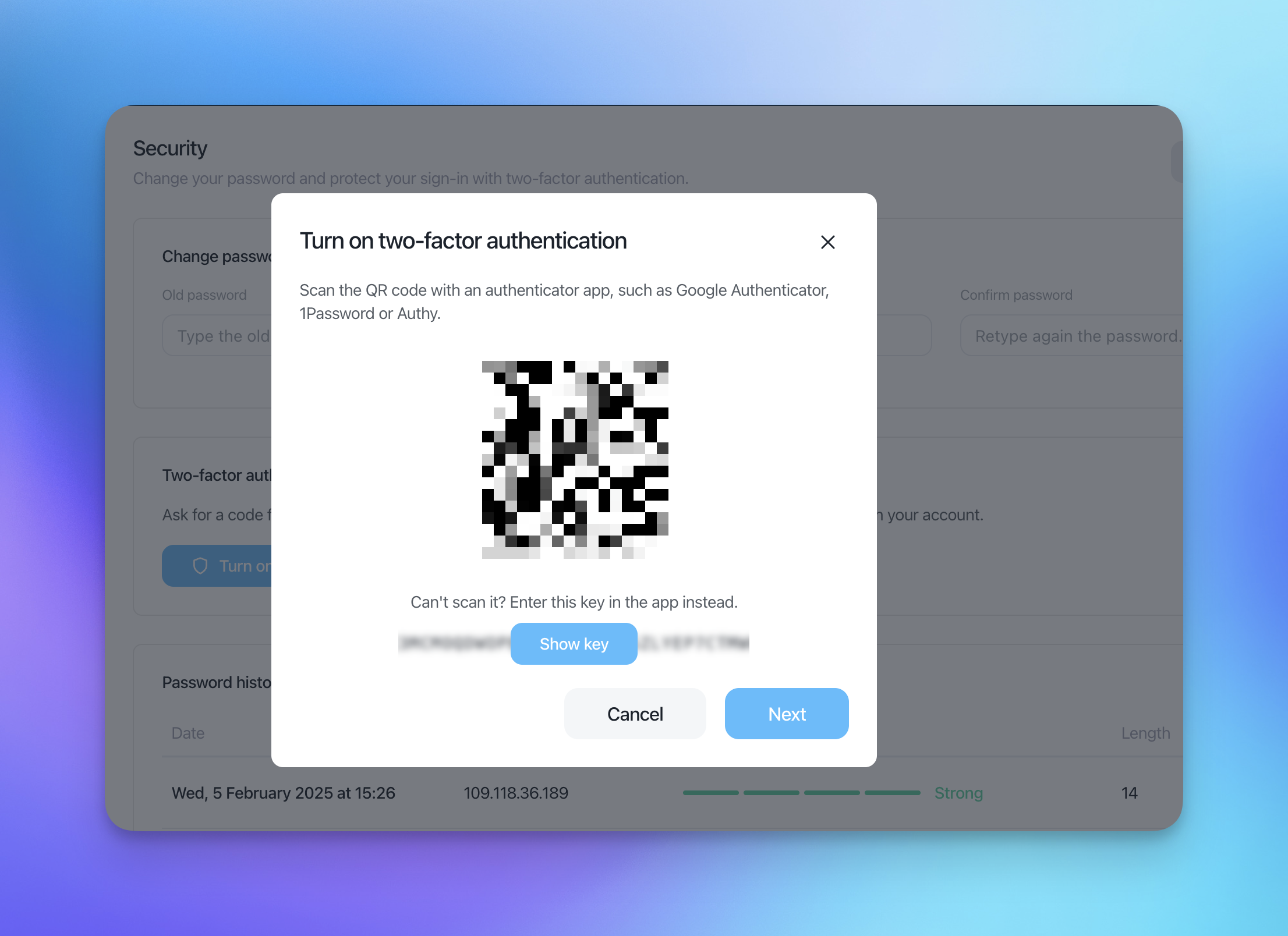
3. Scan the QR code
Scan the QR code with your authenticator app.
If you can’t scan it, click Show key and type the key into the app manually. Then click Next.
4. Enter the 6-digit code
Type the 6-digit code the app shows for Customerly and click Turn on.
5. Save your recovery codes
Customerly shows you a set of recovery codes. You can use them to sign in if you lose access to your authenticator app.
Each code works only once.
This is the only time they are shown.
Use Copy all or Download .txt and store them somewhere safe, like a password manager.
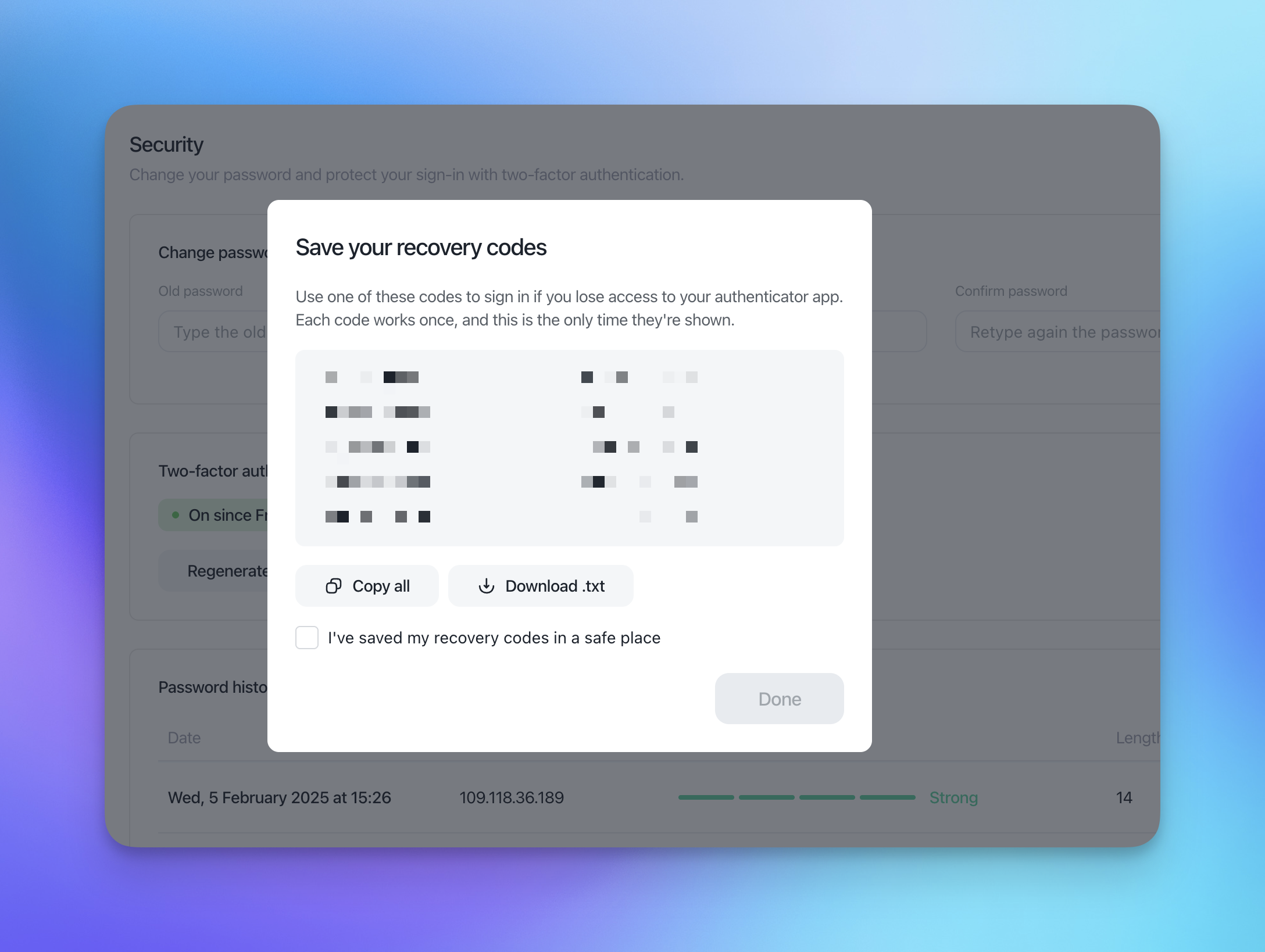
Tick I’ve saved my recovery codes in a safe place and click Done.
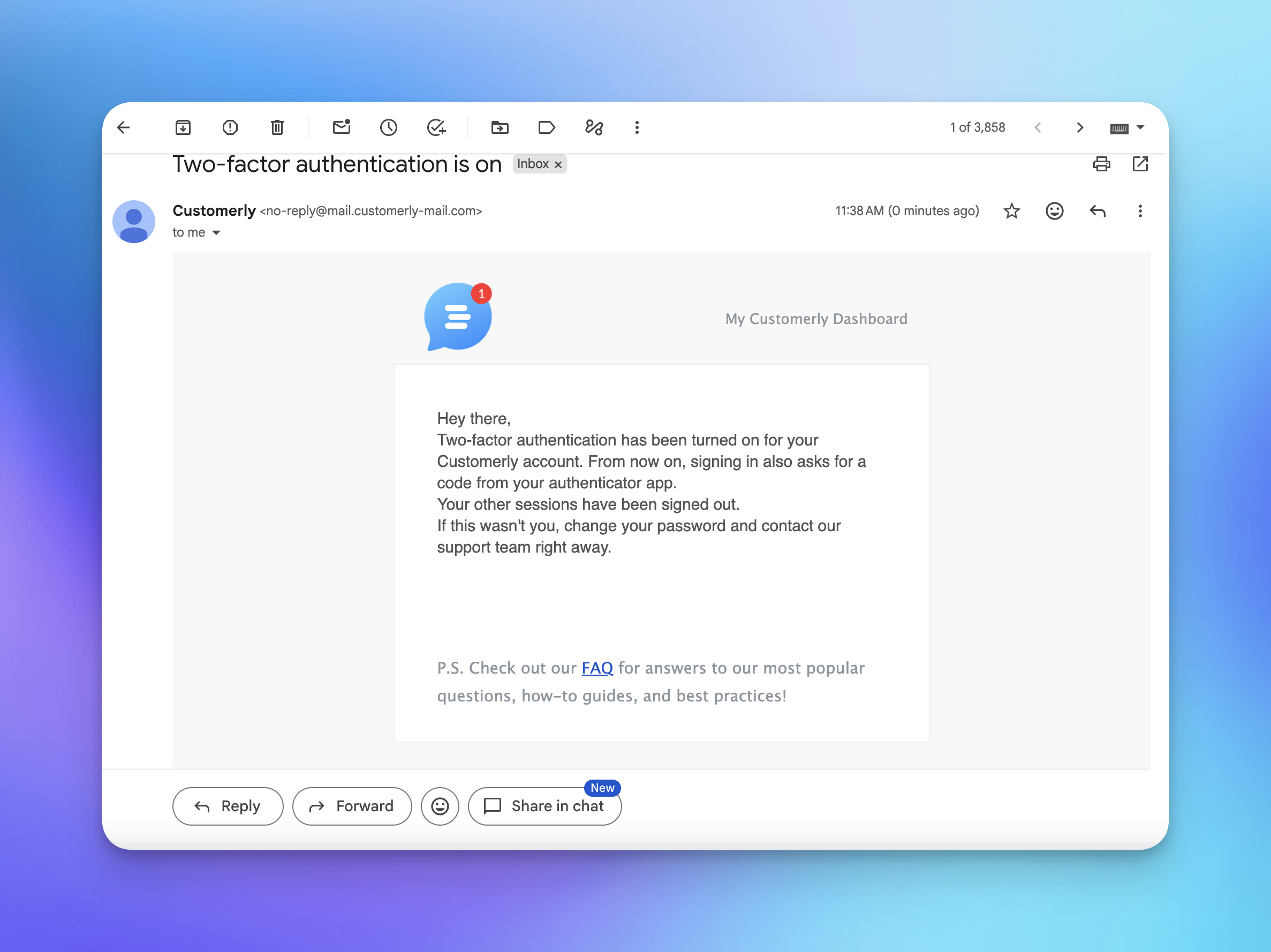
6. Check your email
You’ll receive an email with the subject “Two-factor authentication is on”. If you didn’t turn on 2FA yourself, change your password and contact our support team right away.
Signing in with 2FA
Enter your email and password as usual.
On the Two-factor authentication screen, type the 6-digit code from your authenticator app.
Click Verify.
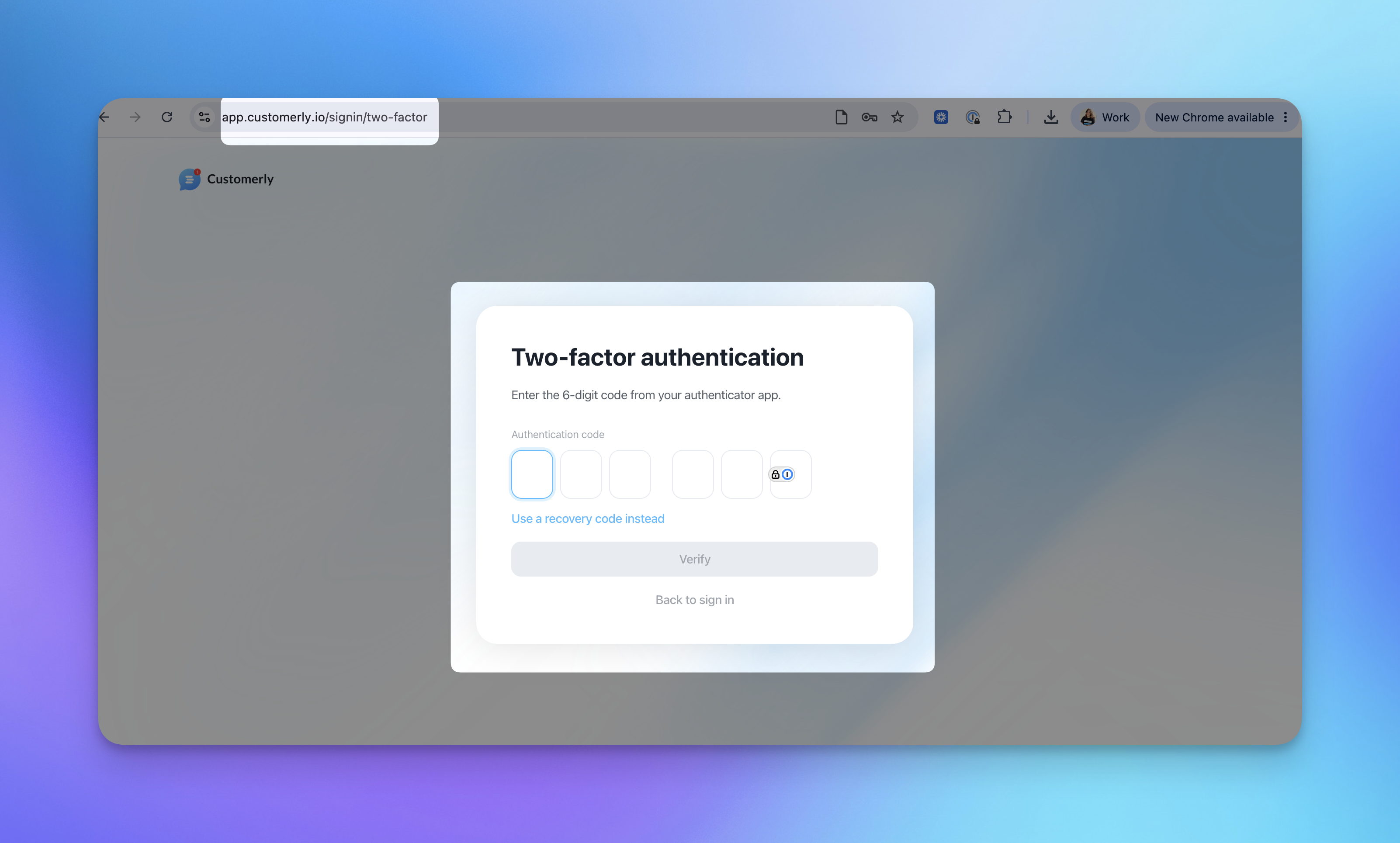
Lost your phone or can’t open the app? Click Use a recovery code instead and enter one of your saved recovery codes. Each code can be used only once.
Manage 2FA
Once 2FA is active, the Security page shows On since [date] and how many recovery codes you have left. From there you can:
Regenerate recovery codes: creates a new set when you’re running low or have lost your codes.
Turn off: removes the second step from your sign-in.
Tip: Keep an eye on the number of recovery codes left and regenerate them before you run out.