
You can upload your own llms.txt file to your Customerly Help Center, so AI assistants find and read your most important documentation the right way. Go to Help Center Settings → AI visibility, upload the file, and it goes live immediately.
More and more people ask AI assistants about the products they use or are evaluating. When a prospect asks ChatGPT "how does X work?", the answer is often shaped by your Help Center. This feature lets you guide those assistants to the content that matters.
What is llms.txt?
llms.txt is a plain Markdown file that gives AI assistants a clean map of your documentation: what matters, where it lives, and how it fits together. It is a community proposal, not an access-control file, so it suggests where to look rather than blocking or allowing anything.
It works alongside the files you may already know:
robots.txt controls what crawlers are allowed to access.
sitemap.xml lists every page for search engines.
llms.txt points AI assistants to the few pages that matter most, with a short description of each.
Why it matters for your Help Center
Your Help Center is often the most accurate description of how your product works. Without guidance, an assistant has to guess which pages are current and which are old or marginal. A curated llms.txt helps it find the right articles first.
Treat your Help Center as an acquisition channel, not just a support tool. llms.txt is one part of that: it works best when your articles are up to date and cover the questions people actually ask.
How to upload your llms.txt file
Prepare your file as
.txtor.md. It can be up to 5 MB. See the next section for what to put in it.In Customerly, open your Help Center and go to Help Center Settings.
Open the AI visibility section.
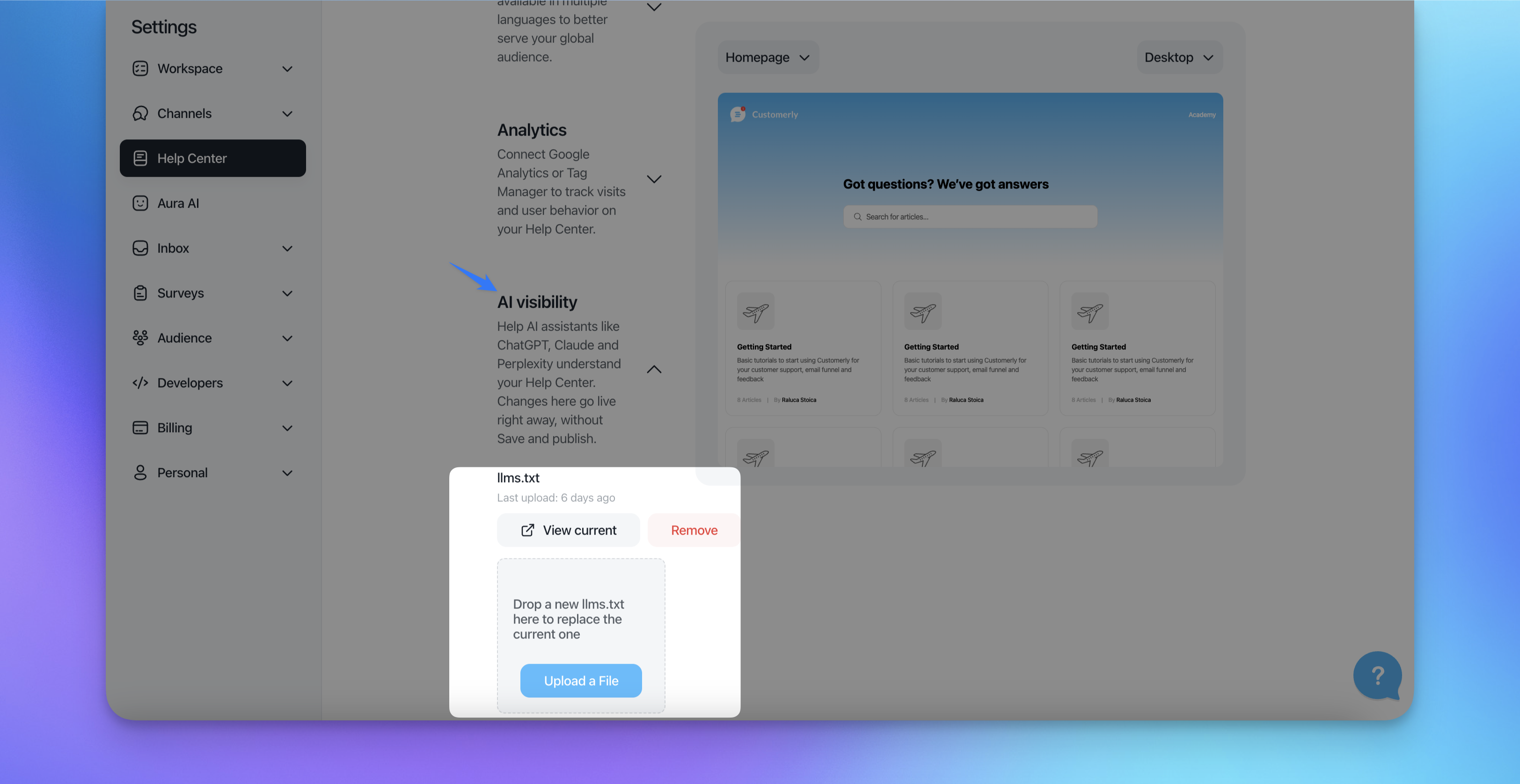
Click Upload a File and select your llms.txt file.
That's it. The change goes live immediately, so you don't need to click Save or Publish.
Tip: To update your file later, edit it and upload the new version from the same place. As with the first upload, the change is live right away.
What to put in your llms.txt file
An llms.txt file follows a simple Markdown structure, in this order:
A single H1 with the name of your product or company. This is the only required element.
A blockquote with a short summary of what your product does.
Optionally, a few lines of extra context in plain paragraphs, with no headings.
One or more H2 sections, each with a list of links to your key articles and a one-line description.