
With Audience, you can control who can see specific content in your Knowledge Base by assigning audiences to collections and articles. This is useful when you need different documentation for different customer segments (plans, betas, internal users, etc.) without exposing everything publicly.
Where you can set an Audience
You can assign an audience in two places:
Collections: set visibility rules for an entire section of your Help Center.
Articles: set visibility rules for a single article.
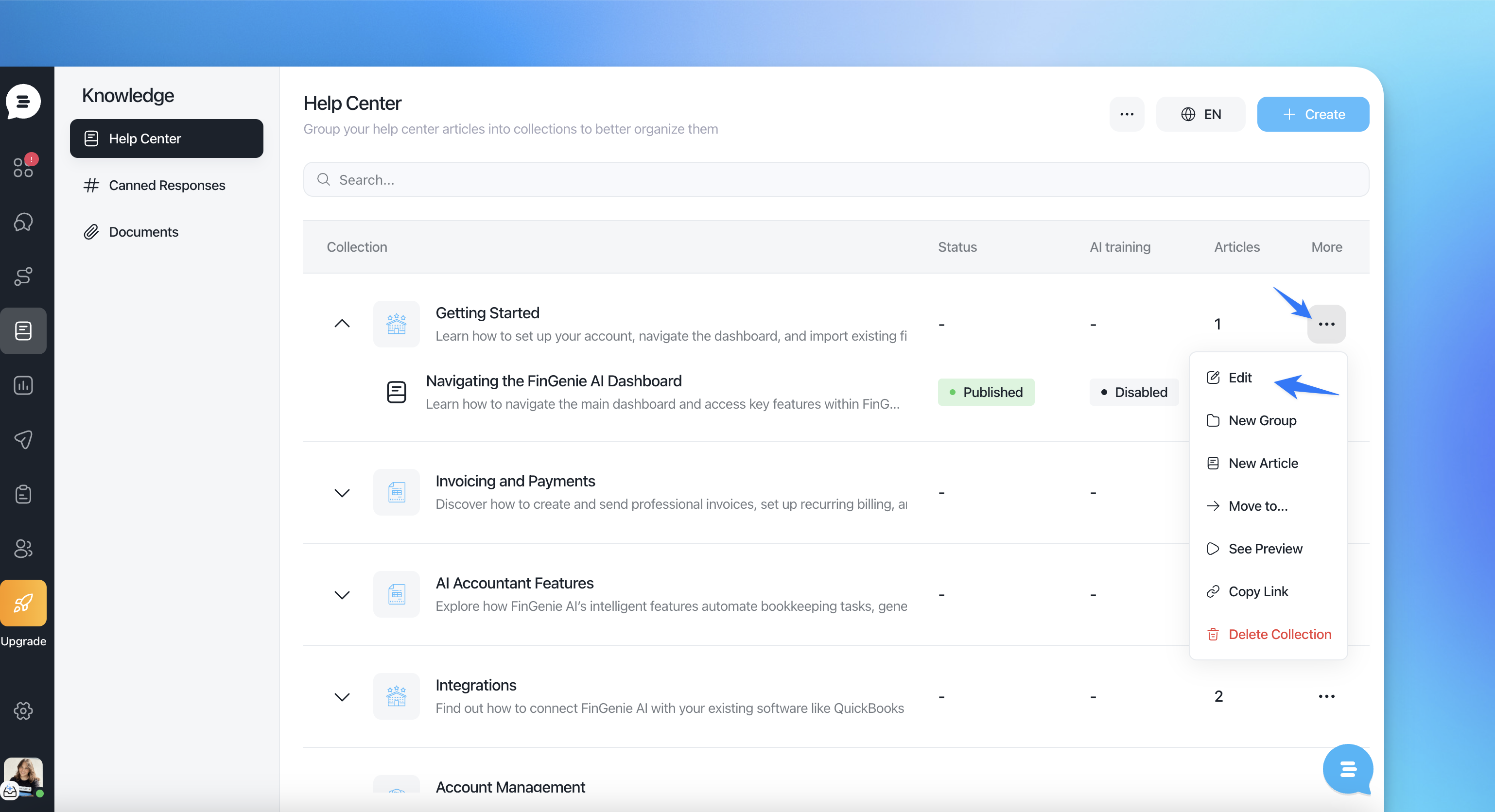
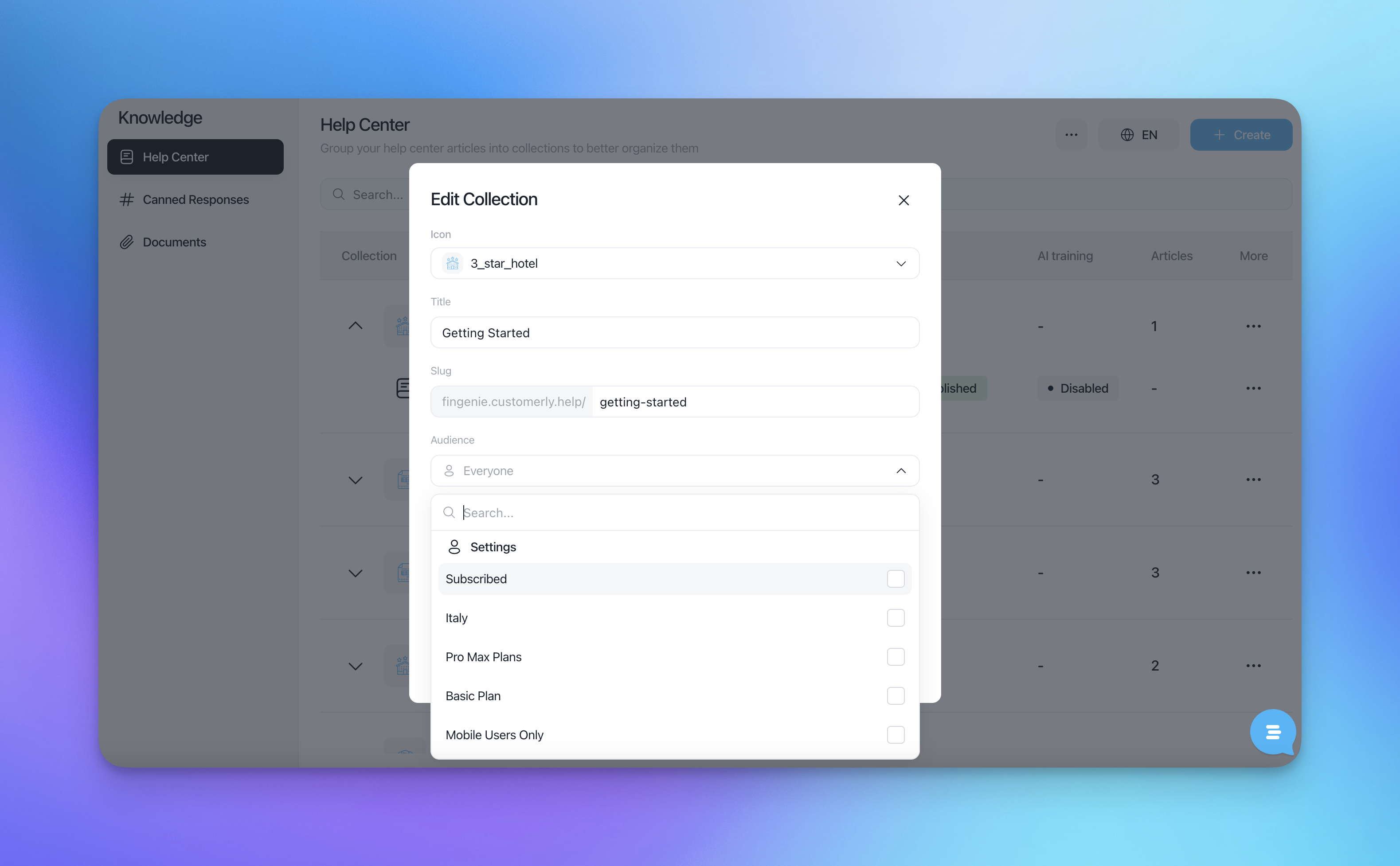
In the UI:
In Edit Collection, you’ll find the Audience field.
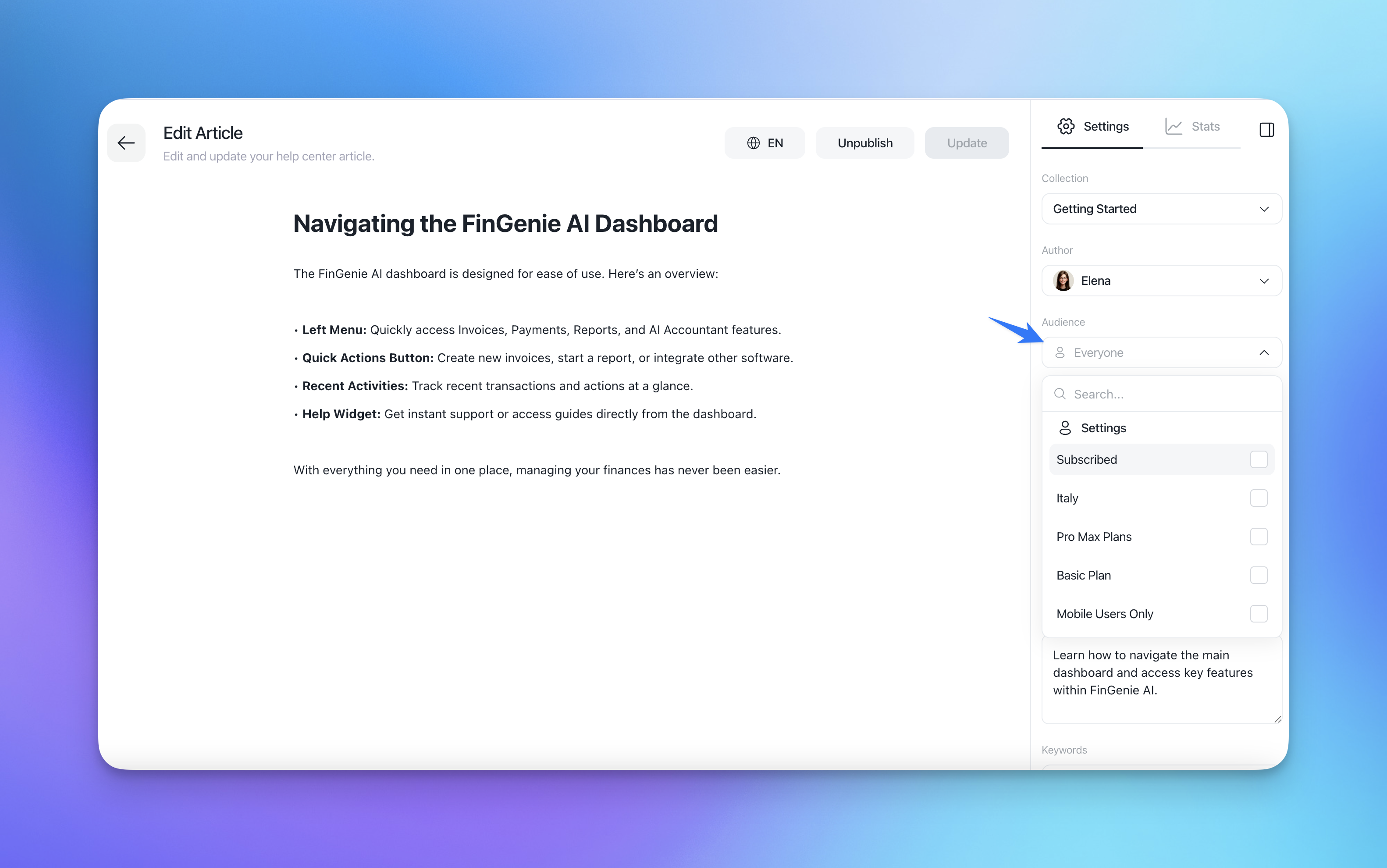
In Edit Article, you’ll find Audience in the right-side Settings panel once you open the article to edit it
How Audience visibility works
1) Multiple audiences use an OR logic (not AND)
You can select more than one audience for a collection or an article. The rule is:
a user can see the content if they match at least one of the selected audiences
(OR, not AND)
Example: Audience = {Settings, NPS Used}
A user in Settings or NPS Used will be able to access the content.
2) Collection audience does not override an article’s audience
Setting an audience on a collection does not override the audience set on a specific article.
In practice:
if an article has its own audience, the article’s audience rules apply
the collection won’t replace or “force” the article’s audience settings
3) Inheritance: what happens if an article has no audience
If you add an article without an audience to a collection that has audiences set, then:
the article will inherit the collection’s audiences
This is ideal when you want to restrict visibility for a whole area of your Help Center without configuring every single article.
Impact on public Help Center and Messenger Help Center
If an article has an audience set, it becomes targeted content. As a result, it will be removed from:
the public website Help Center
the Messenger Help Center
This ensures restricted content is not exposed in fully public channels.