
Where to find Canned Responses
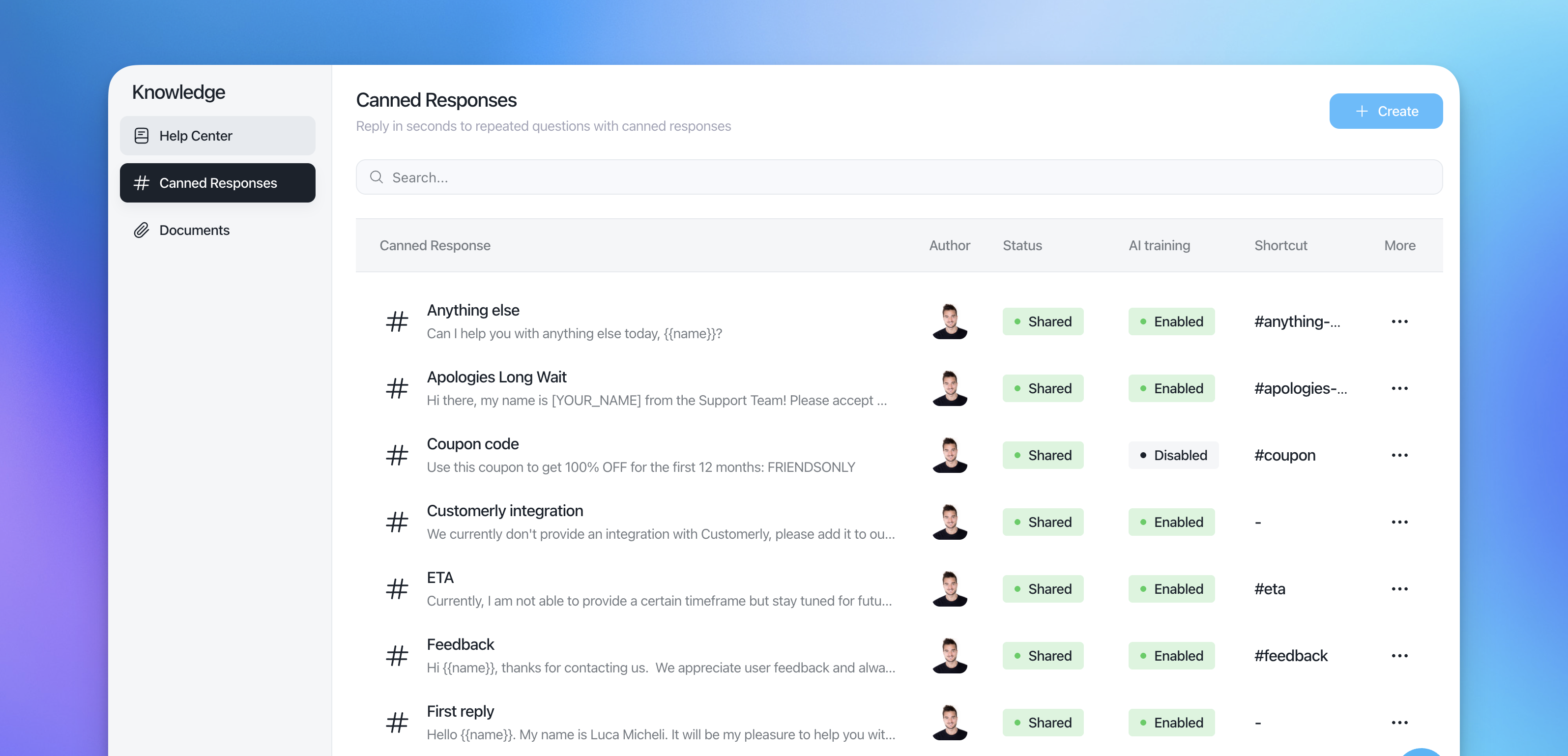
Go to Knowledge → Canned Responses.
You’ll see a list with:
Canned Response (title + preview)
Author
Status (Shared / Private)
AI training (Enabled / Disabled)
Shortcut
More menu (⋯)
Creating a canned response
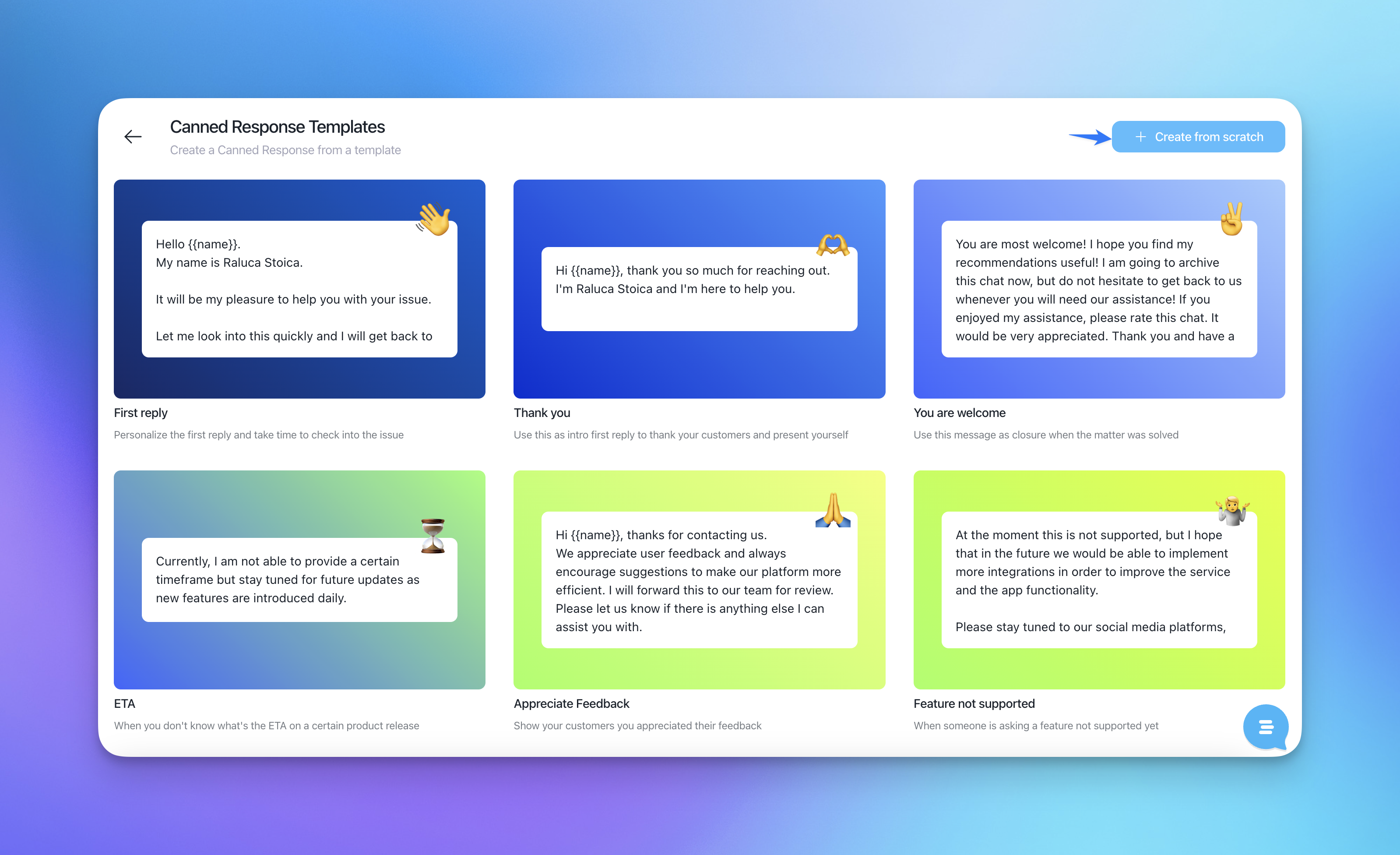
You can start from scratch or use a template.
In Knowledge → Canned Responses, click Create.
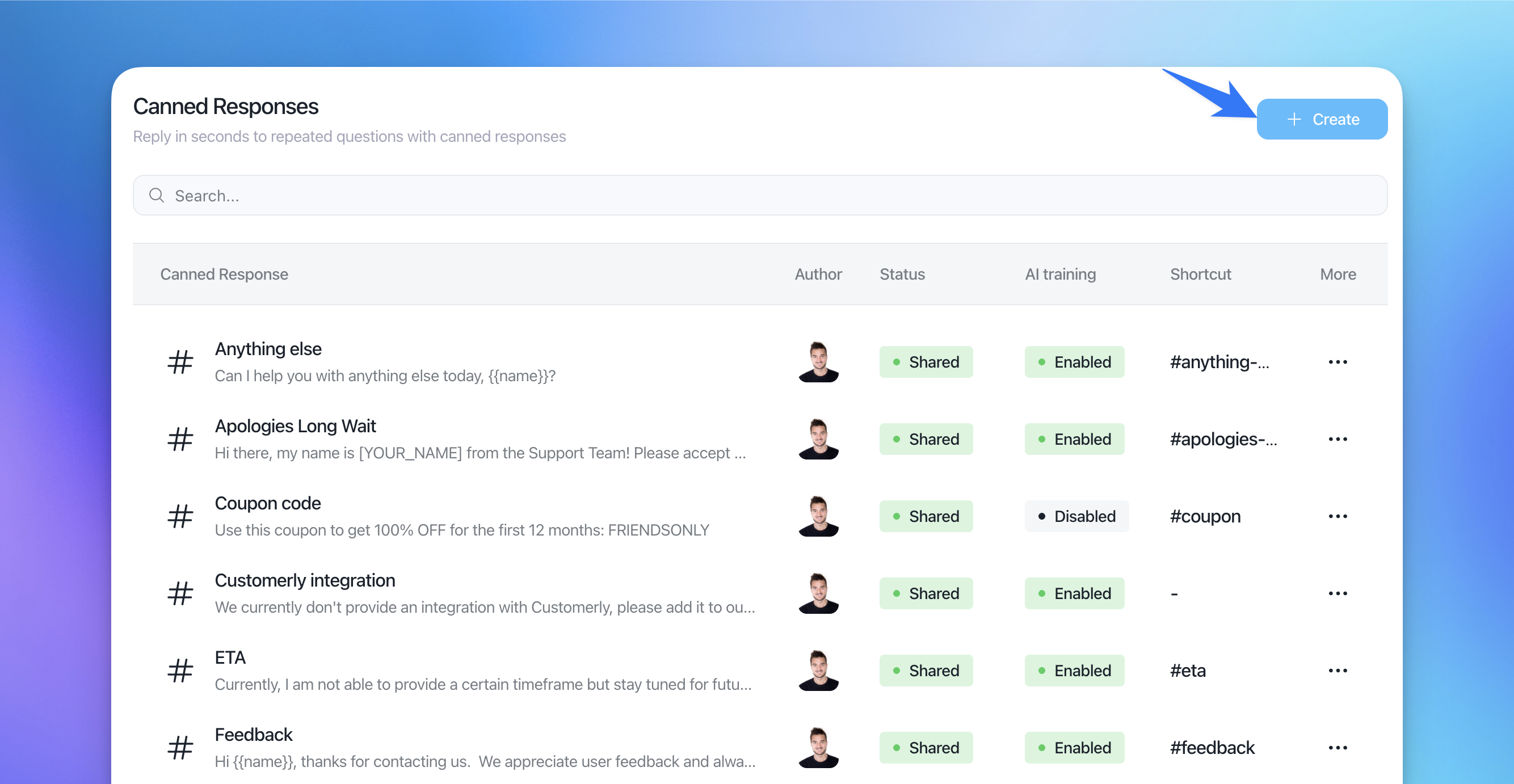
You can:
Choose one of the Canned Response Templates, or
Click Create from scratch.
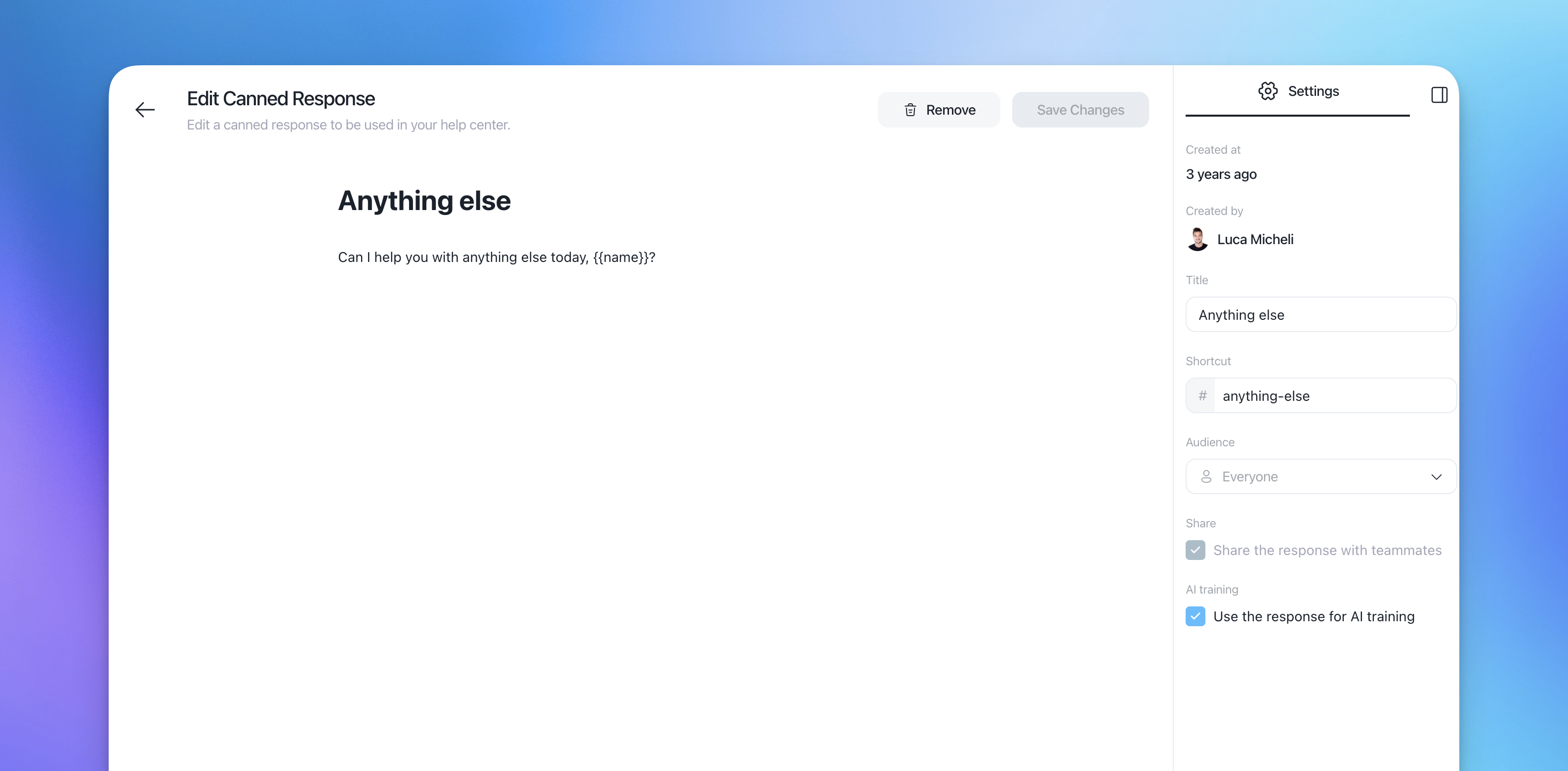
Set:
Title
Content (the reply text)
Shortcut (optional, e.g.
#coupon)Audience (who can see/use it and for whom Aura can use it)
Share the response with teammates (optional)
Use the response for AI training (optional)
Click Save Changes.
Editing a canned response
To edit the text or settings of a canned response:
From the list, either:
Click directly on the canned response name, or
Click ⋯ → Edit.
Update the content, title, shortcut, audience or AI training.
Click Save Changes.
You can edit:
Your own canned responses (private or shared)
Shared canned responses created by others
You cannot edit private canned responses created by someone else.
Audience and Aura training
Each canned response has:
Audience – choose which people it applies to (e.g. Everyone, Pro Max Plans, Italy, Basic Plan, etc.).
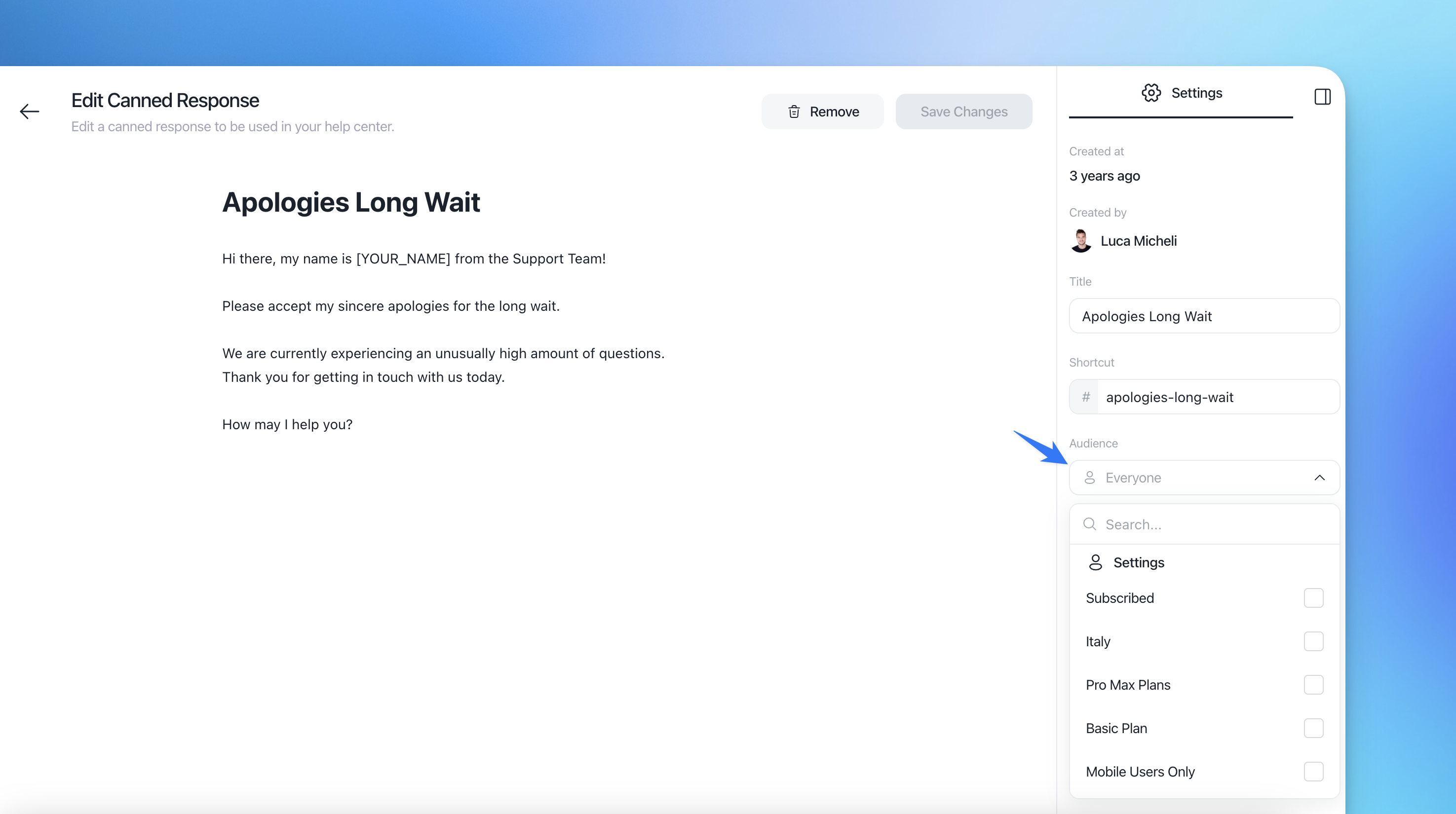
Use the response for AI training – when enabled, Aura will use this canned response as a resource to answer questions for that audience only.
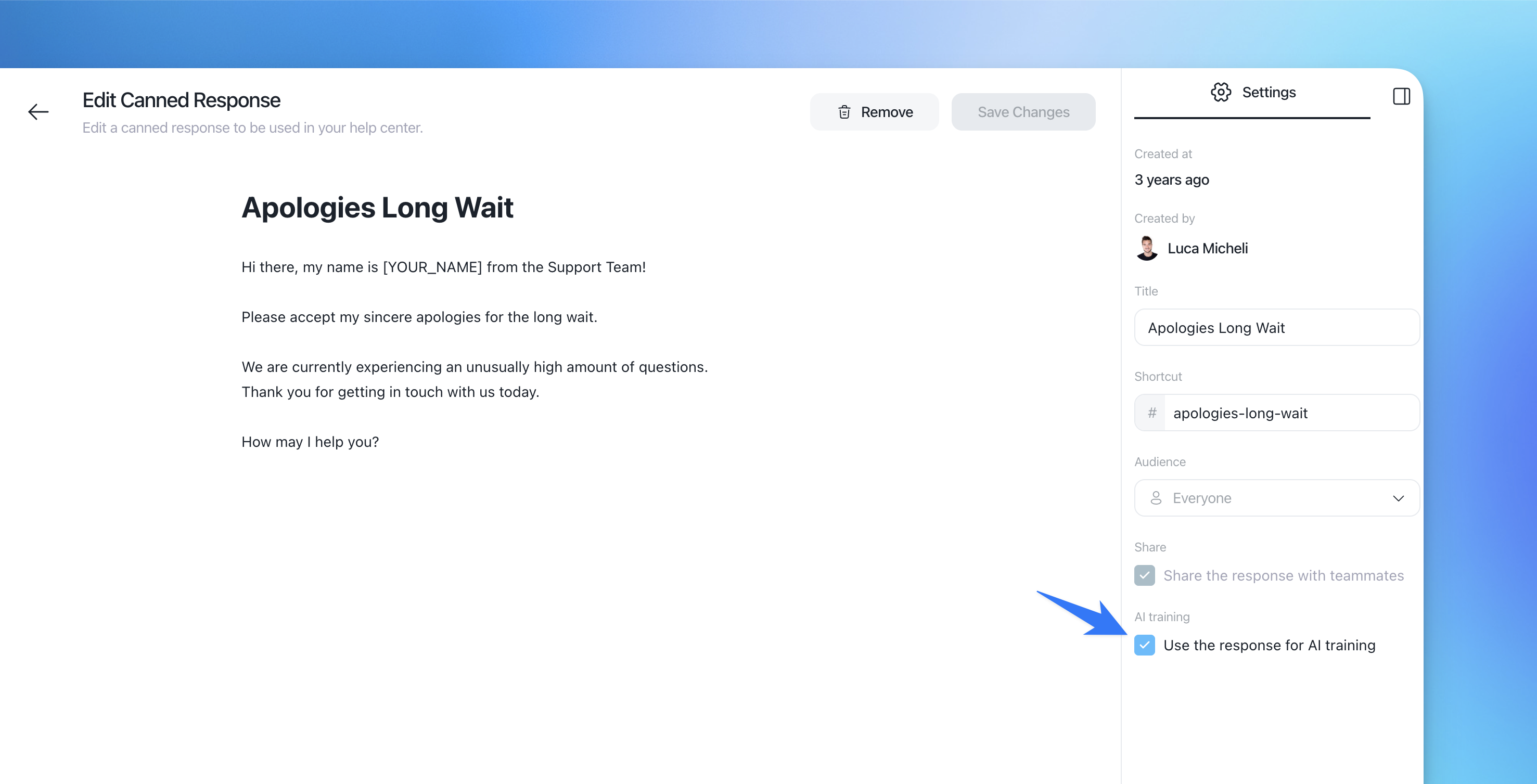
This lets you keep some replies (and their AI training) specific to certain plans, regions or segments.
Sharing & permissions
Share the response with teammates
When enabled, the canned response becomes shared and visible to your teammates.
When disabled, it’s private to the creator.
Permission rules:
You can toggle Share on your own canned responses.
You cannot change the share setting for canned responses created by someone else.
If you try to change it, you’ll see an error message.Even if you didn’t create it, you can still:
Edit the content of a shared canned response
Change its audience
Enable/disable AI training
Deleting a canned response
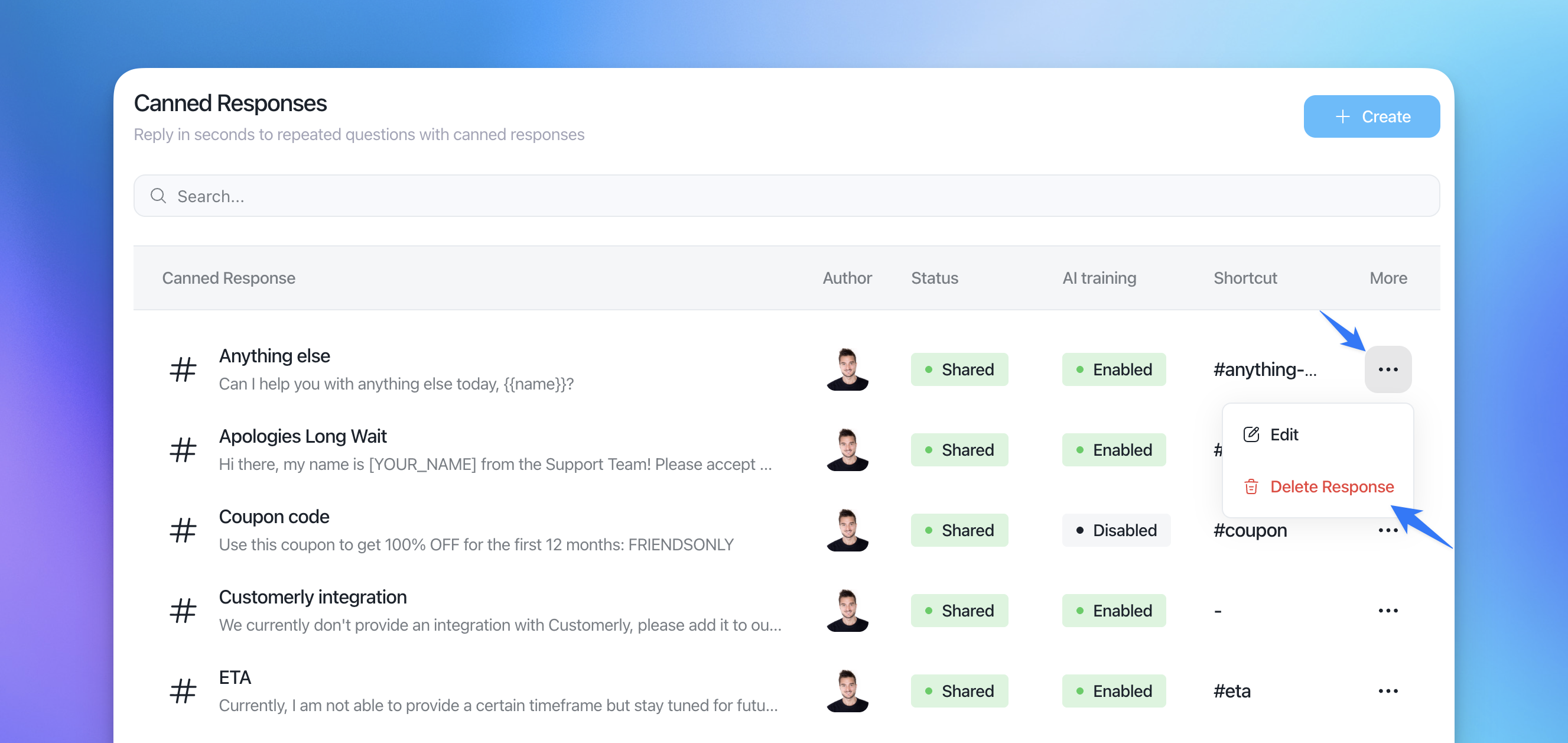
You can delete a canned response in two ways:
From the list:
Click ⋯ → Delete Response next to the canned response.
From the editor:
Click Remove at the top.
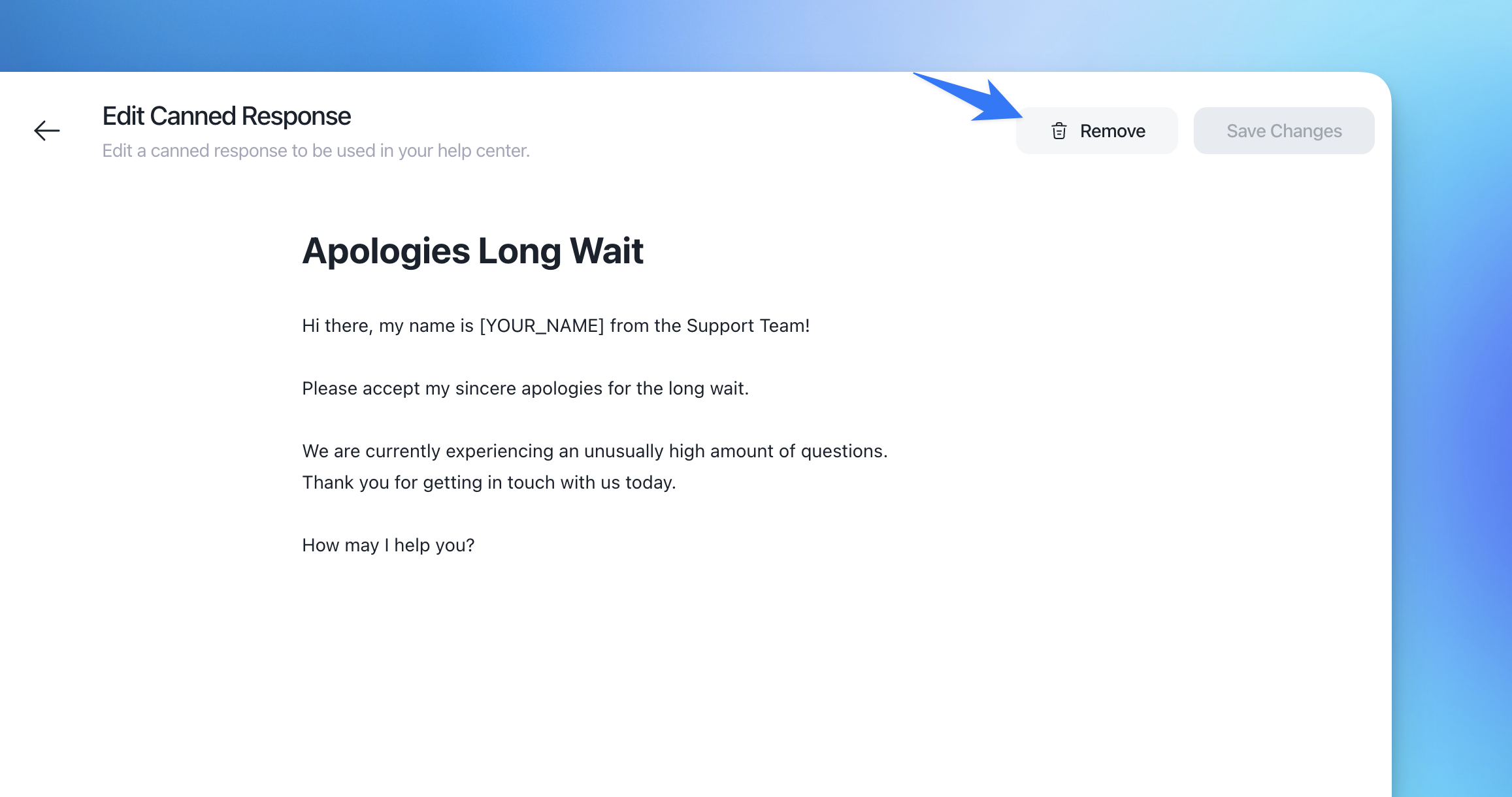
Deleting a canned response removes it from the Help Center and stops Aura from using it for training.