
The Insights section in Customerly is your control center for monitoring the efficiency of your customer support—especially the performance of your AI teammate, Aura. This revamped area includes several new metrics designed specifically to help you understand and improve how Aura interacts with your customers.
You can access the Insights section by clicking on it in the left-side navigation menu, just under the Help Center. Once inside, you’ll find multiple panels, but for this article, we’ll focus on the Aura AI Assistant section.
This section is dedicated to tracking how well Aura handles your customer conversations. You’ll find key performance indicators (KPIs) and detailed metrics that reflect Aura's ability to autonomously resolve, assist, or escalate conversations.
Aura resolution rate
At the top of the dashboard, you'll see the Aura Resolution Rate—the main KPI. It’s calculated based on:
Conversations fully resolved by Aura: These are completed without any human involvement.
Assumed resolved conversations: Aura handled these, but a human teammate closed them, assuming they were successfully resolved.
Escalated conversations: These were passed to a human due to various reasons such as low confidence, missing information, or explicit customer request.
Use the date range filter to view performance over specific time periods (daily, weekly, or monthly).
Conversation activity breakdown
Scrolling further down reveals a breakdown of Aura’s activity:
Conversations resolved by Aura
Assumed resolved conversations
Escalated conversations
AI involved conversations (Aura contributed at least one message)
AI not involved conversations (fully managed by human agents)
This helps you assess how engaged Aura is in your overall support flow.

Escalated conversations
Understanding why Aura escalates conversations is crucial for improvement. The AI Escalation types chart breaks down escalations by reason, with daily granularity, so you can spot trends over time. Common escalation reasons include:

Human requested — the customer explicitly asked to speak with a human agent.
Low confidence issue — Aura couldn't find a sufficiently reliable answer in its available sources.
Repetition loops — Aura detected too many repeated messages from the same customer, signaling the conversation wasn't progressing.
Incomplete customer information — vague questions or messages with only a screenshot, leaving Aura without enough context to respond.
Drilling into related conversations
Click on any bar in the escalation chart to open the Related Conversations panel on the right. This shows you the actual conversations that triggered that specific escalation type on that day. From here, you can click into any conversation to read the full exchange, understand the context behind the escalation, and identify exactly what Aura was missing.
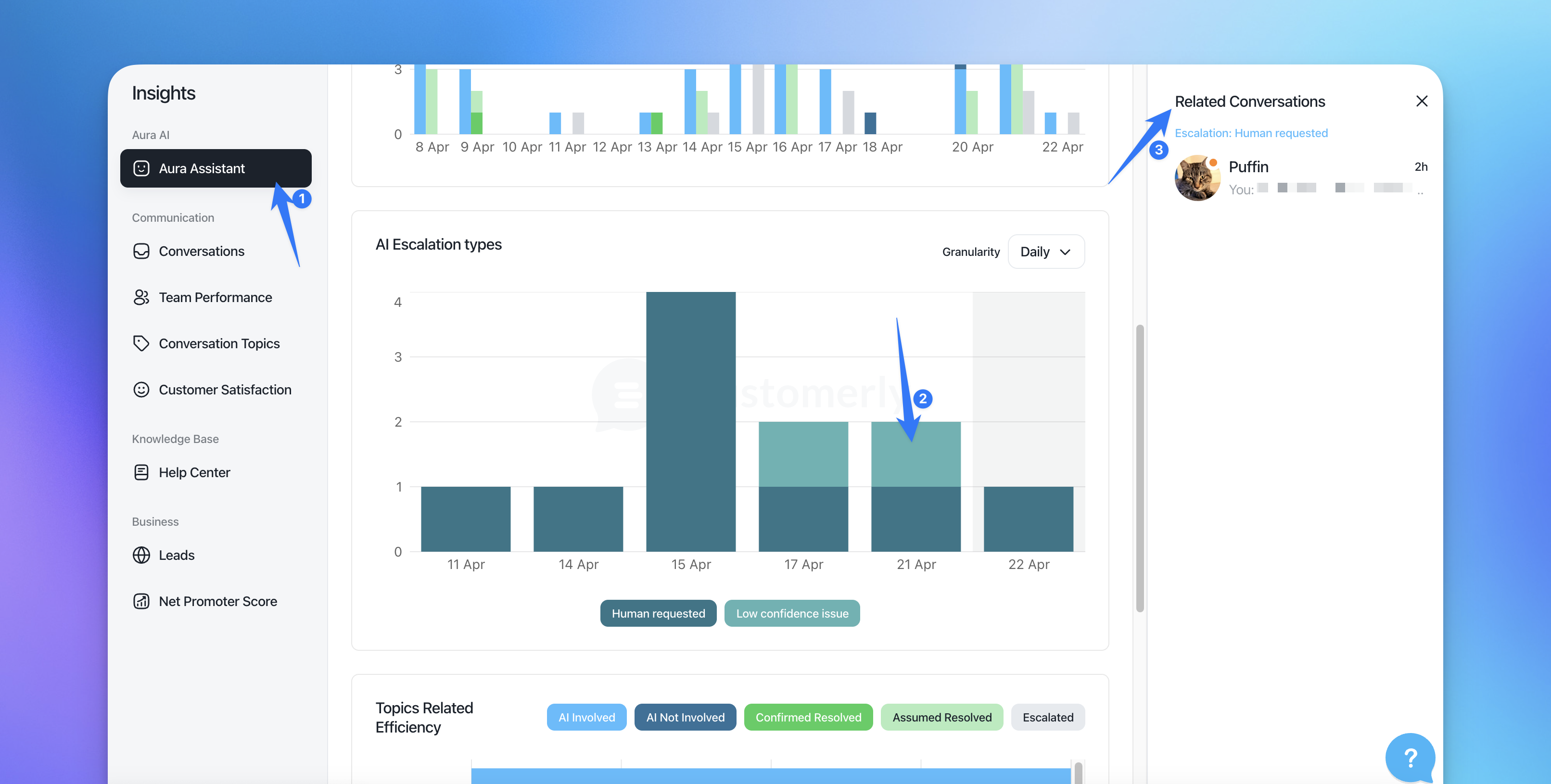
This gives you direct, actionable pointers: if you see a cluster of "Low confidence" escalations, open those conversations to find out which questions Aura struggled with, then update your Help Center articles, canned responses, or Aura's training sources to close the gap. If "Human requested" is trending up, the related conversations will tell you whether customers are asking for a human out of frustration or simply out of preference — two very different problems with different solutions.
Track efficiency by conversation topic
Customerly also includes Conversation Topics, which cluster similar conversations together. This allows you to correlate Aura’s performance with specific topics:
Which topics get escalated the most?
Which are resolved effectively by Aura?
Are there recurring issues like bugs or technical problems?
For example, Aura may excel at answering simple account questions but struggle with complex billing inquiries. This insight helps you refine support documentation or add new intents and canned responses.
How to act on the insights
Once you’ve reviewed the Aura metrics, you can take action:
Improve content sources: Add or update Help Center articles and canned responses.
Refine intents: Create or adjust intents in Chatflows to better capture customer needs.
Monitor and adapt: Use weekly or monthly filters to observe trends and track progress over time.
By treating Aura as a real teammate, regularly reviewing her performance, and making data-backed improvements, you can deliver a better support experience for your customers and lighten your human agents' workload.
Need help improving Aura’s results?
Contact us or explore related articles on creating intents, refining chatflows, and using AI Missions to automate complex tasks.