
The Spam folder is where Customerly collects incoming emails that have been flagged as potentially unwanted, so they stay out of your main inbox and don't distract your team from real customer conversations.
How messages end up in Spam
Customerly doesn't decide what counts as spam. Messages are routed to the Spam folder based on the flagging done by the email providers themselves. Providers look at two main things:
Sender behavior, such as sending patterns and reputation
The body of the email, including its content and structure
When a provider marks an incoming email as spam, it lands in the Spam folder instead of your main inbox.
Spam is not reviewed by AI
The Spam folder is not covered by Customerly's AI features. Nothing in there is read, answered, or triaged automatically, so it needs a manual check.
Providers' filters can occasionally flag legitimate messages, such as a real customer's email or an automated notification you're expecting. We recommend having someone on your team review the folder periodically so nothing important gets missed.
Hiding the Spam folder
If you don't need the Spam folder in your inbox view, you can hide it:
Go to Settings.
Open Inbox.
Turn off the Spam folder option.
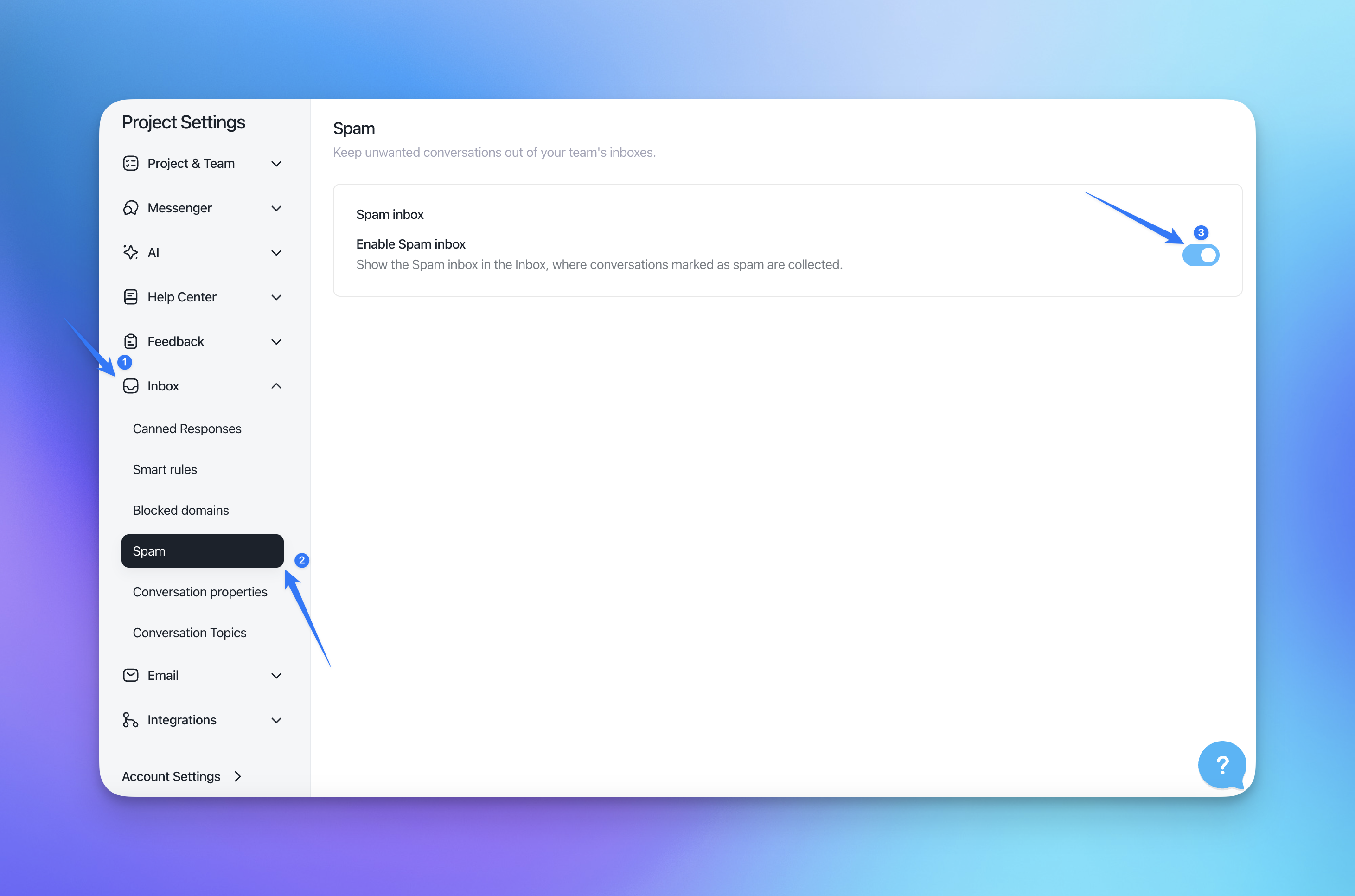
You can bring it back the same way whenever you like.
Quick summary
What goes in | Emails flagged as spam by the email provider, based on sender behavior and email content |
AI on this folder | No, messages need to be reviewed manually |
Can it be hidden? | Yes, from Settings > Inbox |