
Sometimes the same person ends up with two (or more) separate profiles in Customerly — for example, if they contacted you from different devices, signed up with a different email, or were created manually before their real profile synced. The Merge Contact feature lets you combine these duplicates into a single, complete profile.
Before you start
⚠️ Merging is permanent and can't be undone. All data from the profile you merge away — conversations, events, stats, and more — will be moved onto the profile you keep. The other profile is then permanently deleted. Double-check you've selected the right user before confirming.
How to merge two profiles
Open the duplicate profile. Go to the user's profile page (the one you want to merge away).
Click the
···menu in the top-right corner, next to Send message.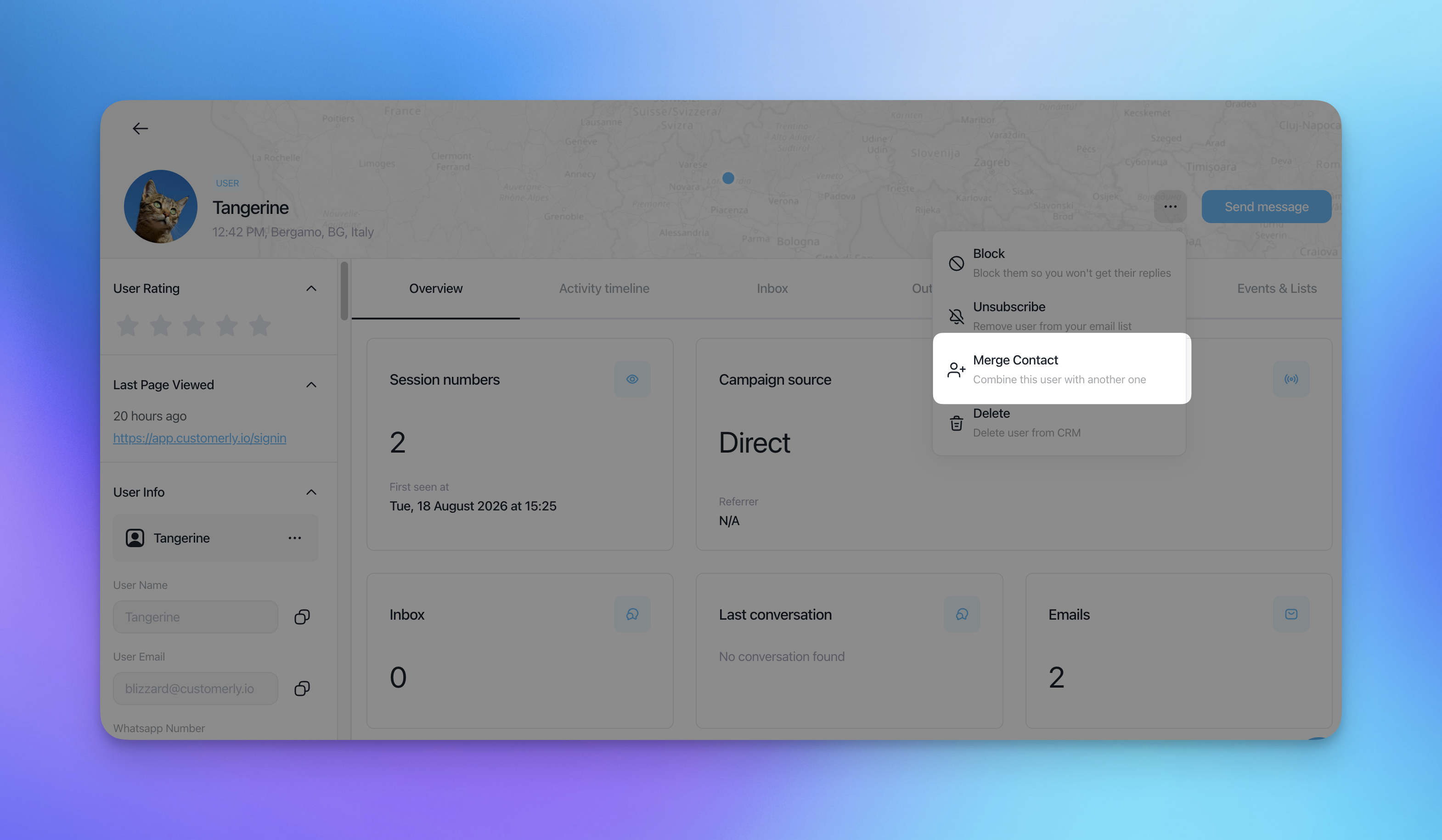
Select "Merge Contact" from the dropdown. This opens the Merge details panel.
Choose the profile to merge with. In the "Select a user" field, start typing — you can search by name or by user ID. A list of matching contacts will appear as you type; pick the correct one from the results.
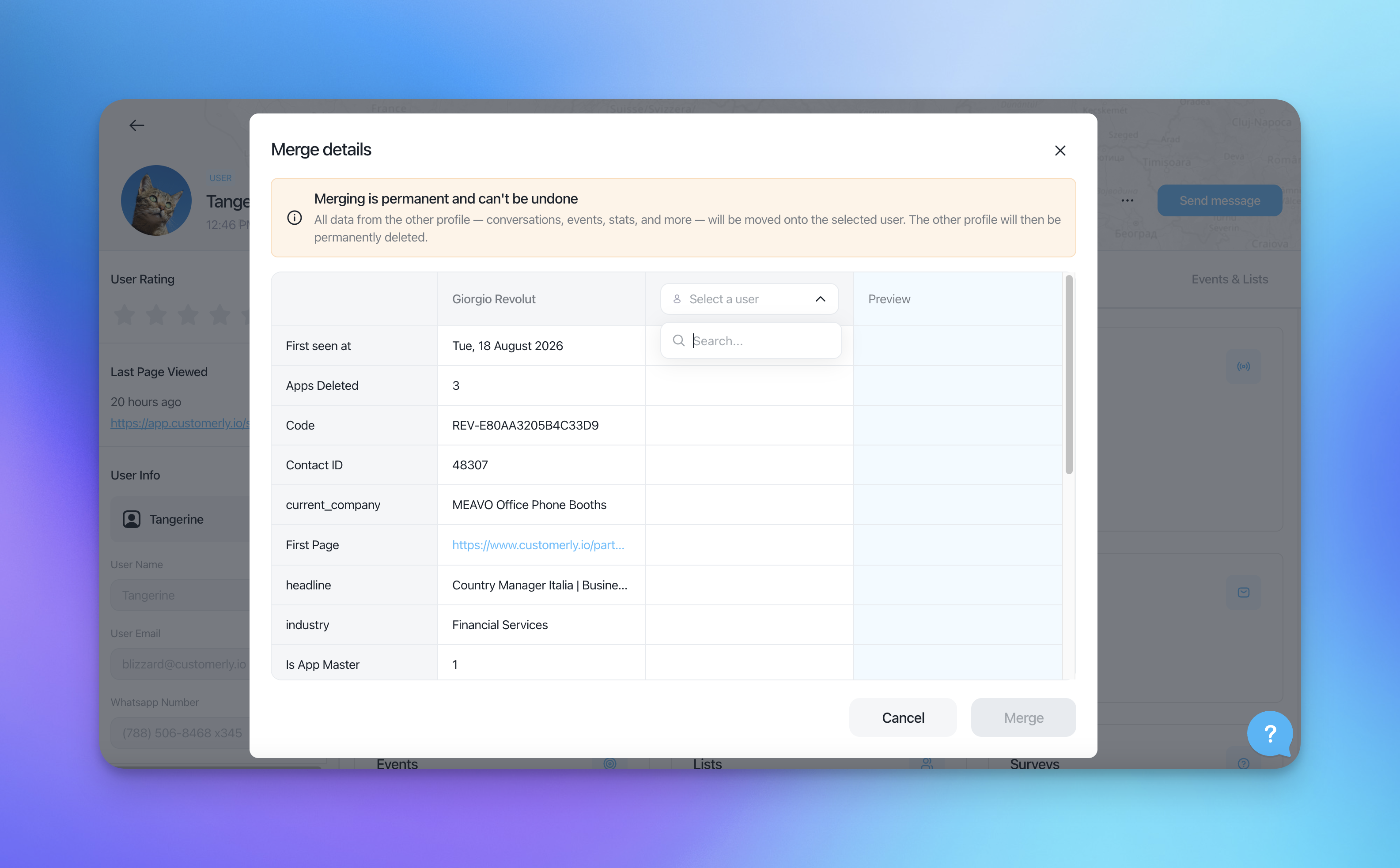
Review the comparison table. Once a user is selected, Customerly shows both profiles side by side, field by field (e.g. First seen at, Contact ID, current_company, headline, industry, etc.), along with a live Preview column showing what the final merged profile will look like.
Pick which value to keep for each field. Where the two profiles have conflicting data, use the "Keep this data" radio button under each column to choose which value survives the merge. Fields that only exist on one profile are carried over automatically.
Click "Merge" to confirm. The selected profile becomes the single source of truth, and the other one is deleted.
What gets merged
When you merge, the following data moves onto the kept profile:
Conversations and inbox history
Events and activity timeline
Stats (session numbers, apps deleted, etc.)
Custom attributes and properties (e.g.
current_company,headline,industry)
Tips
Search by user ID if two people share the same or a similar name, this avoids merging the wrong contact.
Always check the Preview column before clicking Merge, since it shows exactly what data will remain after the merge.
If you're not fully sure which profile is correct, cancel and verify with the customer first — this action cannot be reversed.