
Not everyone on your team needs to do everything. A support agent may need to work conversations in the Inbox but shouldn't be changing your outbound email campaigns, and a reporting stakeholder might only need to read your Insights. With granular permissions you decide, for every area of Customerly, whether a teammate has no access, can view only, or can fully edit.
The three permission levels
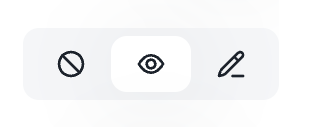
Every feature is controlled by a small set of icons. Each icon is one level of access:
No access — The feature is hidden from the teammate. They won't see it in their sidebar or menus at all.
View only — The teammate can open and read the feature, but cannot create, edit, or delete anything inside it. It's read-only.
Edit (full access) — The teammate can read, create, modify, and delete — everything the feature allows.
Some features only offer the levels that make sense for them. For example, Inbox complete access is a simple on/off switch (No access or Edit) rather than a three-level control.
How to set a teammate's permissions
Open Project settings from the left sidebar and click Teammates under Project & Team.
Click the edit (pencil) button next to the teammate you want to manage.
To give someone full control of everything, keep Make administrator turned on. To fine-tune access instead, switch Make administrator off — this unlocks the per-feature controls.
For each feature, click the icon for the level you want: No access, View only, or Edit.
Click Save permission.
Administrator vs. custom access
An Administrator can see and edit every feature and setting. The moment you remove full access, some areas become off-limits entirely: teammates, app settings, team members, and billing can no longer be accessed. These management areas are reserved for administrators.
Because of this, restricting even a single feature will switch a teammate from Administrator to a custom permission set. To restore full rights later, just toggle Make administrator back on — this resets every feature to full Edit access.
What each level unlocks, feature by feature
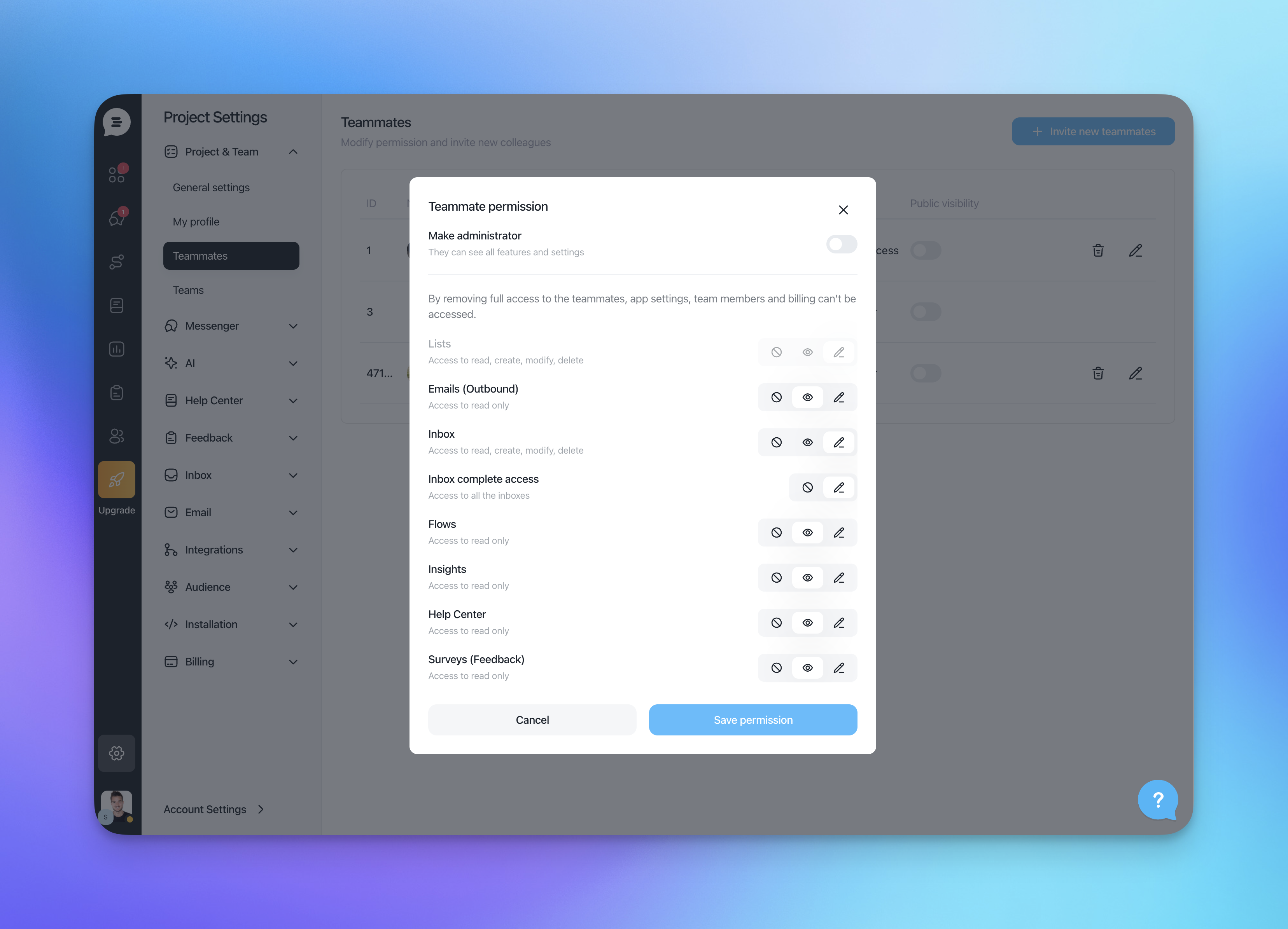
Here's what a teammate can do in each area depending on the level you assign. Set any feature to No access to hide it from the teammate completely.
Lists — View only: see existing lists and their contacts. Edit: create, modify, and delete lists.
Emails (Outbound) — View only: read outbound emails and campaigns. Edit: create, edit, send, and delete campaigns.
Inbox — View only: read conversations only (see the limits below). Edit: reply, note, assign, close, snooze, and manage conversations.
Inbox complete access — On: access all inboxes, not just assigned ones. Off: only assigned inboxes.
Flows — View only: view existing flows. Edit: create, edit, and delete flows.
Insights — View only: read reports and analytics. Edit: full access to Insights.
Help Center — View only: read articles and collections. Edit: create, edit, and delete articles.
Surveys (Feedback) — View only: read surveys and results. Edit: create, edit, and delete surveys.
Important: what “View only” means in the Inbox
When a teammate has View only access to the Inbox, they can open conversations and read the full history — but they cannot act on those conversations in any way. Specifically, a view-only teammate cannot:
Reply to a customer or send any message
Add private notes to a conversation
Close a conversation
Snooze a conversation
Assign or reassign a conversation to themselves or others
Change the status, apply tags, or otherwise modify the conversation
In short: they can watch, but not touch. This is ideal for observers, trainees, or stakeholders who need visibility without the ability to change anything.
The same principle applies everywhere: View only means read-only. In any feature set to this level, the teammate can look but cannot create, edit, or delete.
A note on Inbox complete access
By default, a teammate works within the inboxes they're assigned to. Turn on Inbox complete access to let them see and work across every inbox in your project. Leave it off to keep them scoped to their own assigned inboxes.
Once you've set the levels you want, don't forget to click Save permission to apply them. You can revisit and adjust a teammate's permissions at any time from Project settings → Teammates.