You can now segment your contacts not just by whether they did something, but by how many times they did it and inside which time frame.
Instead of "everyone who ever clicked New Message", you can now build lists like "everyone who clicked New Message more than 5 times in the last 30 days" — the kind of behavioural segment you need for onboarding nudges, power-user outreach, churn-risk alerts, and re-engagement campaigns.
Where to find it
Go to Contacts, then open the segment builder at the top of the list and click + Add filter. Pick an event-based condition and you'll get the new filter row:
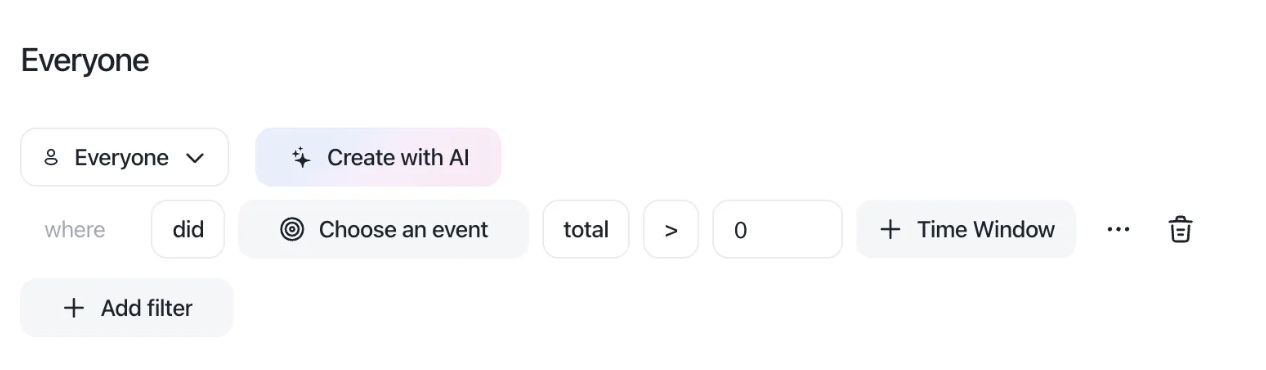
Every filter row reads like a sentence, left to right:
Part | What it does |
|---|---|
where did | Whether the contact performed the event or not |
Choose an event | The event you're targeting (any event you track in Customerly) |
total | How the occurrences are counted |
> | The comparison operator |
0 | The threshold the count is compared against |
+ Time Window | The period the count is limited to (optional) |
Build the filter step by step
1. Pick the event. Click Choose an event and select the event you want to measure — for example inbox click new message button. All the events you send to Customerly are available here, so the more granular your tracking, the sharper your segments.
2. Set the count. Leave the counter on total, choose the operator, and type the threshold. total > 0 means "did it at least once". total > 5 isolates your heavy users. Raise or lower the number to move between "activated" and "power user".
3. Add the time window. Click + Time Window and set the range — for instance in the last 30 days. This is the part that makes the segment live: the filter re-evaluates continuously, so contacts drop out of the list on their own once they stop doing the event.
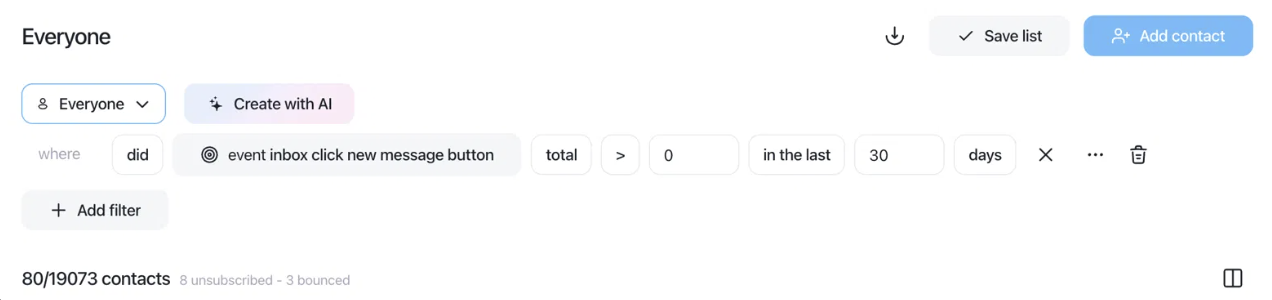
The contact count under the builder updates as soon as the filter is valid, so you always see the size of the audience before you act on it.
Tip: the time window is optional. Remove it with the ✕ next to it and the filter goes back to counting the event over the contact's entire history.
Save it, use it, export it
Once the numbers look right:
Save list turns the filter into a saved segment you can reuse across the product. Because it's dynamic, contacts enter and leave it automatically as their behaviour changes.
Use the saved segment as the audience of an email campaign, an in-app message, or a survey.
Use the export icon to download the matching contacts as a CSV.
You can stack several filter rows with + Add filter to combine event counts with contact attributes — for example "clicked New Message more than 10 times in the last 7 days" and "plan = Free" to find upgrade candidates.
Segment ideas to steal
Goal | Filter |
|---|---|
Find power users to invite to an interview |
|
Spot churn risk before renewal |
|
Reward newly activated users |
|
Re-engage dormant accounts |
|
Trigger upsell to feature-hungry users |
|
Good to know
The count only includes events received by Customerly. If an event started being tracked two weeks ago, a 30-day window can only see those two weeks.
Event names are case-sensitive and must match exactly what you send through the SDK or API.
Time windows are rolling, not fixed calendar periods: "in the last 30 days" always means the 30 days ending today.
Need a hand building a specific segment? Start a conversation from the messenger — we're happy to write the filter with you.