
You can now restrict when a Flow runs based on time of day and day of week. This means a Flow can be set to trigger only during your business hours, only outside them, or during any custom time window you define — without any manual toggling.
Where to find it
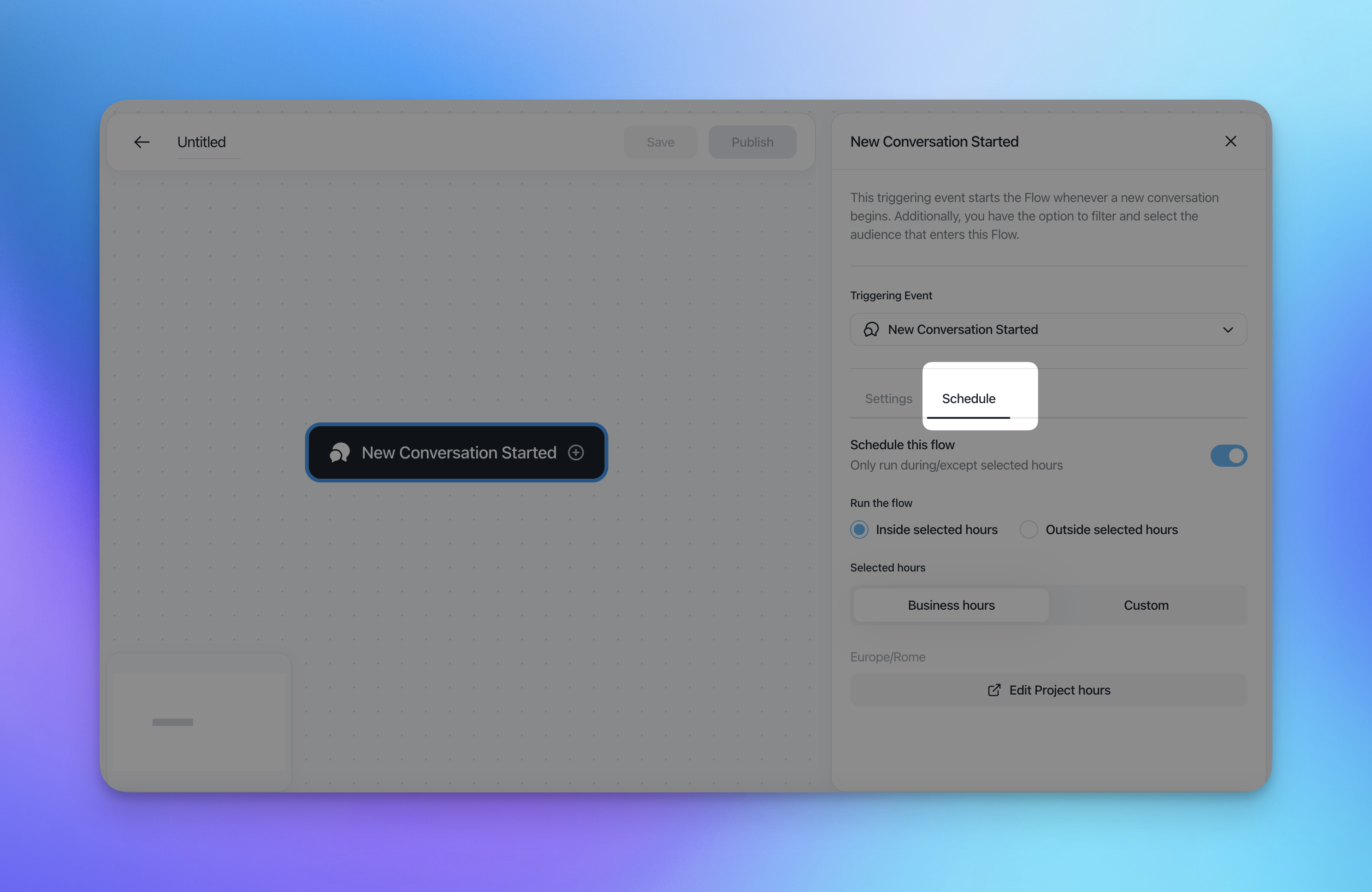
The schedule setting is available on the trigger node of a Flow. Open any Flow, click the trigger (e.g. New Conversation Started), and switch to the Schedule tab.
How to configure it
1. Enable scheduling
Toggle Schedule this flow on. When enabled, the Flow will only run during (or outside) the time window you define.
2. Choose the mode
Option | Behaviour |
|---|---|
Inside selected hours | The Flow only triggers during the time window you set |
Outside selected hours | The Flow only triggers outside the time window (e.g. after hours, weekends) |
Example: To let Aura AI handle conversations only when your team is offline, select Outside selected hours and set your business hours as the window.
3. Set the hours
Choose between:
Business hours — reuses the business hours already configured at workspace level (recommended to avoid redefining them per Flow)
Custom — define one or more specific time windows directly on this Flow
For custom windows, select:
Day(s) — choose Everyday, specific weekdays, or weekends
Start time and End time
Click + Add hours to add multiple windows (e.g. a separate window for weekends)
Midnight-crossing windows: To set a window like 18:00 → 09:00 the following morning, create two entries: one for 18:00–23:59 and one for 00:00–09:00, or use the Outside mode with a 09:00–18:00 window instead.
4. Timezone
The schedule runs in the timezone shown at the bottom of the panel (defaults to your workspace timezone). Make sure this matches the timezone of your team or the contacts you're targeting.
Business hours switch node
In addition to scheduling directly on the trigger, business hours logic is also available as a standalone Business hours switch node you can add anywhere in the Flow.
Where to find it
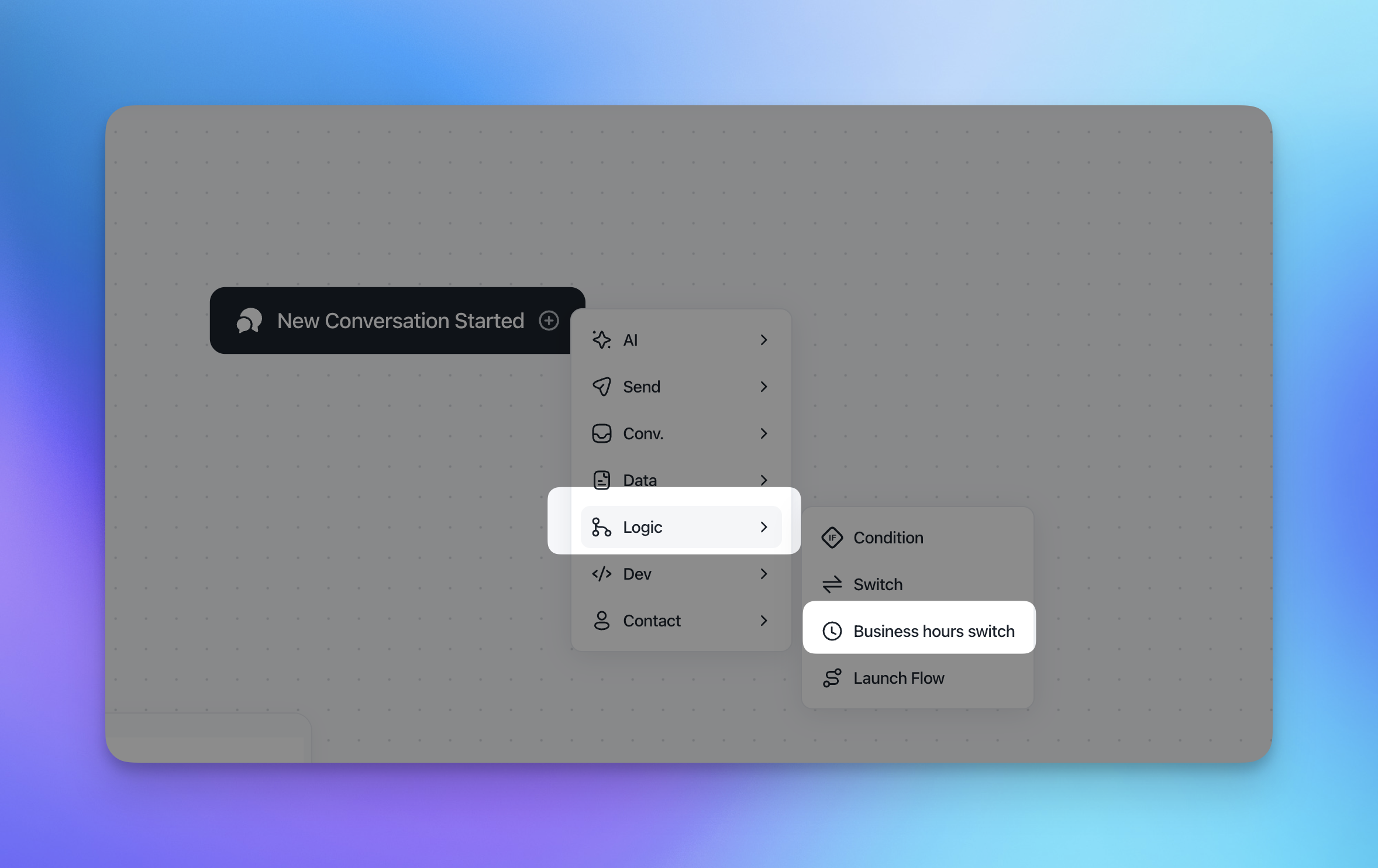
Add a node to your Flow and select Business hours switch. It reuses the business hours already configured at workspace level, the same as the Business hours mode described above.
How it works
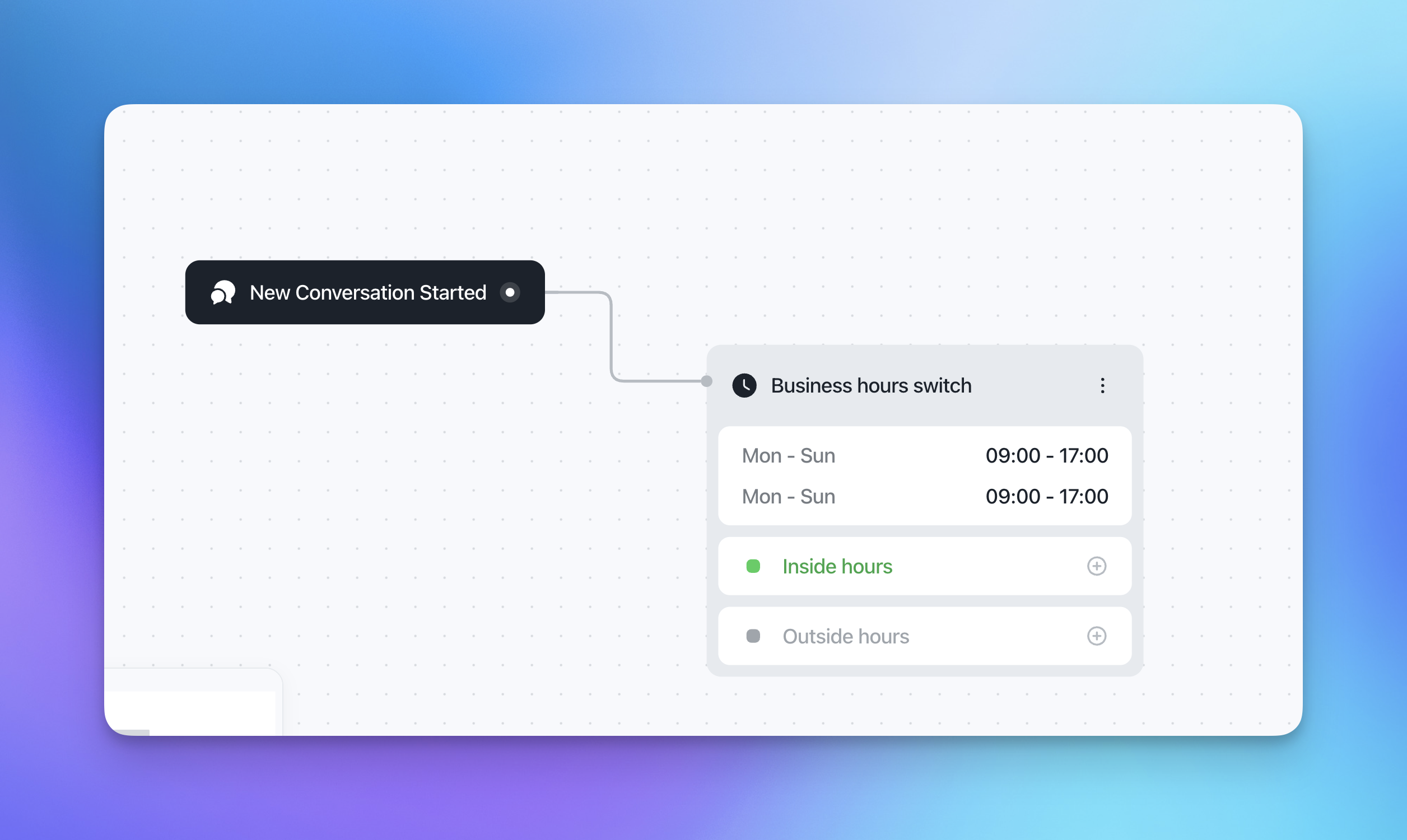
The node evaluates the current time against your configured business hours and branches the Flow into two paths:
Inside hours — conversation continues down this path if it arrives during business hours
Outside hours — conversation continues down this path if it arrives outside business hours
When to use this instead of the trigger's Schedule tab
The Schedule tab on the trigger decides whether the whole Flow runs at all. The Business hours switch node decides what happens partway through a Flow that's already running — so it's the better choice when:
You want a single Flow to handle both inside- and outside-hours conversations with different logic, rather than maintaining two separate Flows
The time check needs to happen after some other step (e.g. after checking the contact's plan or region), not right at the start
You want to branch on business hours mid-Flow without duplicating the trigger setup
Example: A single Flow triggers on New Conversation Started, checks the contact's account tier first, then hits a Business hours switch — inside hours routes VIP contacts straight to a human agent, while outside hours routes everyone (VIP or not) to Aura AI.
Common use cases
Aura AI after hours only Set the Flow trigger to Outside selected hours, with your business hours (e.g. Mon–Fri, 09:00–18:00) as the window. Aura takes over automatically from 18:00 through the night and all weekend.
Different flows for different time windows Create two separate Flows with the same trigger — one scheduled inside business hours (routes to human agents), one scheduled outside (triggers Aura or sends an auto-reply). Customerly evaluates them in order and runs the first one that matches.
Regional coverage If you have teams in different time zones, create separate Flows with custom time windows and set each to the relevant timezone.
Weekend escalation Add a custom window for Saturday and Sunday (all day) and route those conversations to a dedicated queue or auto-responder.
Tips
Use Business hours mode rather than Custom whenever possible — if your office hours change, you only need to update them in one place.
Schedule is visible on the Flow list so you can see at a glance which Flows are time-restricted.
Always double-check the timezone before publishing, especially if your workspace spans multiple regions.
Test your Flow at the edge of a time window (e.g. one minute before it becomes active) to confirm the expected behaviour.