
The Start a Conversation node lets you proactively reach out to contacts directly from a workflow. It's an outbound action — the message is sent silently in the background and only becomes a visible conversation in your inbox if the contact replies.
What it does
When a workflow reaches the Start a Conversation action, Customerly sends a message (or internal note) to the matched contact. This is treated as a campaign until the contact responds. Once they reply, it becomes a live conversation and appears in your inbox like any other inbound conversation.
This means your team only sees the conversations that actually need attention — no noise from messages that were never answered.
How to configure it
1. Direction
Choose how the conversation should be attributed:
Option | When to use |
|---|---|
To Contact | You're sending an outbound message to the contact |
From Contact | The conversation is created as if it came from the contact (useful for internal tracking or notes) |
2. Start with
Select what to open the conversation with:
Message — sends a visible chat message to the contact
Note — creates an internal note (not visible to the contact)
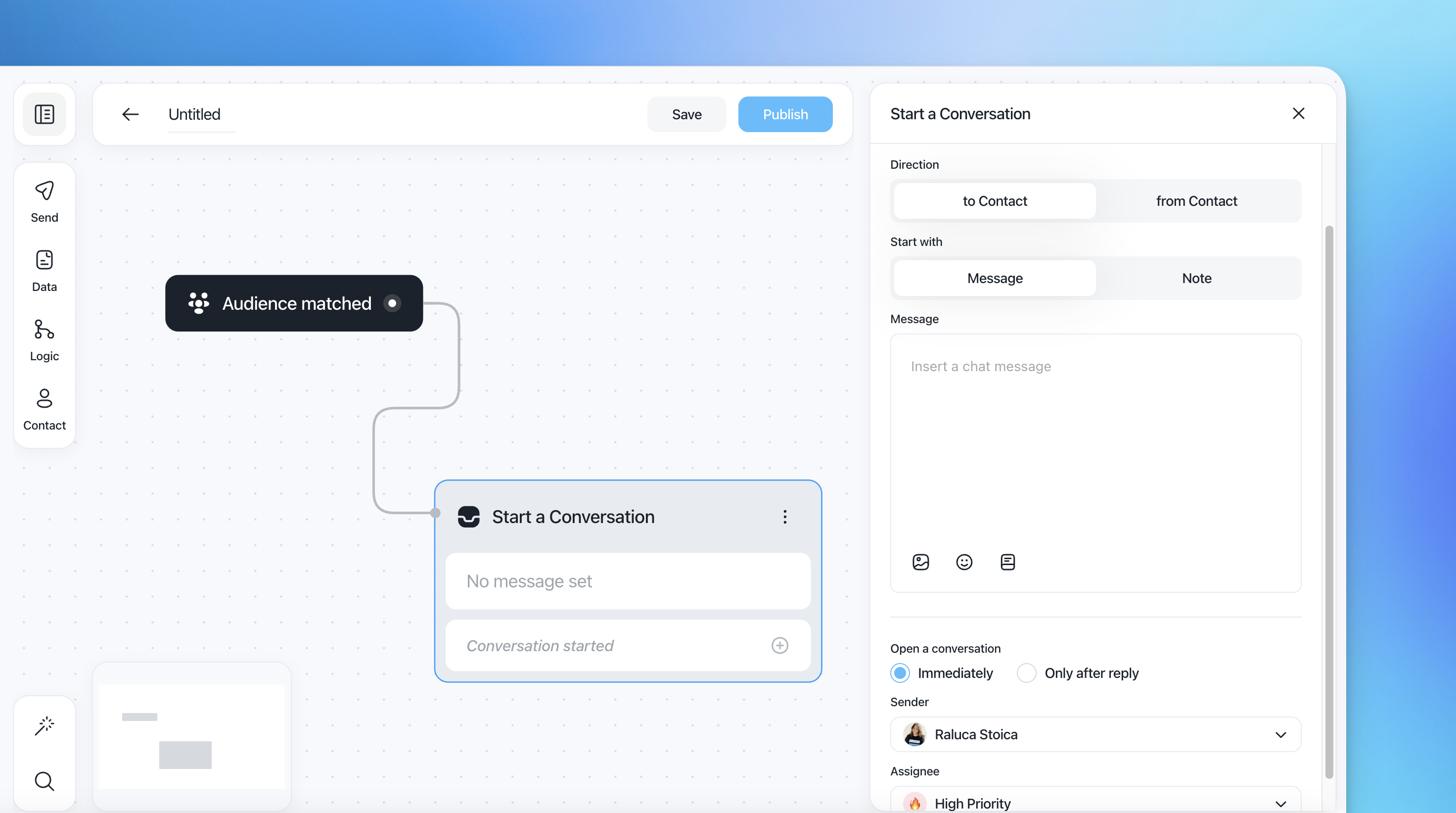
3. Write your message
Type your message in the text field. You can enrich it with variables, emojis, or rich text using the toolbar at the bottom of the message area.
4. Open a conversation
This setting controls when the conversation appears in your inbox:
Option | Behaviour |
|---|---|
Immediately | The conversation is created and visible in the inbox as soon as the node runs |
Only after reply | The message is sent as a campaign. The conversation only appears in the inbox when the contact replies |
Recommended: Use Only after reply for outbound outreach flows. This keeps your inbox clean and focused on contacts who are actively engaging.
5. Sender
Choose which agent the message is sent from. The contact will see this person's name and avatar.
6. Assignee
Set who the conversation should be assigned to if it opens. You can assign it to a specific agent, a team, or leave it as a priority queue (e.g. High Priority).
Example use case
Re-engagement campaign
Trigger: Audience Matched — contacts who haven't opened a conversation in 30 days
Node: Start a Conversation → Direction: To Contact → Start with: Message → Open: Only after reply
Message: "Hi {{first_name}}, just checking in — is there anything we can help you with?"
Sender: your support agent
Branch on Conversation started → assign to team or run follow-up steps
The message goes out quietly. If the contact replies, the conversation lands in your inbox and your team picks it up.
Tips
Only after reply is ideal for outbound sequences where you don't want to flood your inbox with unanswered messages.
Immediately is better suited for internal workflows where you want a record of every interaction regardless of reply.
Pair this node with Conversation Views to filter and manage conversations opened via workflows separately from inbound ones.