
Overview
Flows in Customerly can be triggered automatically based on events — but sometimes you need more control. The On Demand launch method lets you trigger any Flow manually, either directly from a conversation in your inbox or by calling it from another Flow using the Launch Flow step.
This is useful when you want to:
Run a specific Flow in response to a conversation without waiting for an automated trigger
Chain Flows together as part of a more complex automation sequence
Give your team the ability to initiate structured workflows at exactly the right moment in a conversation
The On Demand Trigger
When building a Flow, you can set its triggering event to On Demand. This means the Flow will not start automatically — it will only run when explicitly launched by a teammate from the inbox, or called by another Flow.
To configure a Flow with this trigger:
Open the Flow builder and click on the starting node
Under Triggering Event, select On Demand
Build your Flow steps as usual
Click Publish Changes when ready
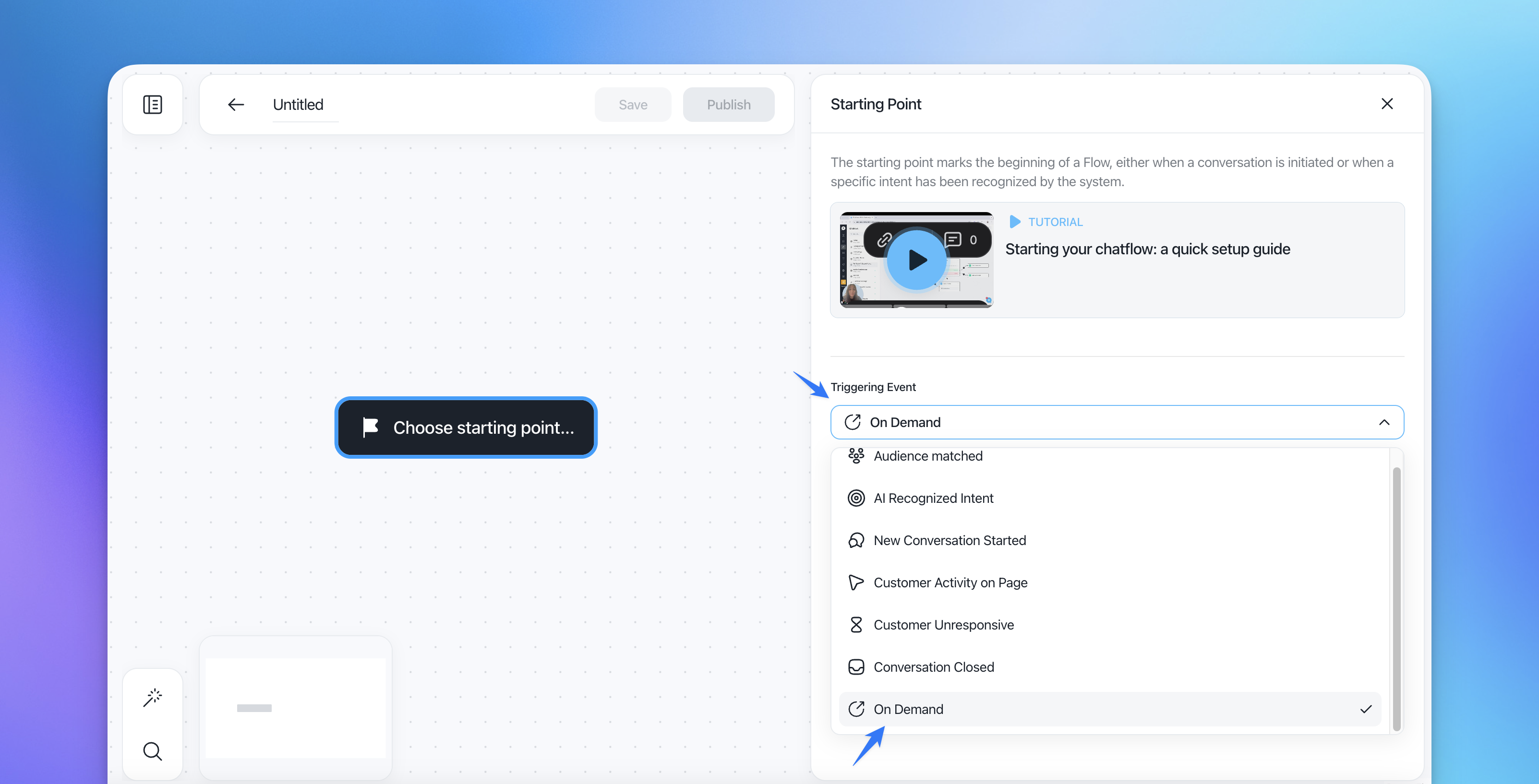
Once published, the Flow will appear in the launch menu inside conversations, ready for your team to trigger manually.
Launching a Flow from the Inbox
Any published Flow can be launched manually from a conversation in your inbox — not just Flows with the On Demand trigger.
To launch a Flow from a conversation:
Open the conversation
Click the ⋯ (more options) menu at the top right
Select Launch a Flow
Choose the Flow you want to trigger
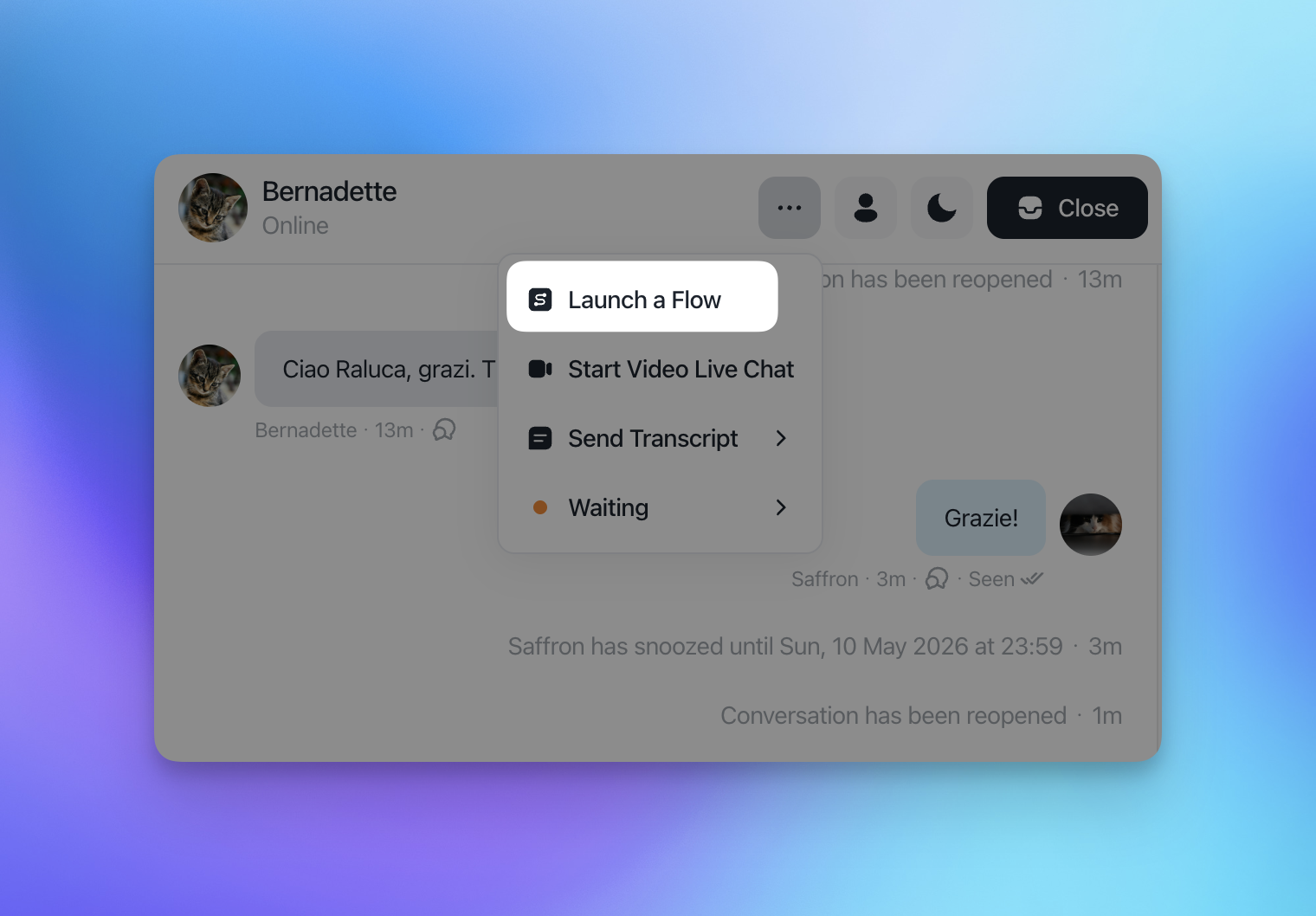
⚠️ Important: If Aura is currently managing the conversation, Launch a Flow will be disabled and you'll see the message: "Cannot launch a flow while Aura is managing this conversation." You'll need to take over the conversation from Aura before launching a Flow manually.
Calling a Flow from Another Flow
You can trigger a Flow from within another Flow using the Launch Flow step, found under Logic in the Flow builder's step menu.
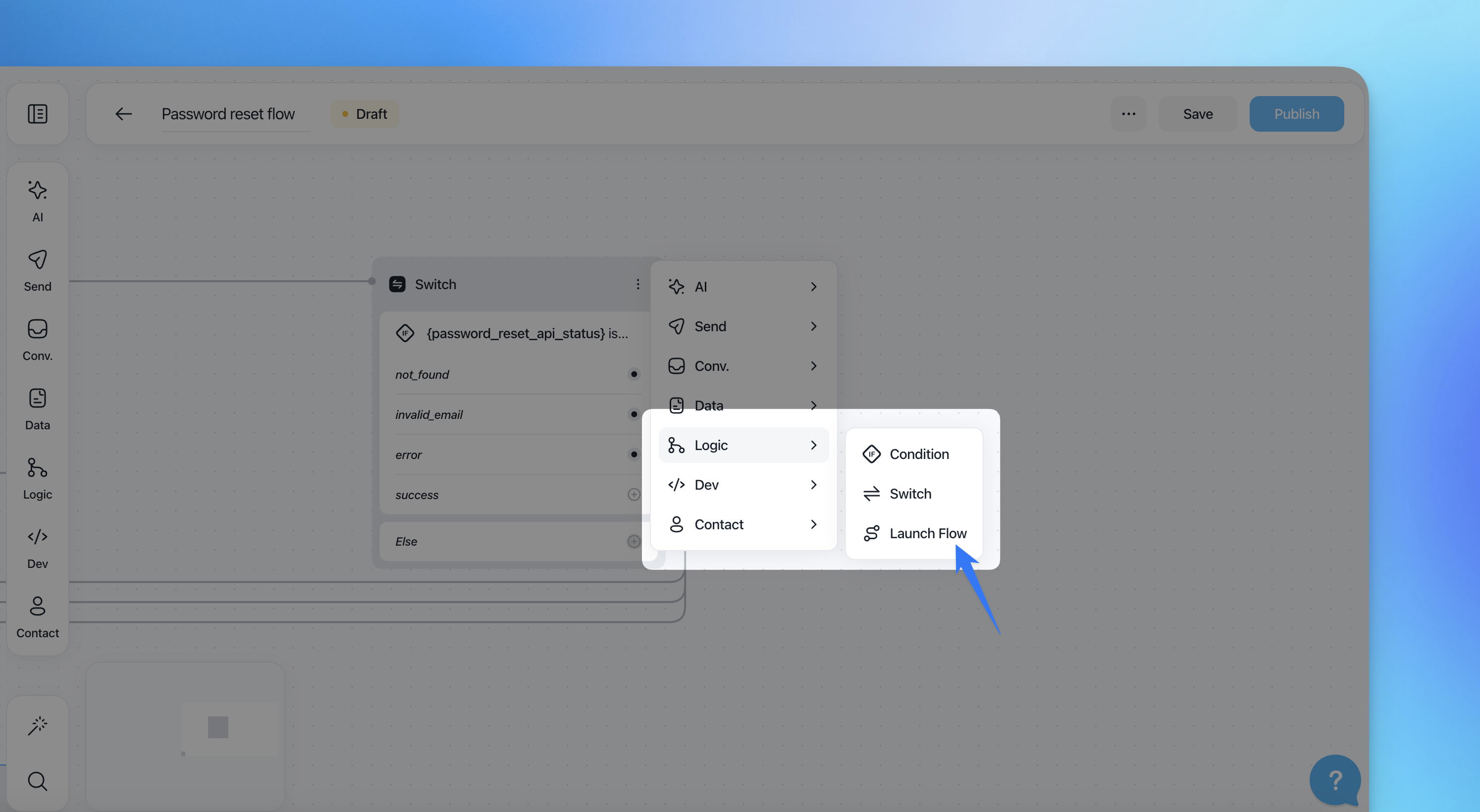
This lets you build modular, reusable automation sequences. Rather than duplicating logic across multiple Flows, you can keep shared routines in a dedicated On Demand Flow and call it whenever needed.
Real-world example — Bug Escalation Flow:
A practical use case is a bug reporting and escalation workflow. When a teammate identifies a potential bug during a conversation, they launch an On Demand Flow from the inbox. The Flow:
Triggers an AI Mission step that collects all relevant bug details from the conversation (summary, product area, reproduction steps, etc.)
Makes a REST API call to ClickUp to automatically create a task
On success, adds an Internal Conversation Note with the ClickUp task URL
On failure, adds a note with the AI-generated summary and assigns the conversation to the Bugs team for manual follow-up
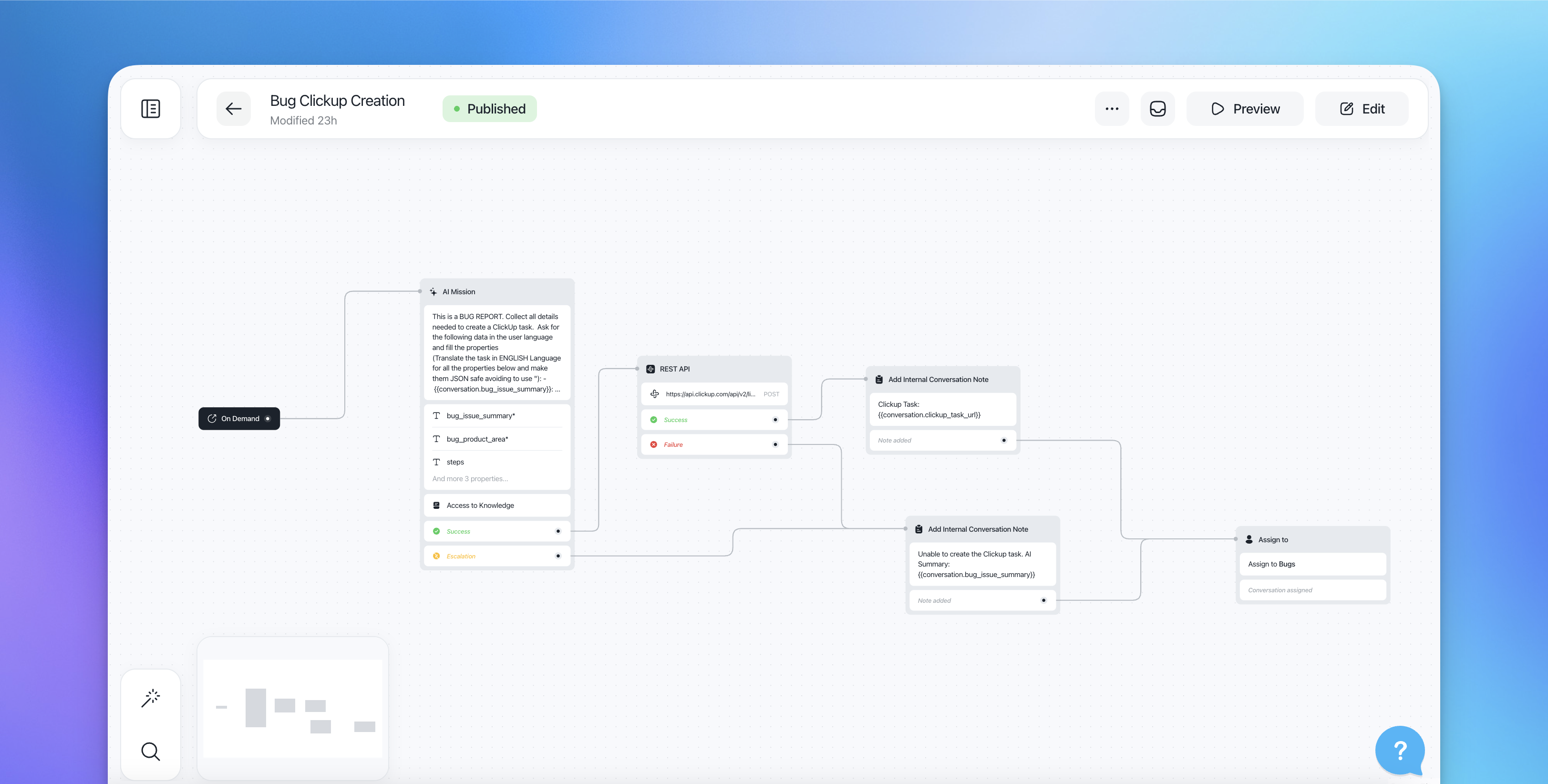
This means your team can escalate a bug to your external task management system in one click, without leaving the conversation.
Things to Keep in Mind
Any published Flow can be launched on demand from the inbox, regardless of its trigger type. The On Demand trigger is specifically for Flows that should only run when explicitly called, never automatically.
Launching a Flow from the inbox applies to that specific conversation, not to all conversations with that contact.
The Launch Flow step is found under Logic in the Flow builder step menu, alongside Condition and Switch.
Only published Flows appear in the launch menu and are available to be called by other Flows. Drafts are not shown.