
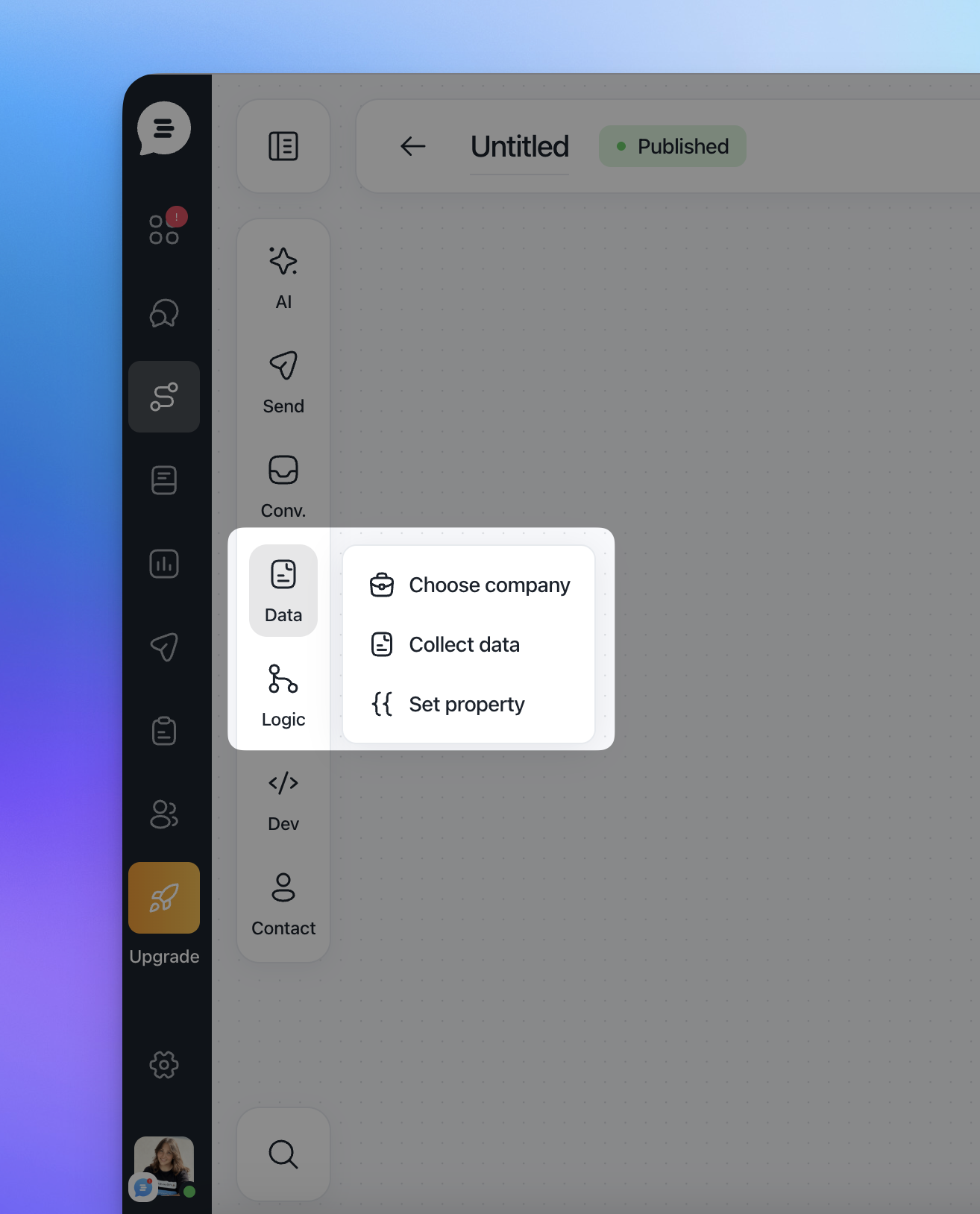
The Data action is used to identify the correct context for a conversation and to store structured information directly into contact or company properties. It is typically used at the beginning of a flow or whenever you need to collect, normalize, or update data that will be reused later in the conversation or across your CRM.
Within the Data action, you can use three different blocks:
Choose company
Collect data
Set property
Each block serves a different purpose and can be combined depending on your use case.
Choose company
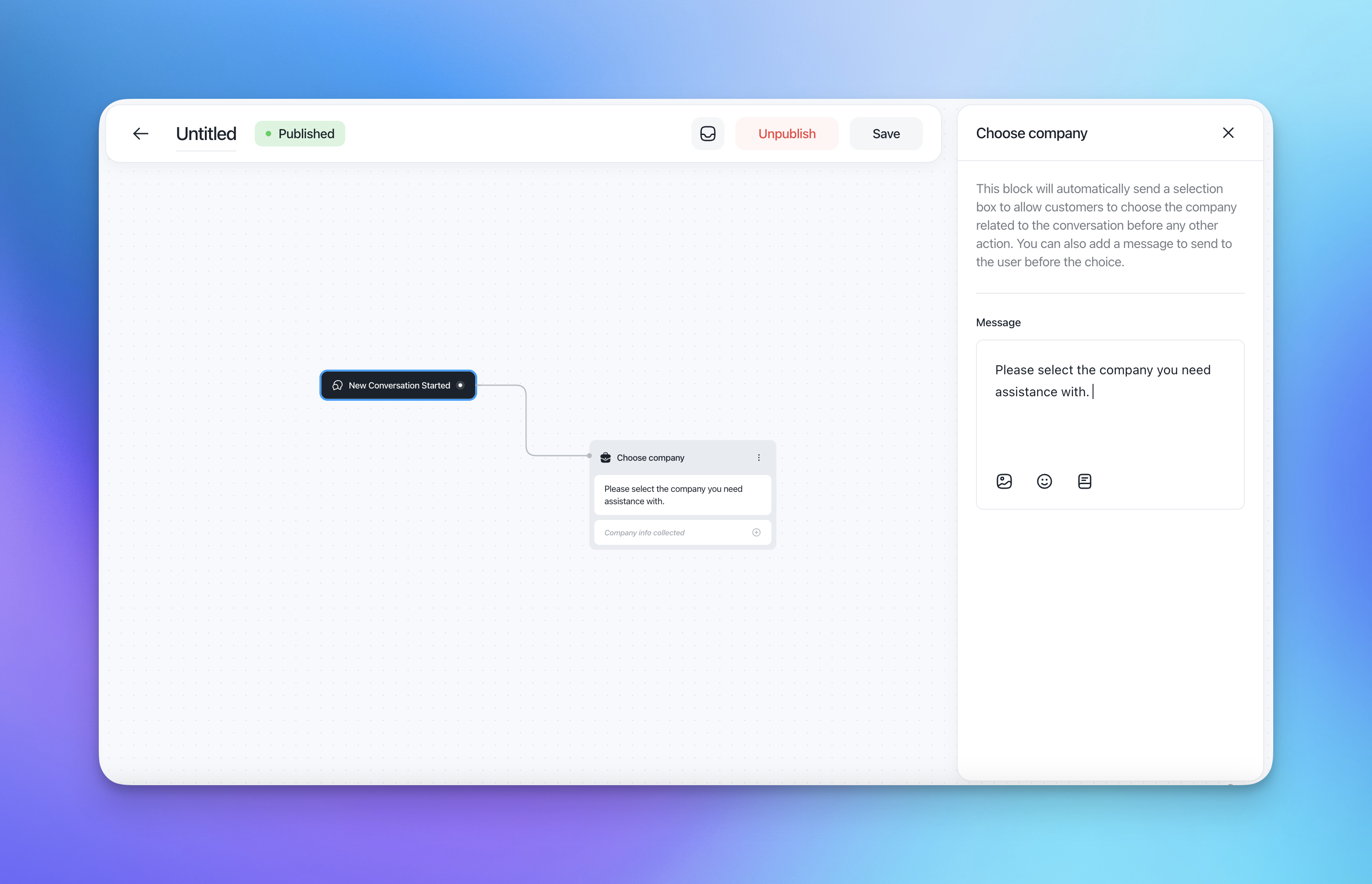
The Choose company block is designed for contacts associated with multiple companies.
When this block is triggered, the system automatically displays a dropdown to the end user, allowing them to select which company the current conversation refers to. This ensures that any subsequent actions (data collection, property updates, routing, or automations) are applied to the correct company.
Key characteristics
The dropdown is shown only if the contact has more than one company associated.
The selection happens before any other action in the flow.
You can optionally add a short message to introduce the choice (for example, asking the user to select the relevant company).
When to use it
B2B environments where contacts manage multiple accounts
Support or sales flows that depend on company-level data
Any scenario where company-specific properties or logic are used later in the flow
Collect data
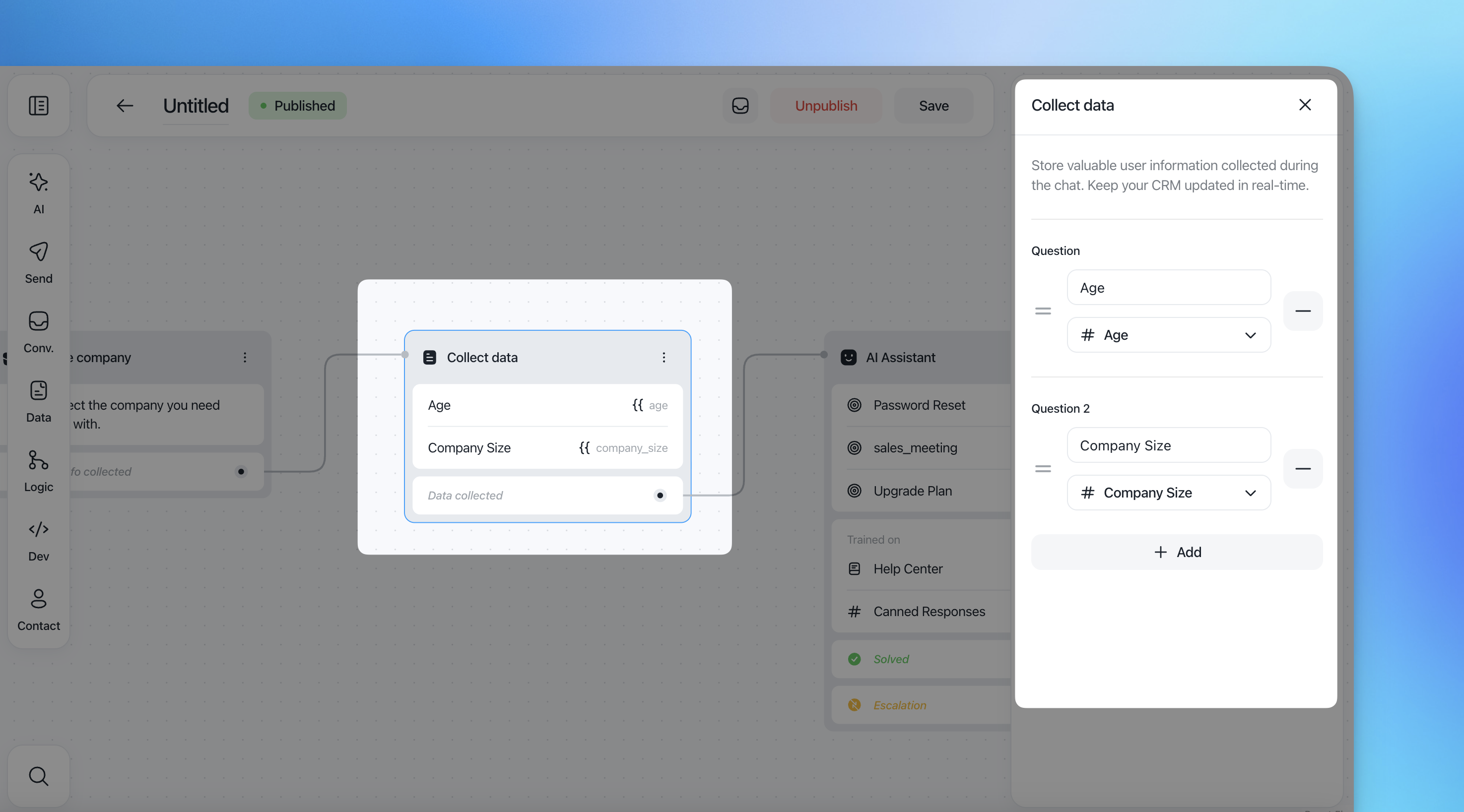
The Collect data block is used to ask a question during the conversation and store the user's answer in a specific property.
This block allows you to enrich your CRM in real time by mapping user input to contact or company properties.
How it works
You define a question that will be shown to the user.
You select the target property where the answer should be stored.
Once the user replies, the value is automatically saved in the selected property.
Key characteristics
Works with both contact and company properties.
Properties can be selected from existing ones or created on the fly.
The collected value can be reused later in the flow (for conditions, messages, or actions).
If the property has a value, the question will be skipped.
Typical use cases
Collecting missing profile information (role, location, account type)
Qualifying leads or support requests
Keeping CRM data aligned with what users share in conversations
Set property
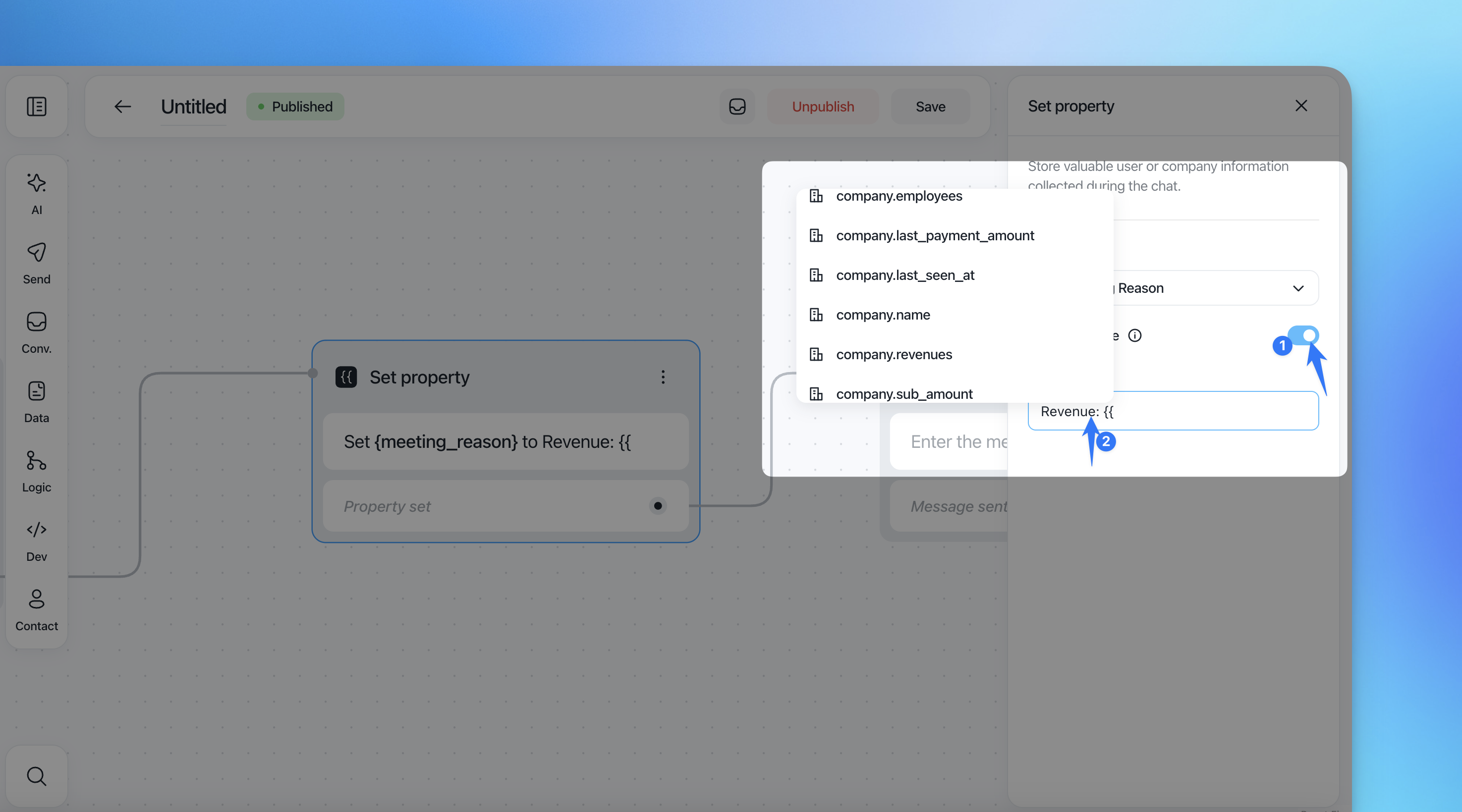
The Set property block is used to update a contact or company property without asking a question to the user.
Instead of relying on user input, this block assigns a value directly to a selected property.
Static values
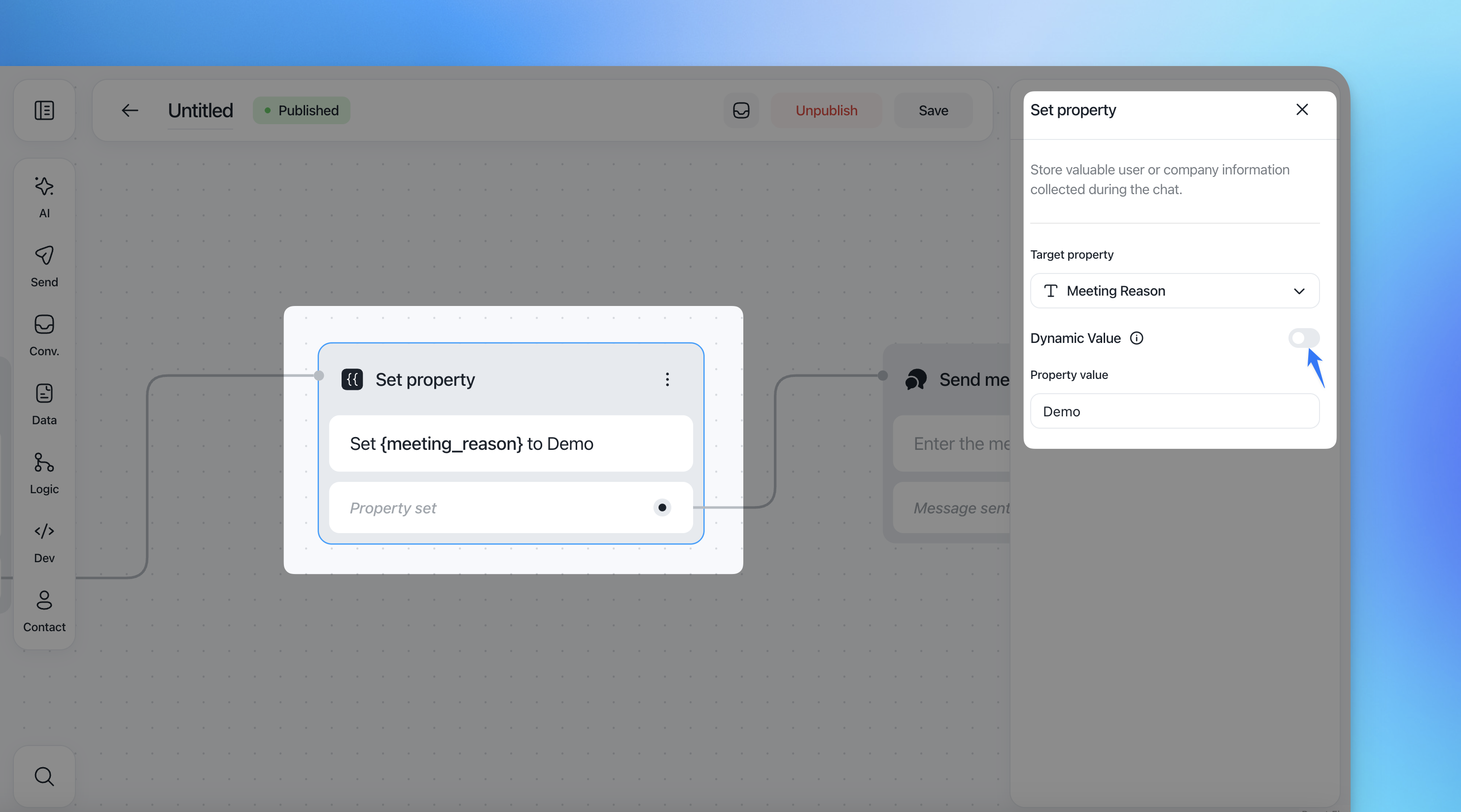
You can set a fixed value (for example, Meeting Reason = Demo) that will always be applied when the action is reached.
Dynamic values
By enabling Dynamic value, you can reference existing variables and properties using placeholders.
This allows you to:
Copy values from one property to another
Combine dynamic variables with static text
Store system or contextual data automatically
For example:
Setting a property equal to
{{contact.email}}Combining text and variables, such as
Plan: {{company.plan}}
Key characteristics
Does not require user interaction
Supports both contact and company properties
Can use dynamic variables available in the flow context
Typical use cases
Normalizing or transforming collected data
Tagging contacts or companies based on flow logic
Persisting values that will be used in reporting, routing, or automation