
The Send action is used to deliver messages to users inside a flow. It's the most basic and frequently used action, as it defines what the user sees and how the conversation progresses.
From the Send section, you can choose between two action types:
Send message
Send choice
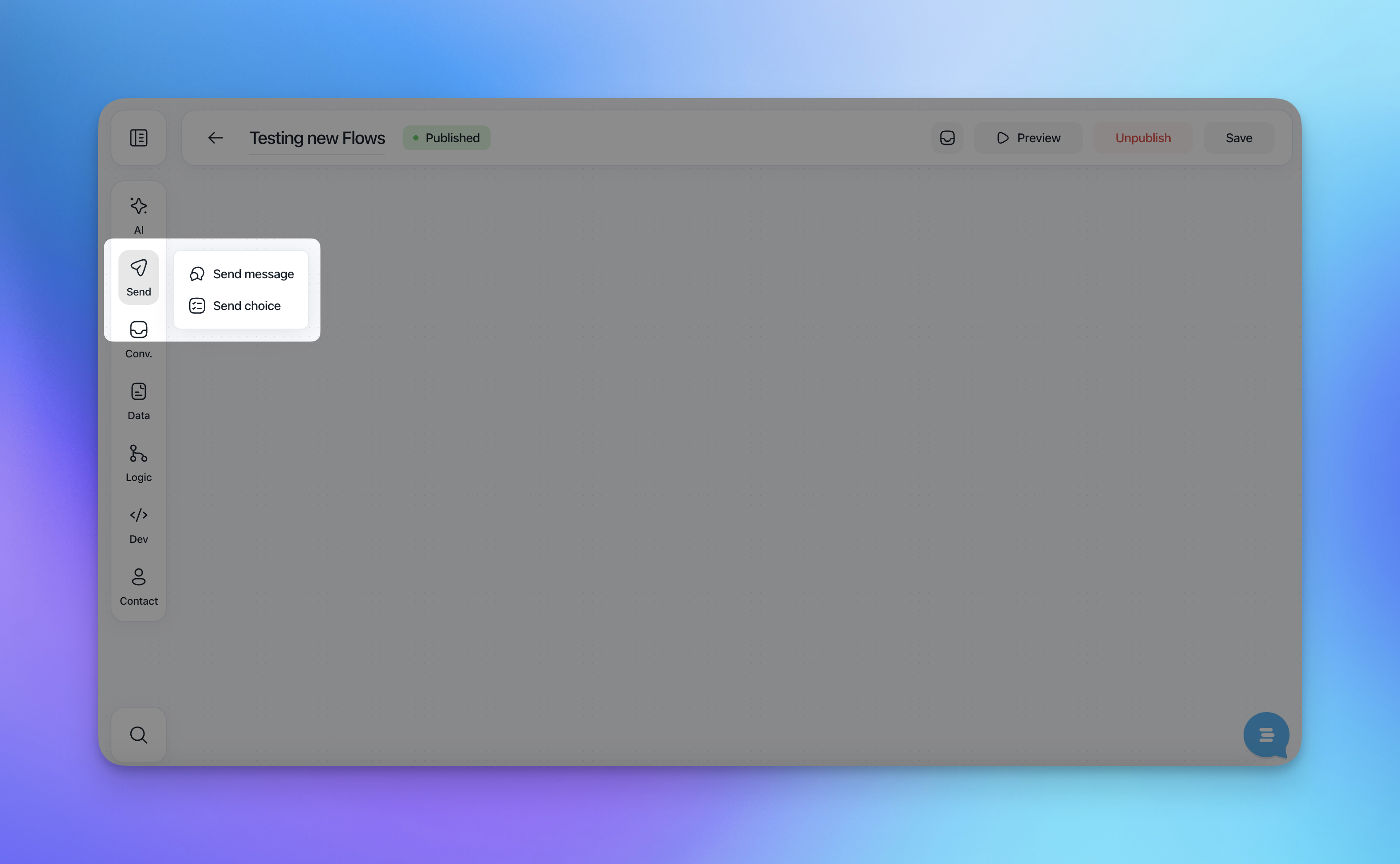
Send message
The Send message action allows you to send a message to the user without requiring an explicit selection to continue.
What you can do with a Send message
Write plain text messages to guide or inform the user
Personalize content using images, articles and emoji
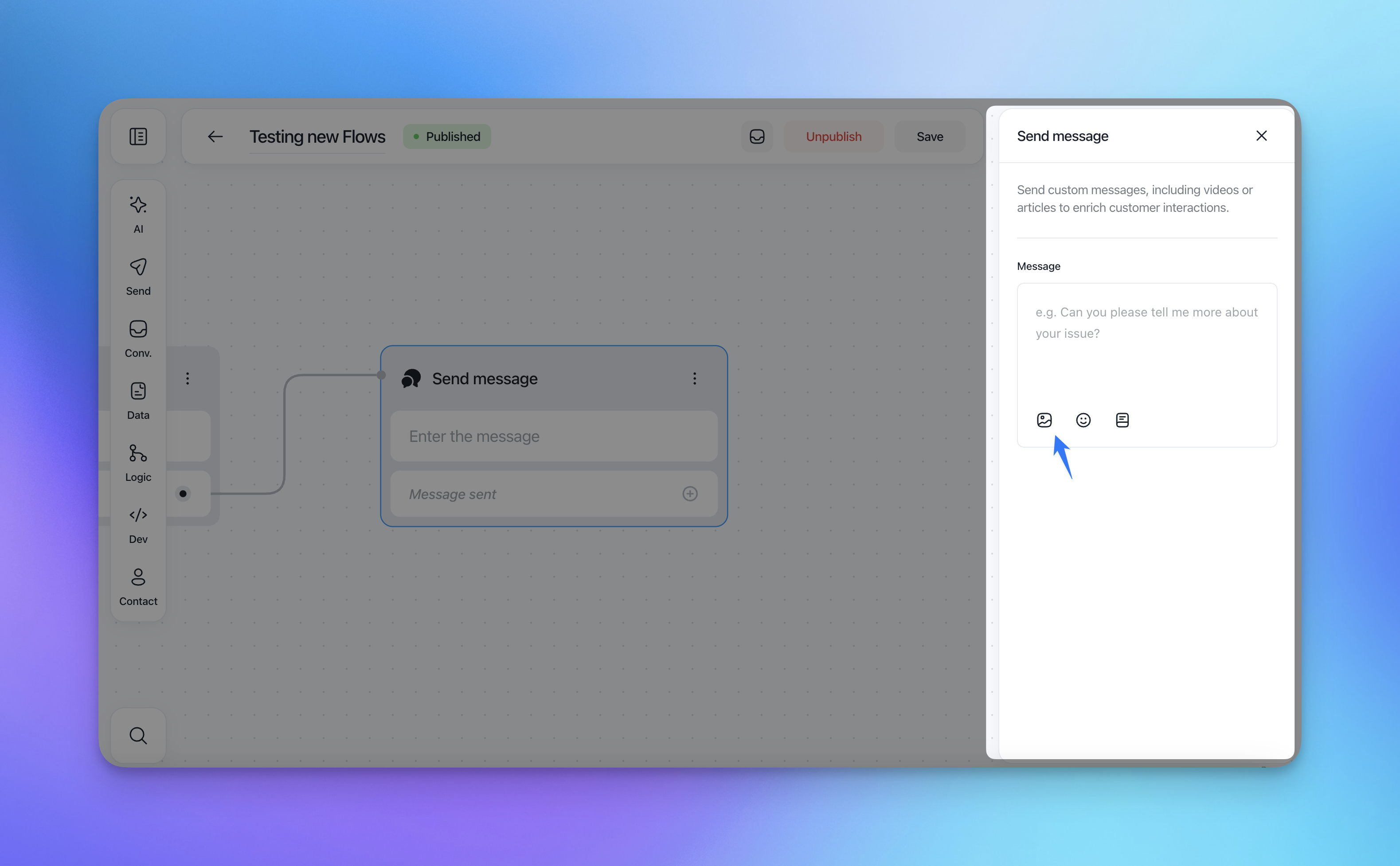
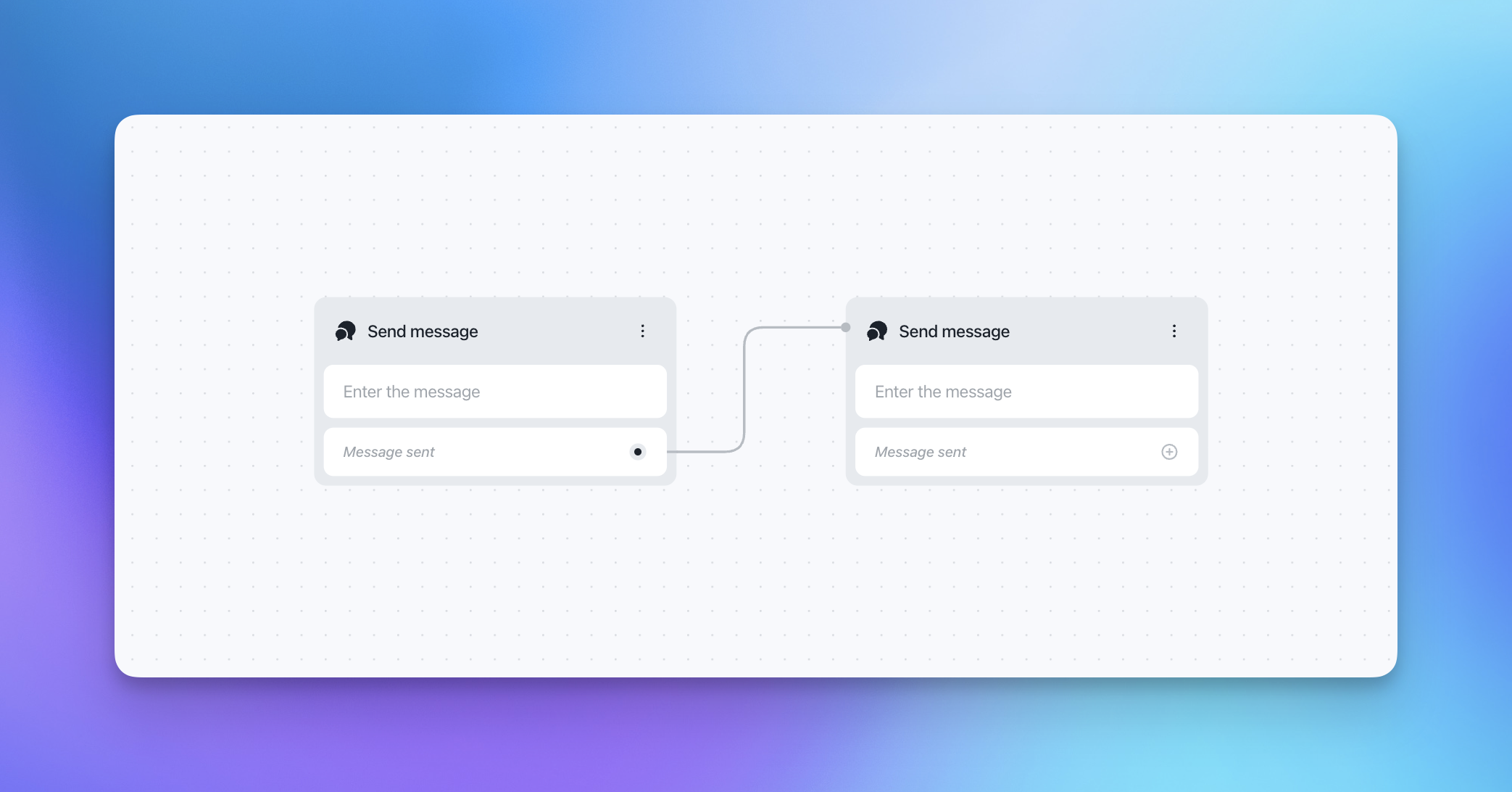
Chain multiple Send message actions to structure longer replies
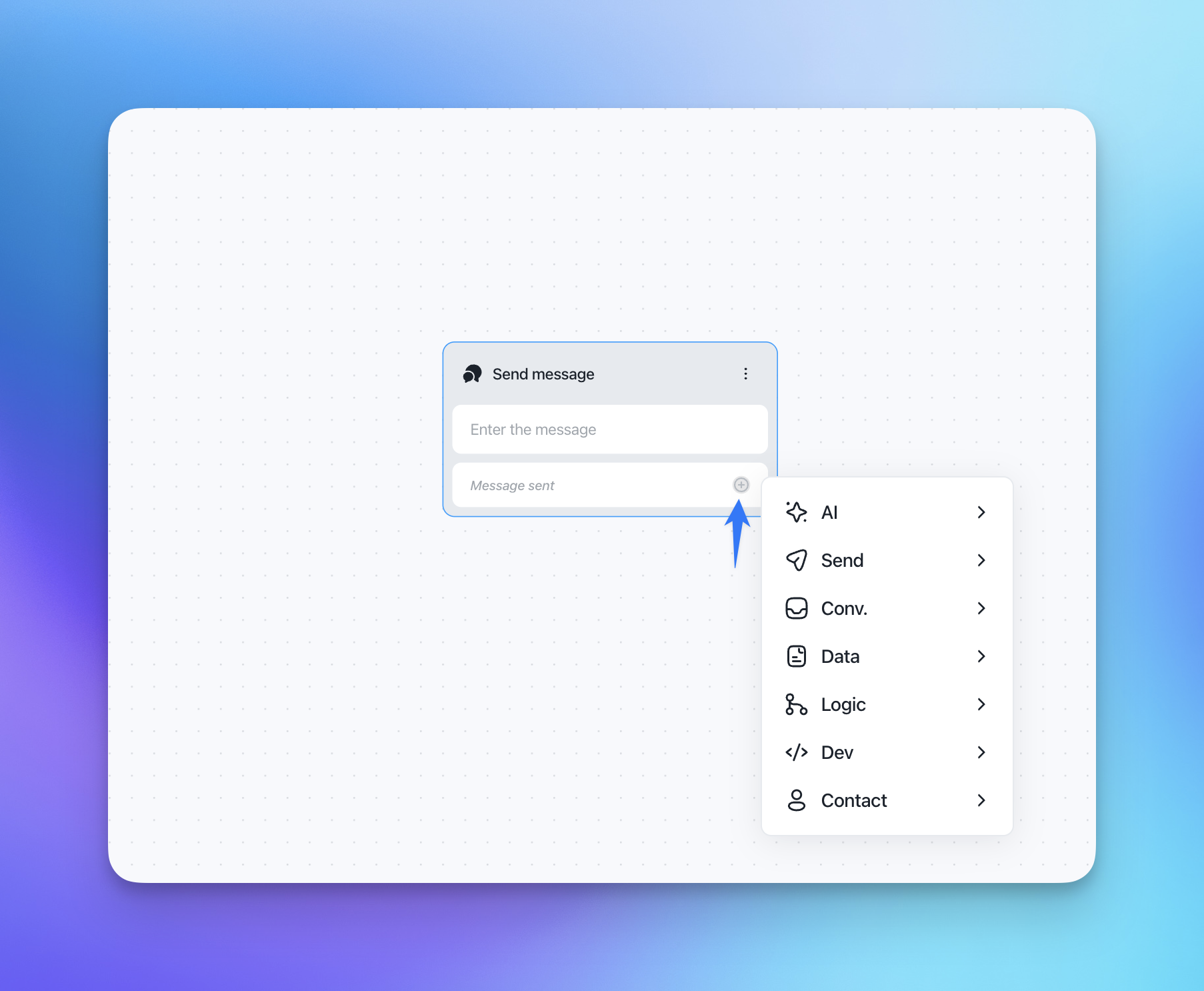
Connect the message to any other action to continue the flow
Duplicate or delete the action
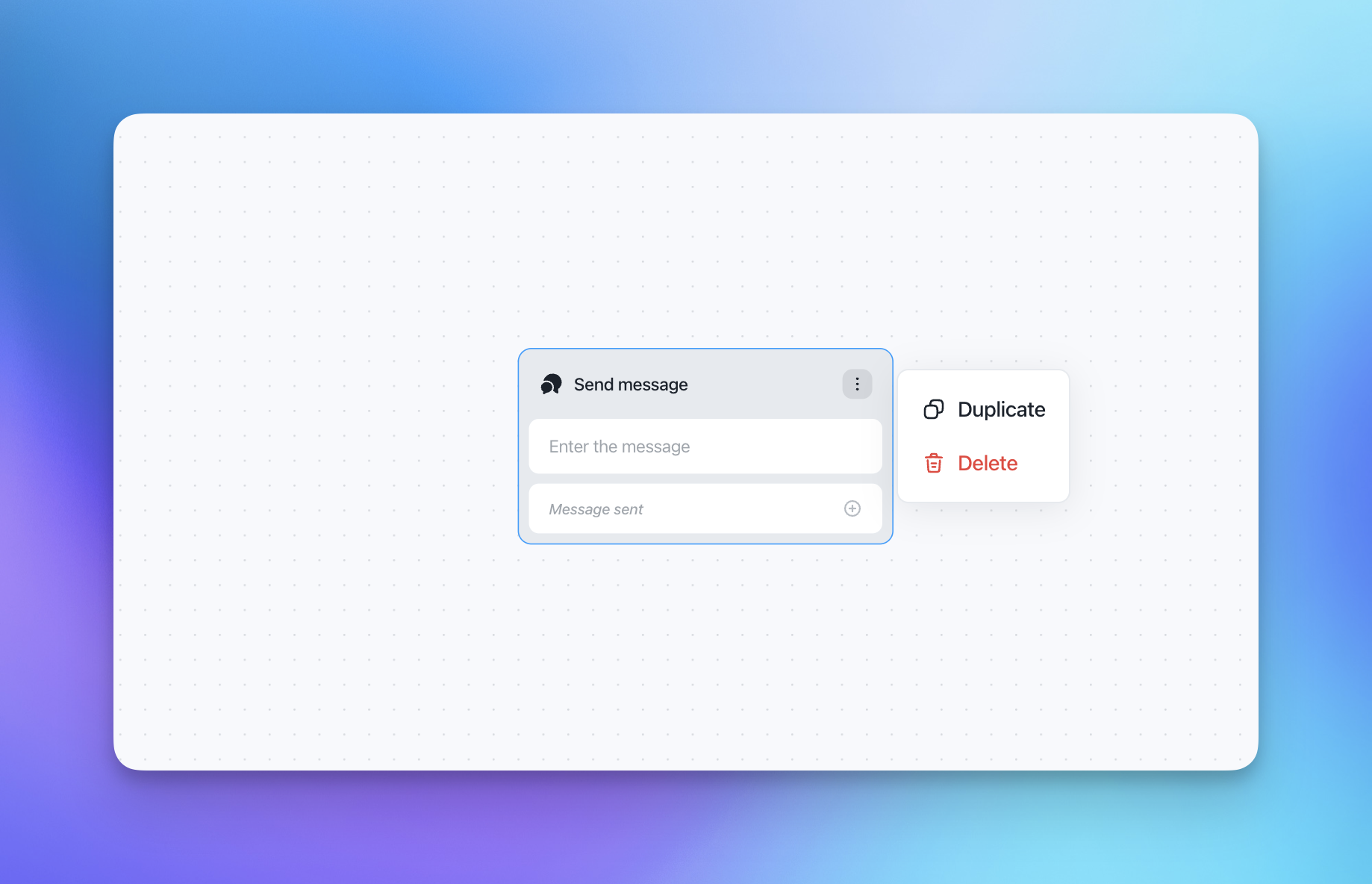
This action is ideal for:
Welcome messages
Explanations or instructions
Confirmations and follow-ups
Transitions between different parts of a flow
Once the message is sent, the flow automatically continues to the next connected action.
Send choice
The Send choice action allows you to show a message followed by selectable options. Each option represents a controlled user action and can be used both to branch the flow and to store user data.
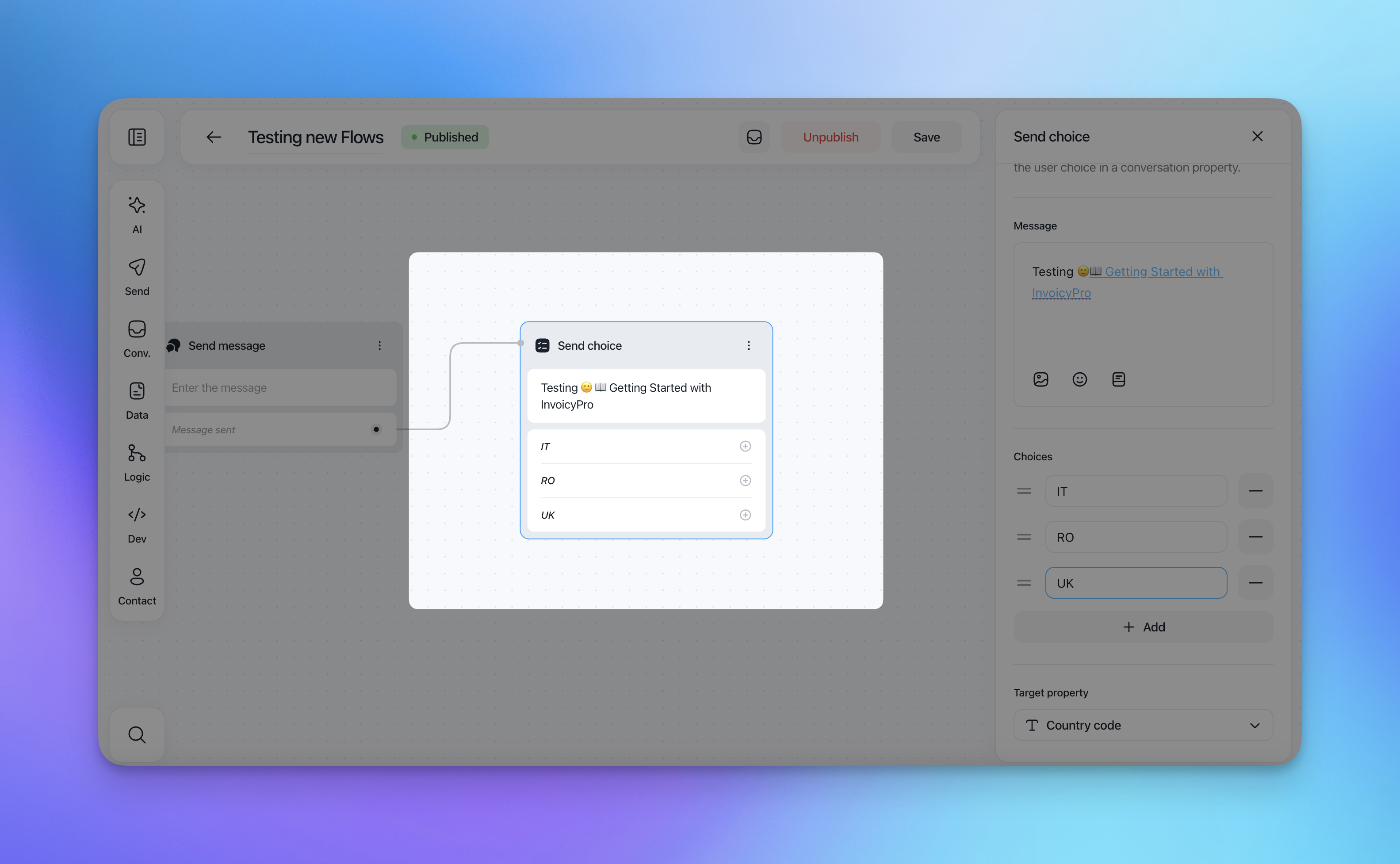
Message
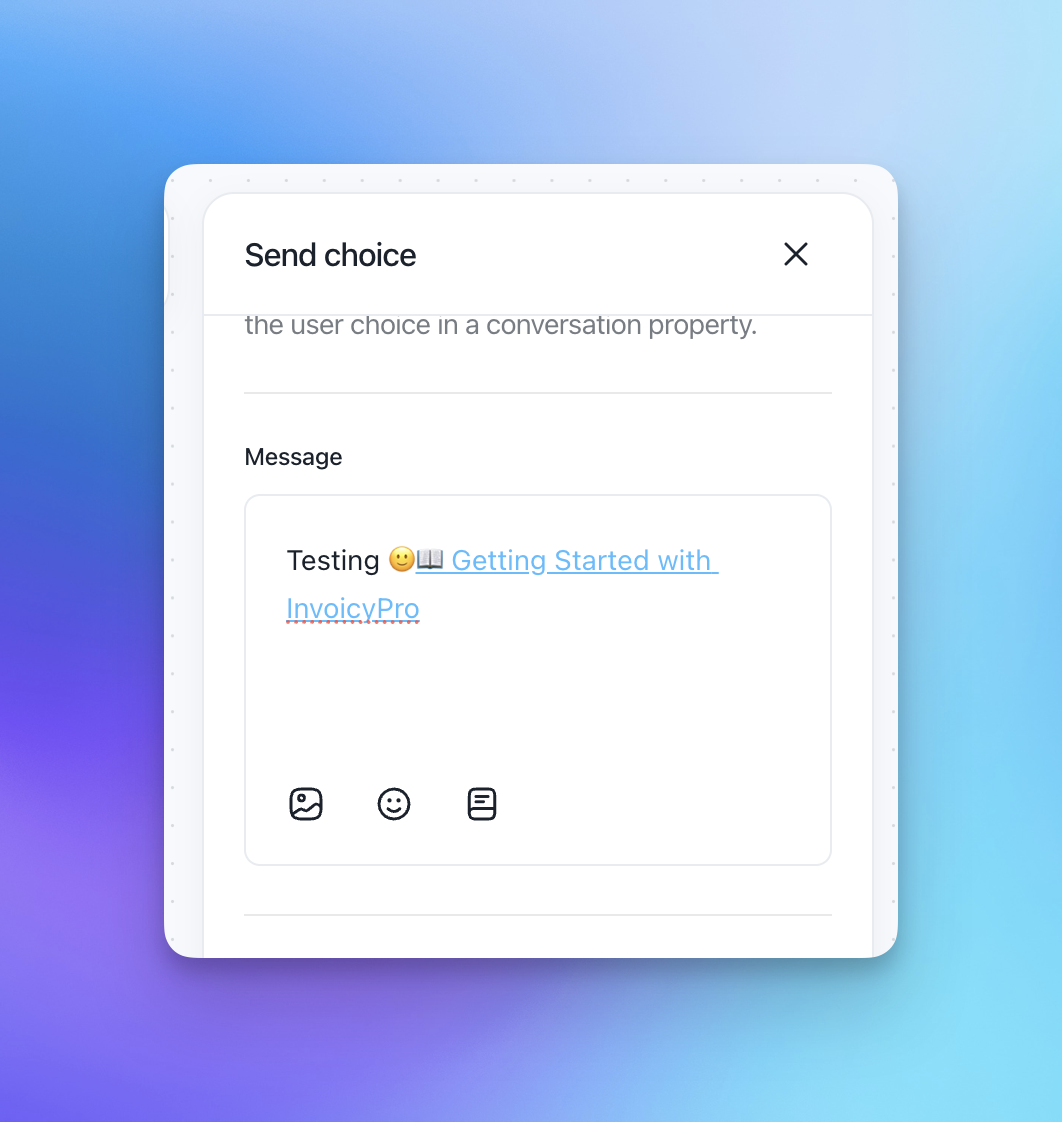
At the top of the action, you define the message shown to the user.
This message provides context for the available choices (for example, asking the user to select a country, language, or topic).
You can:
Use plain text and emojis
Add links
Personalize the message with variables
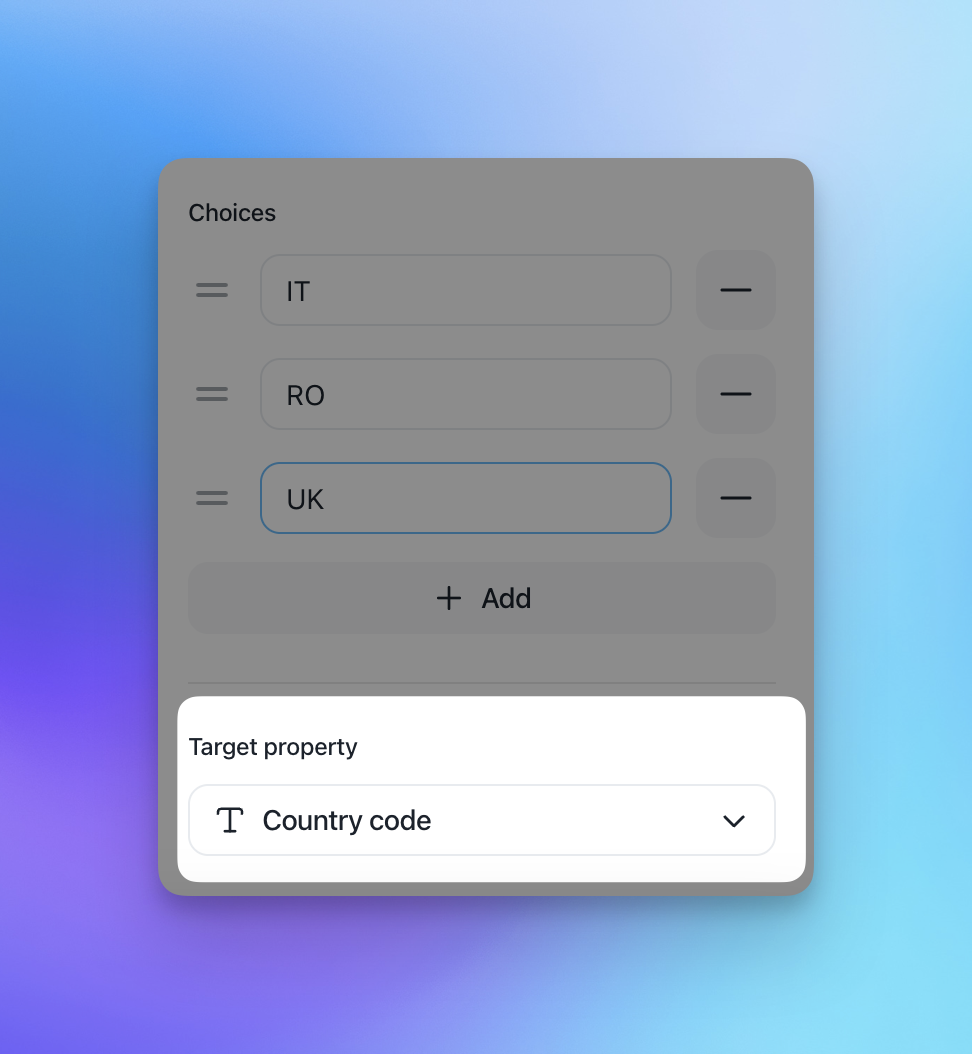
Choices
Under the message, you define the available choices:
Each choice is displayed as a clickable button
You can add or remove choices at any time
Each choice can be connected to a different next action in the flow
In the example shown, the user can choose between:
IT
RO
UK
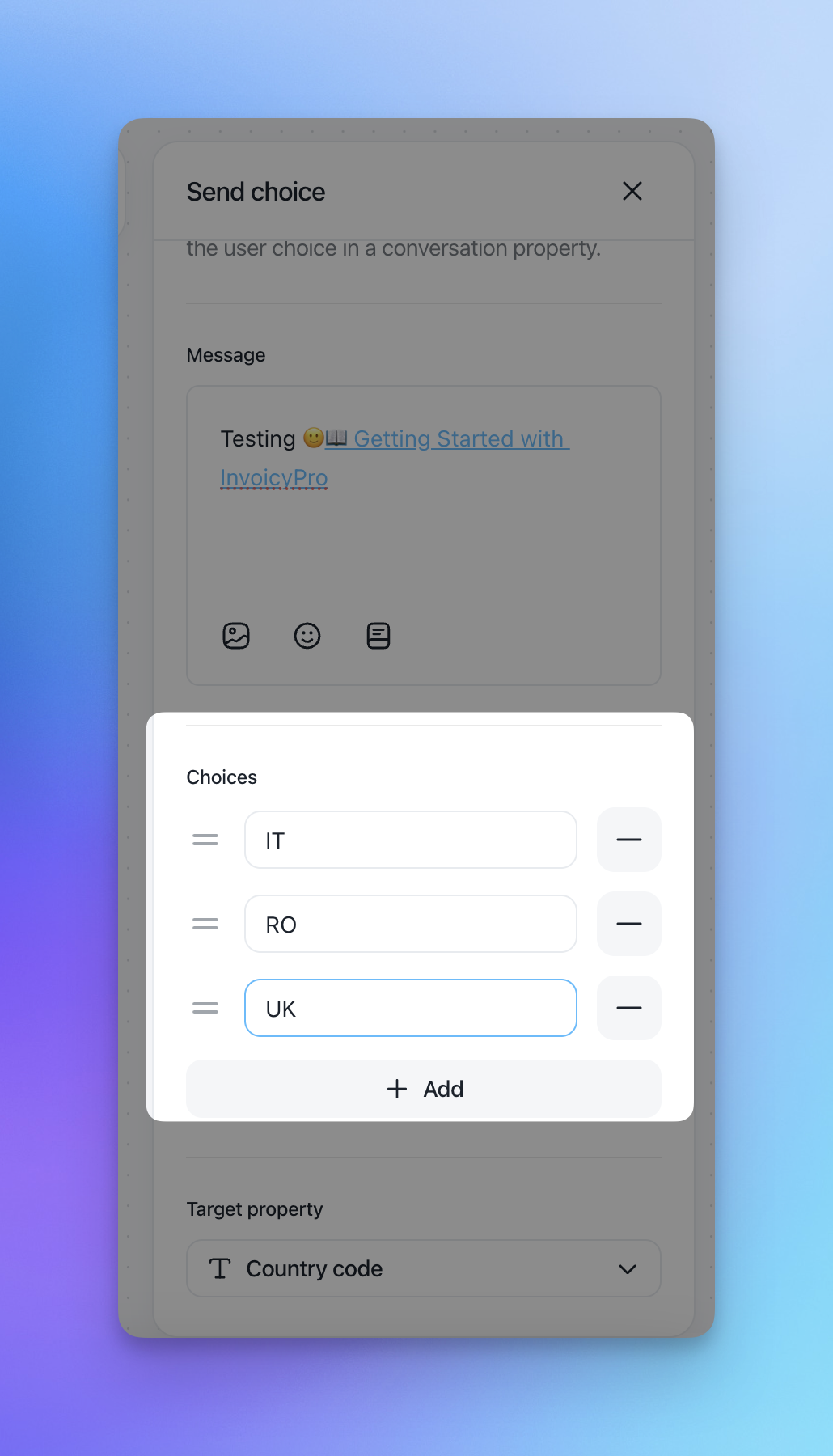
Once the user clicks a choice, the conversation continues automatically.
Target property
The Target property determines where the selected value is saved.
When a user selects a choice:
The value of the selected option is stored in the chosen contact property
The value can be reused later in the flow (for conditions, personalization, or routing)
In this example:
The selected option is saved in the Country code contact property
This makes Send choice ideal for:
Capturing structured data (language, country, plan, intent)
Driving conditional logic later in the flow
Personalizing future messages based on user input