
Flows are fully editable, flexible, and easy to navigate. You can move across flows, customize every step, and organize them into folders as your automation grows.
Managing a Flow
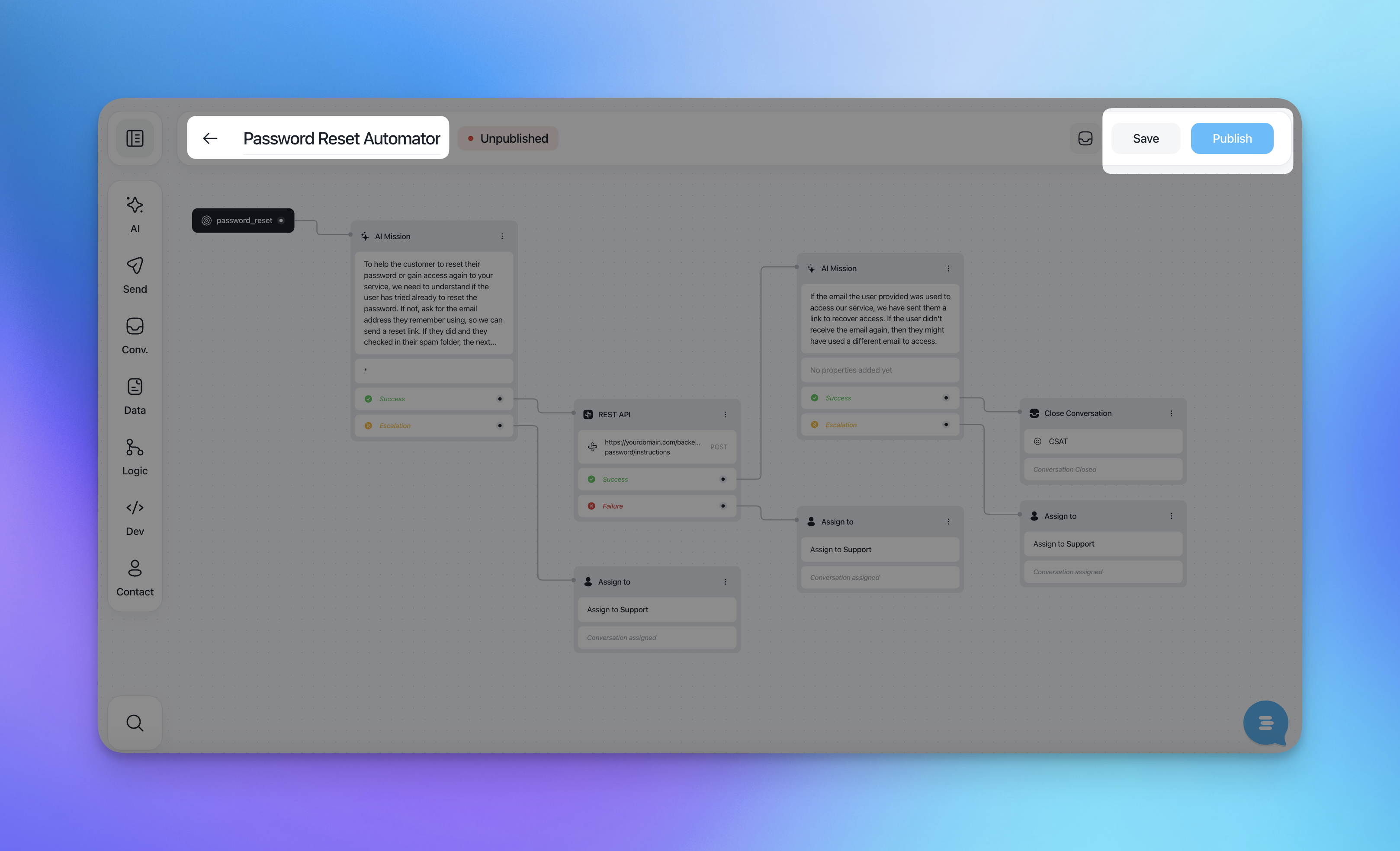
From the flow editor header, you can:
Rename the flow at any time
Save changes as you work
Publish the flow when it's ready to go live
View related conversations to see which customer interactions are linked to that flow
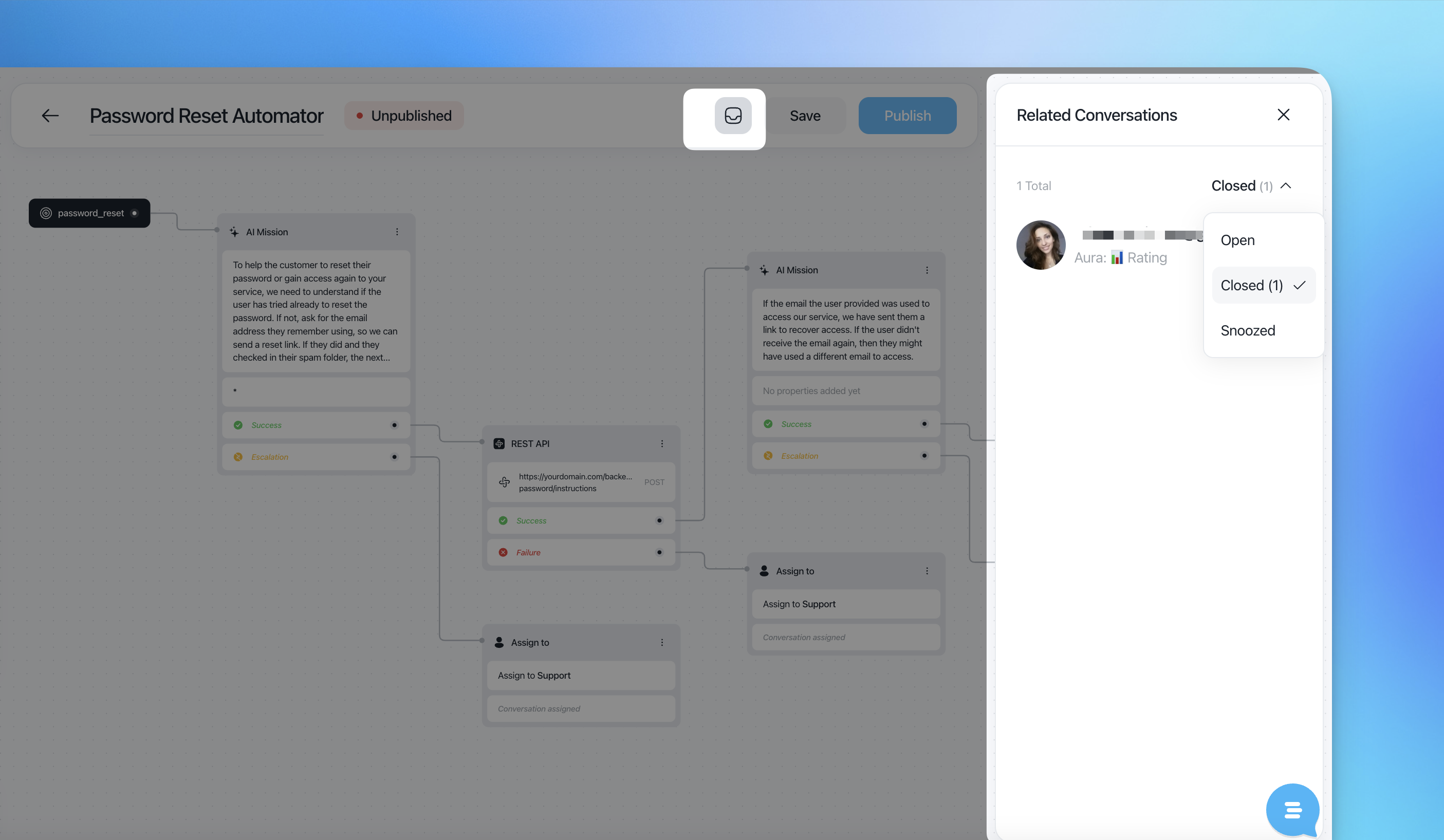
This allows you to iterate safely while keeping visibility on real conversations handled by the flow.
Customizing Actions
Each action in the flow can be fully customized:
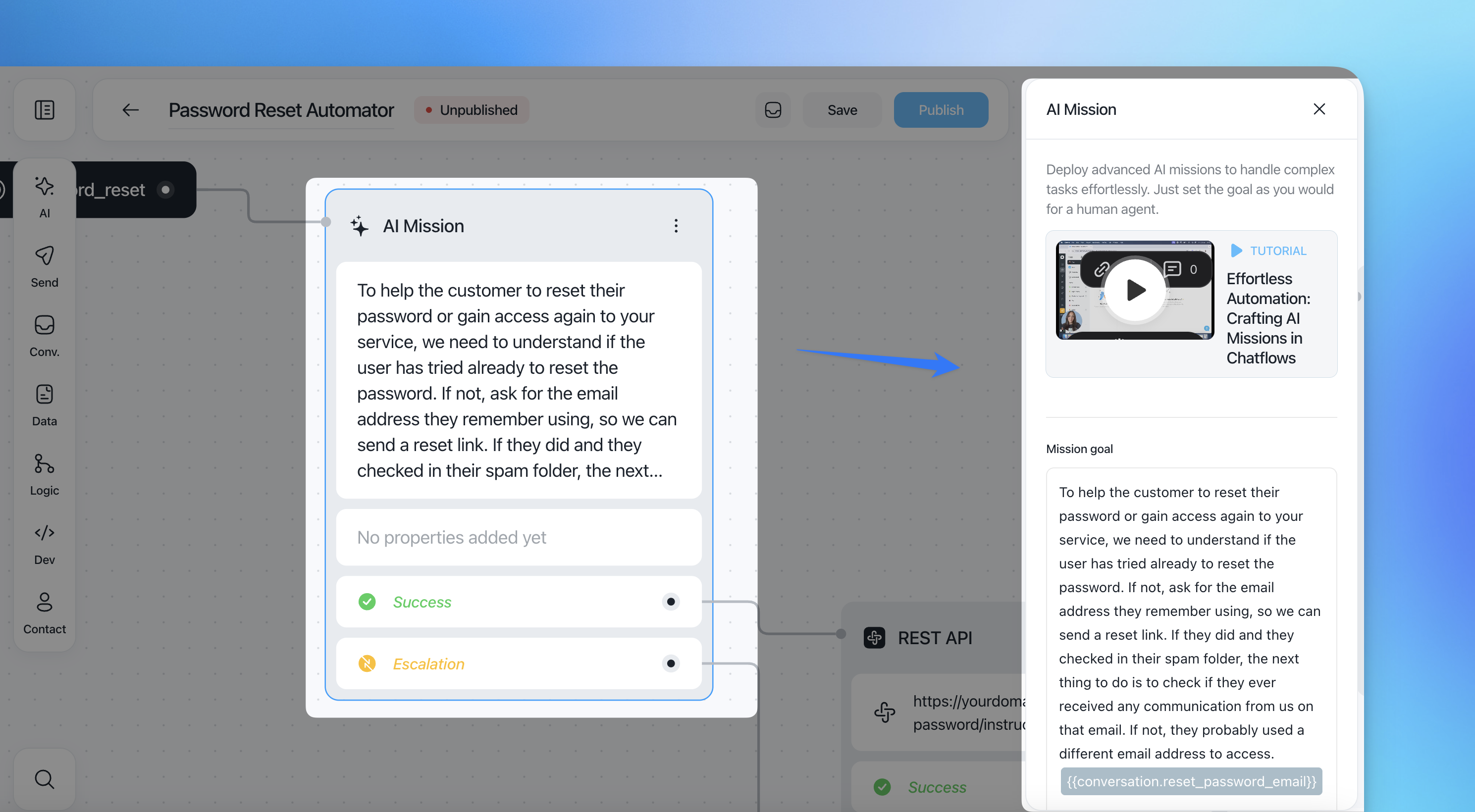
Open a action to edit its content or configuration
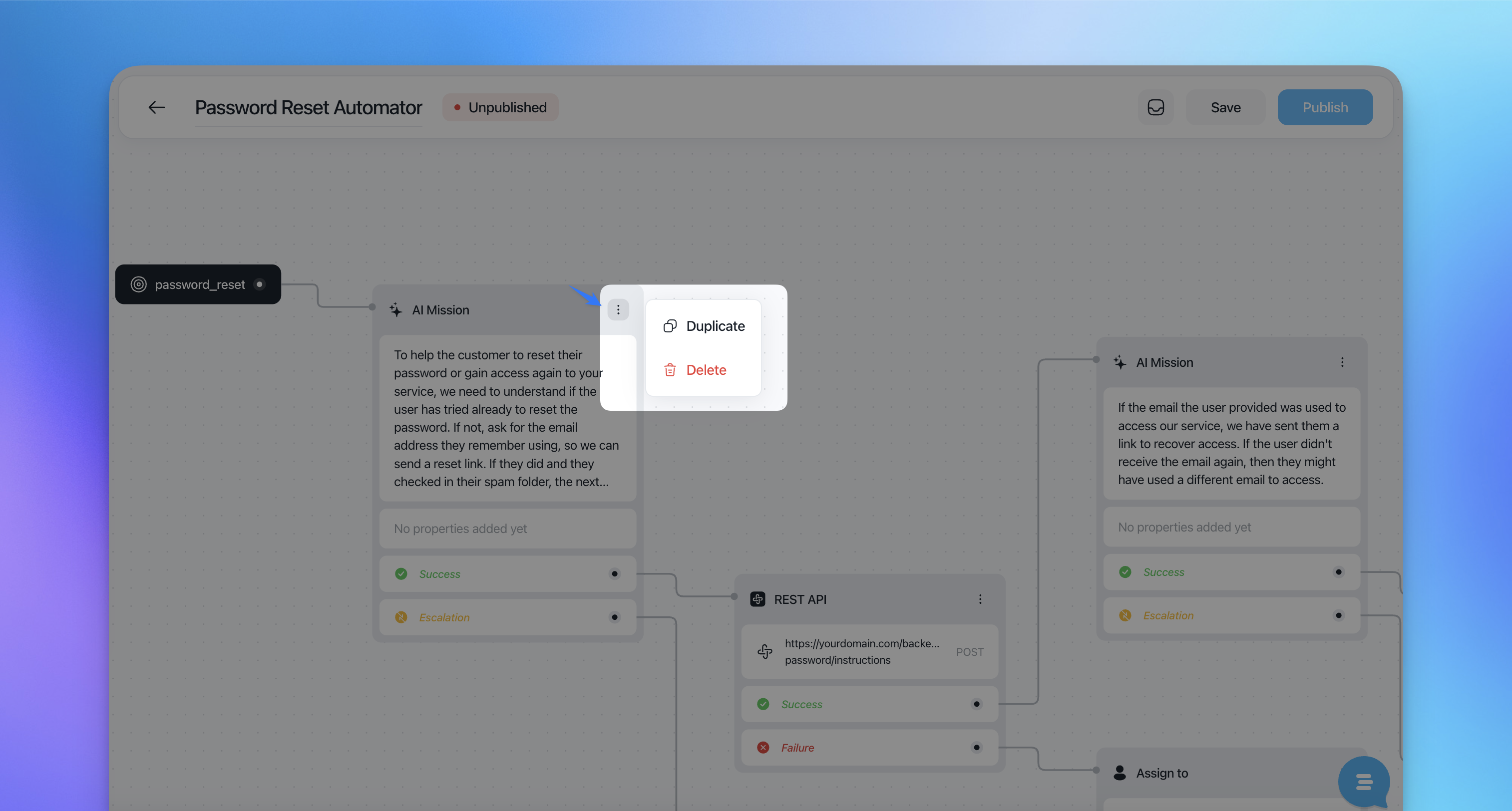
Duplicate an action to reuse logic quickly
Delete an action if it's no longer needed
Important:
When you delete a action, everything after that action remains in place. You can reconnect those actions to another step in the flow afterward, without rebuilding them.
Adding Actions Anywhere
You can extend your flow at any time:
Click the ➕ plus icon on any connection point
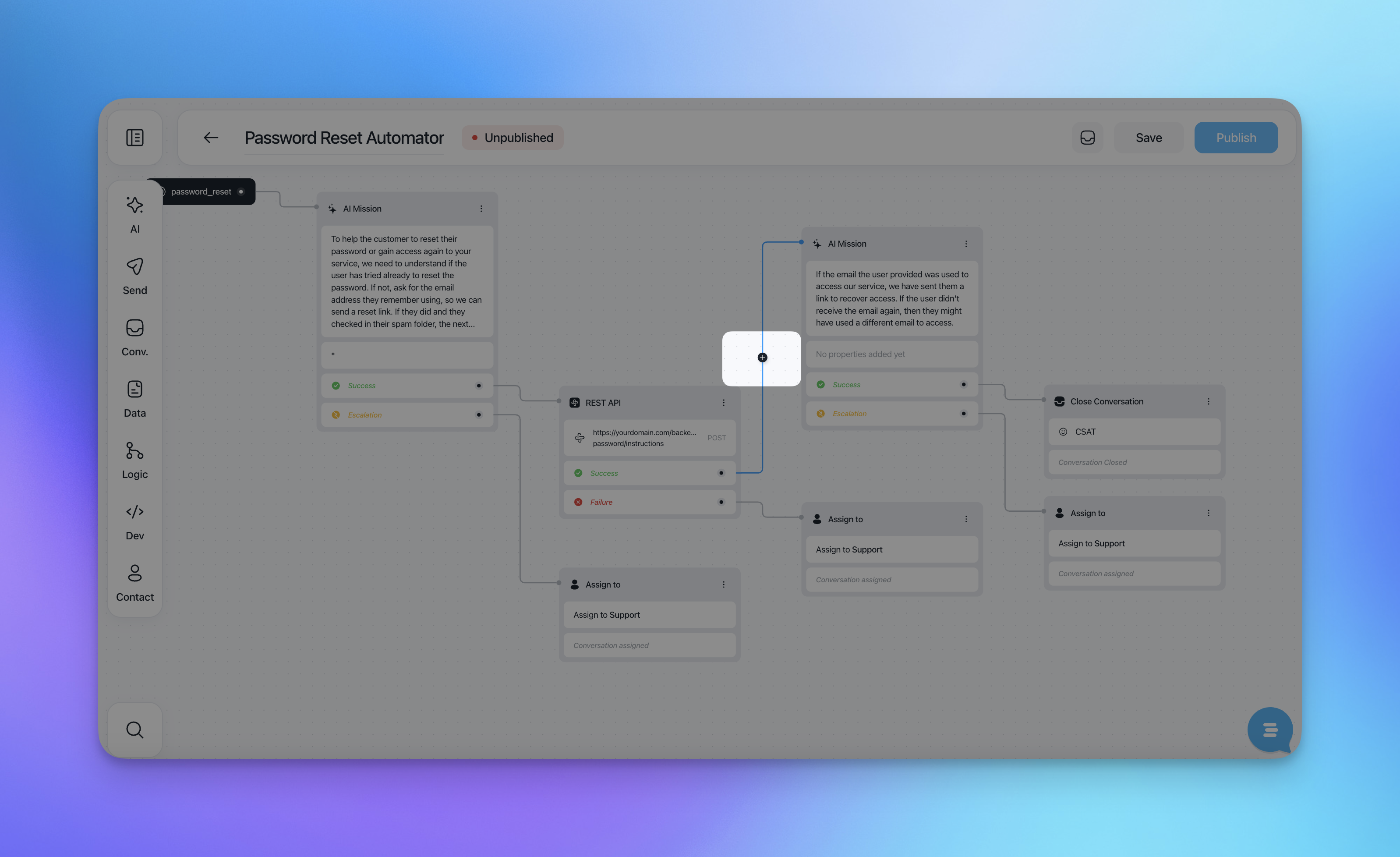
Choose the next action (AI, Send, Logic, Data, Dev, etc.)
Continue building forward or branching the flow
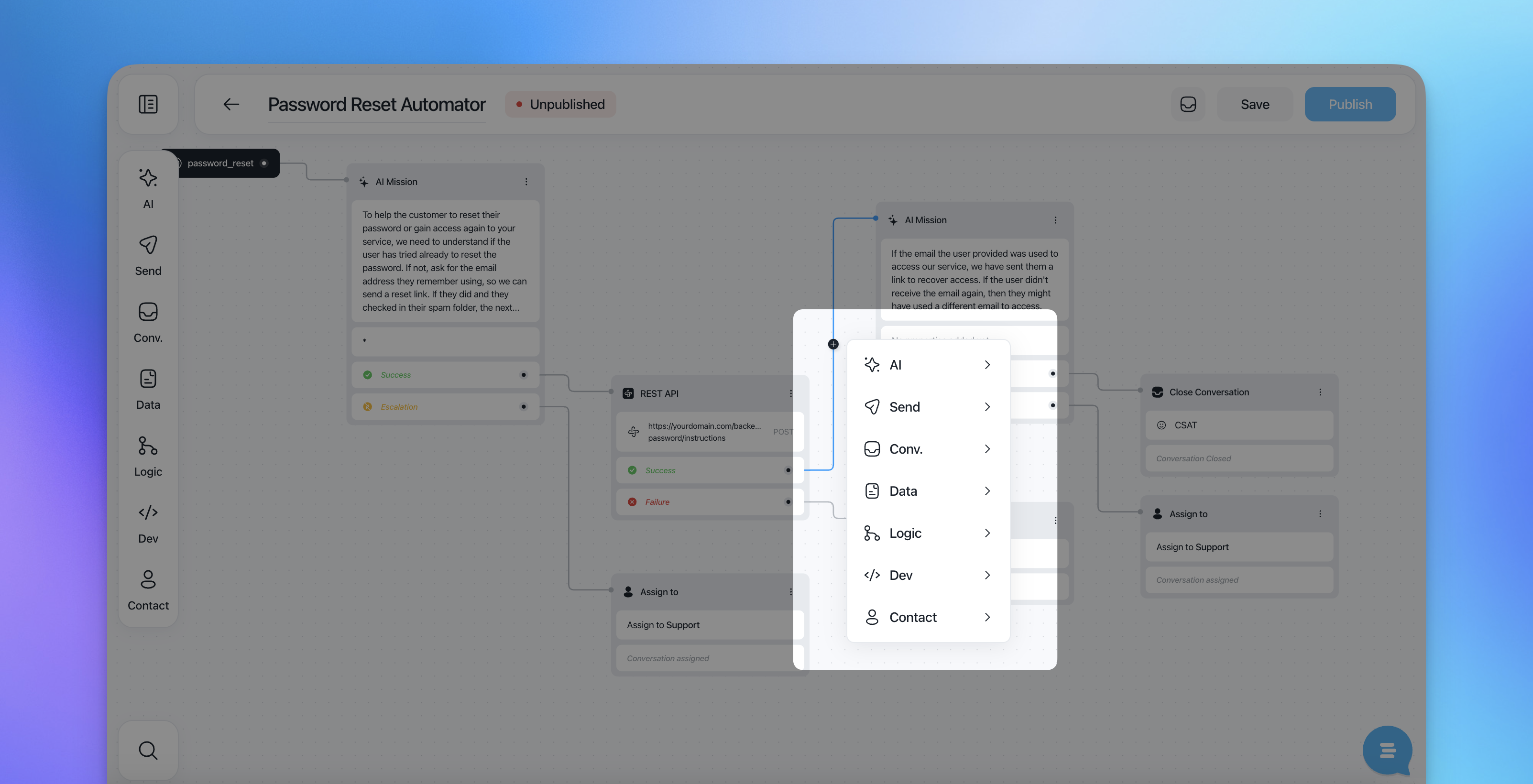
This makes it easy to evolve flows incrementally.
Managing Connections Between Actions
Connections between actions are fully editable:
Click on a line to select it, it turns blue
Press Backspace/Delete to remove the connection
You can connect multiple actions to the same next step, allowing different paths to converge into one shared outcome
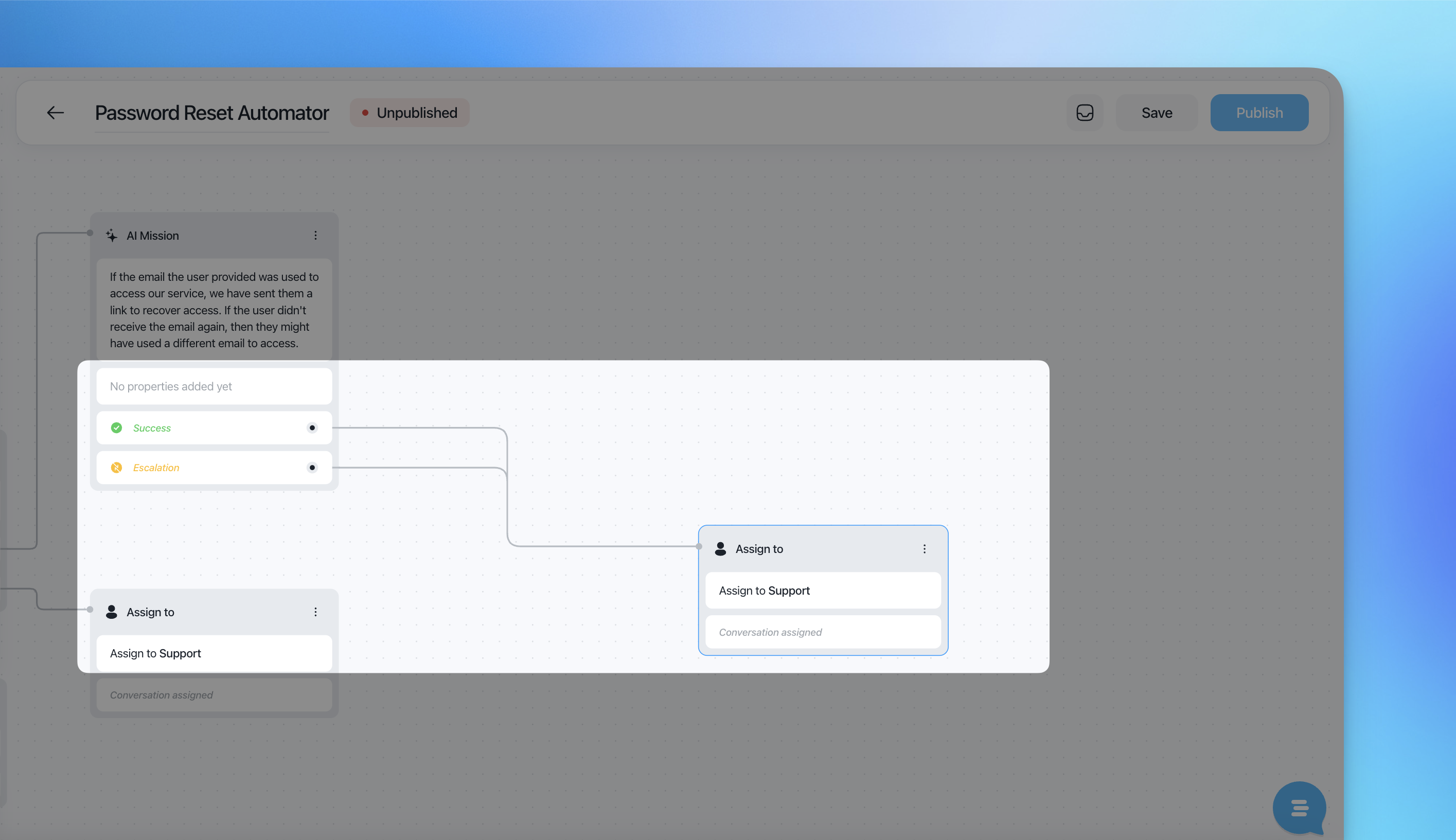
This supports both branching and merging logic within the same flow.
Searching Within a Flow
For complex flows, you can quickly find what you need:
Use the search to locate specific actions
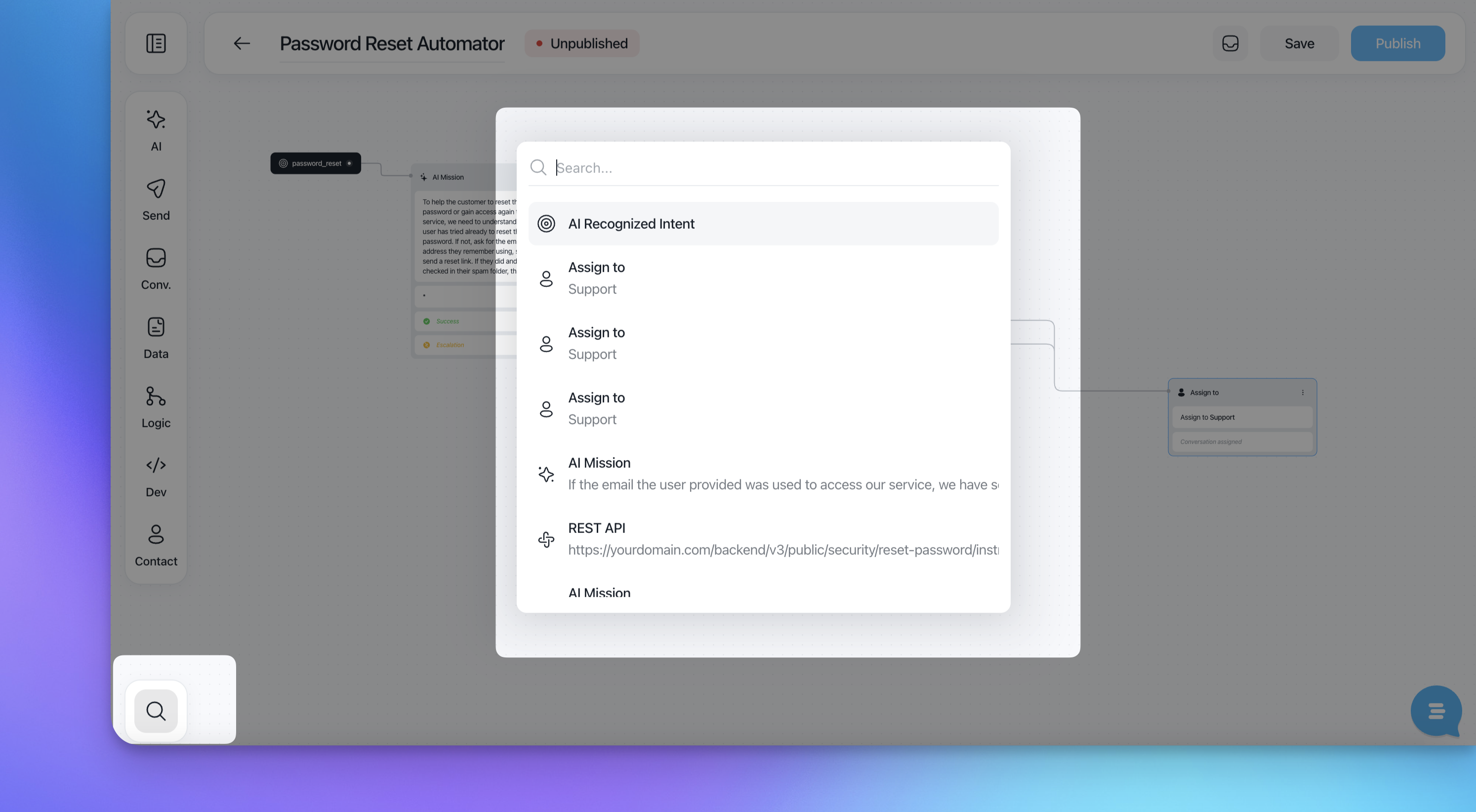
Jump directly to a action without manually scrolling through the canvas
This is especially useful for large or long-running automations.
Navigating Between Flows
You can easily move between different flows by selecting first the type of view: grid or table.
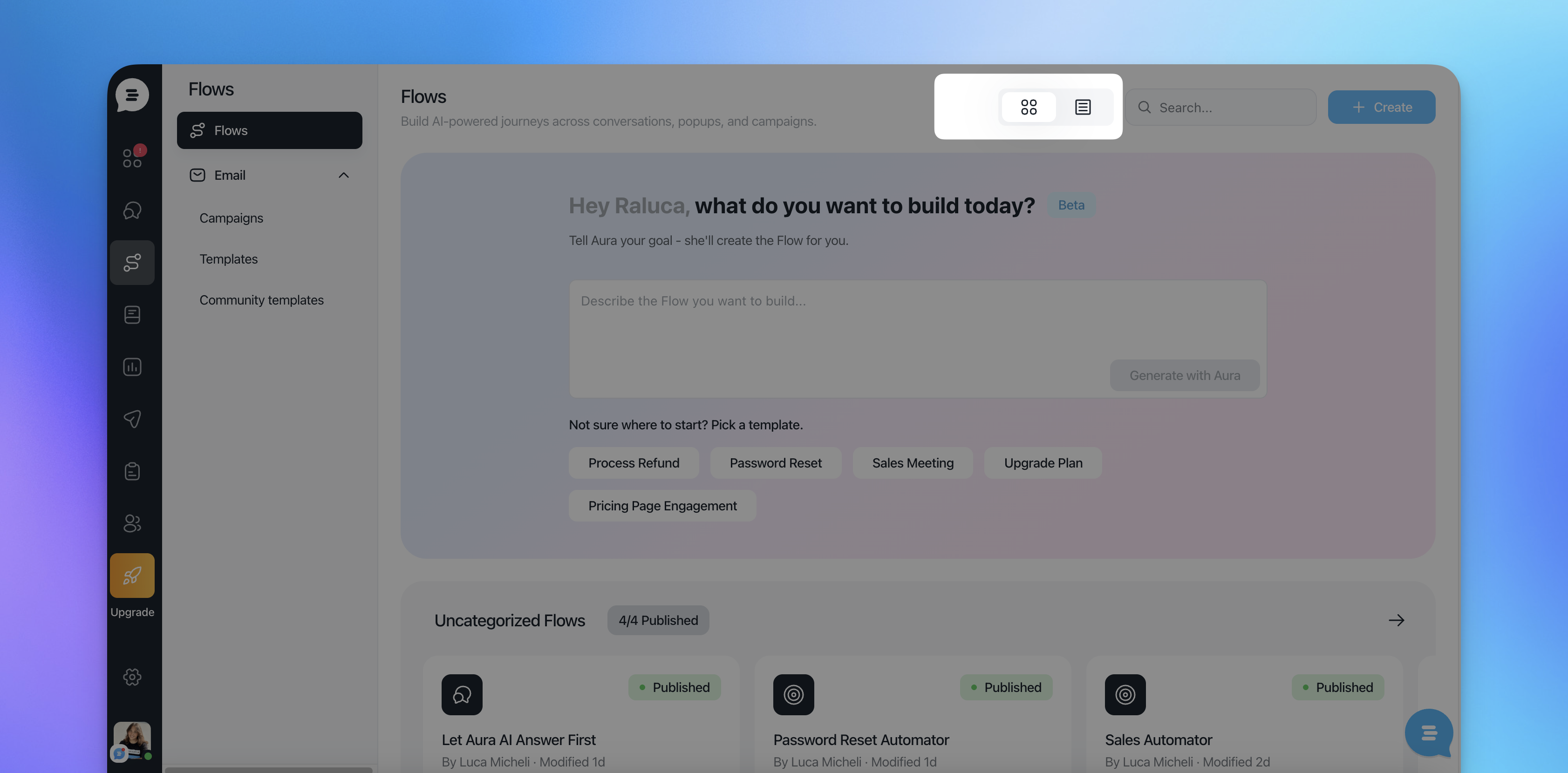
Open the flows list from the sidebar
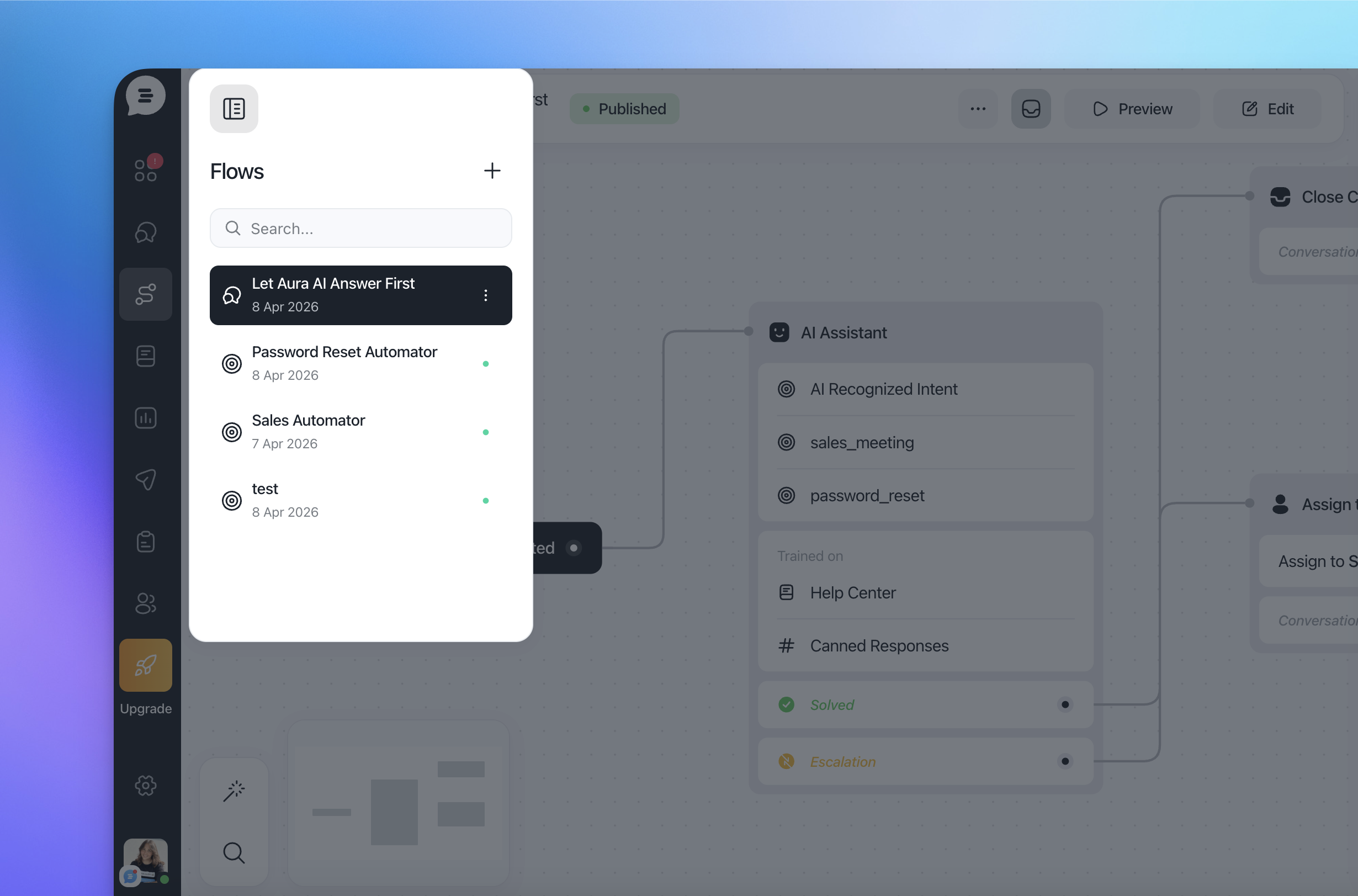
Select another flow to switch context instantly
Keep multiple flows organized without losing your place
Creating Flows with AI
You can also generate flows using AI:
Choose Create flow with AI
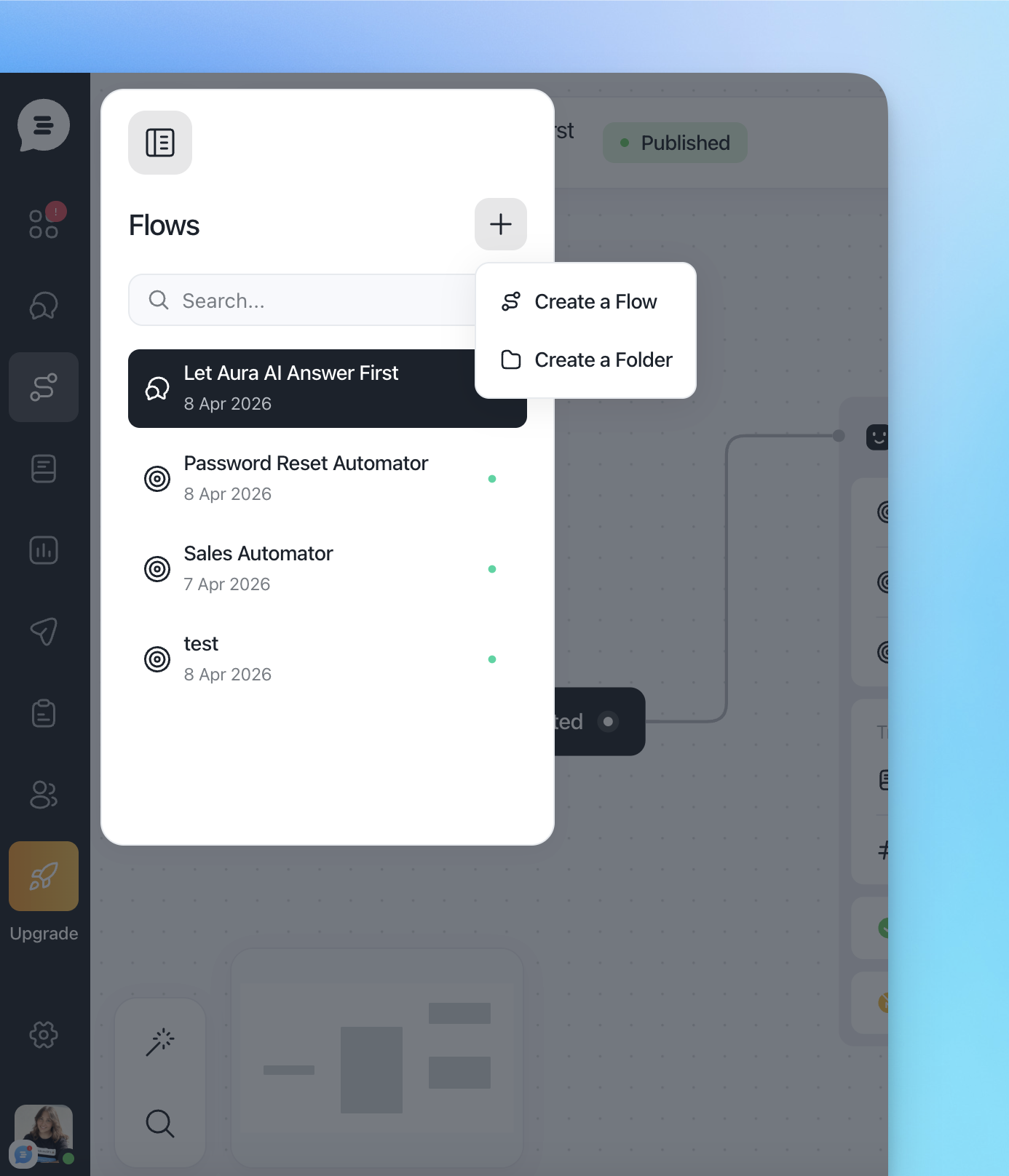
Describe the flow you want to build, or select a template
Generate a ready-to-edit flow that you can refine manually
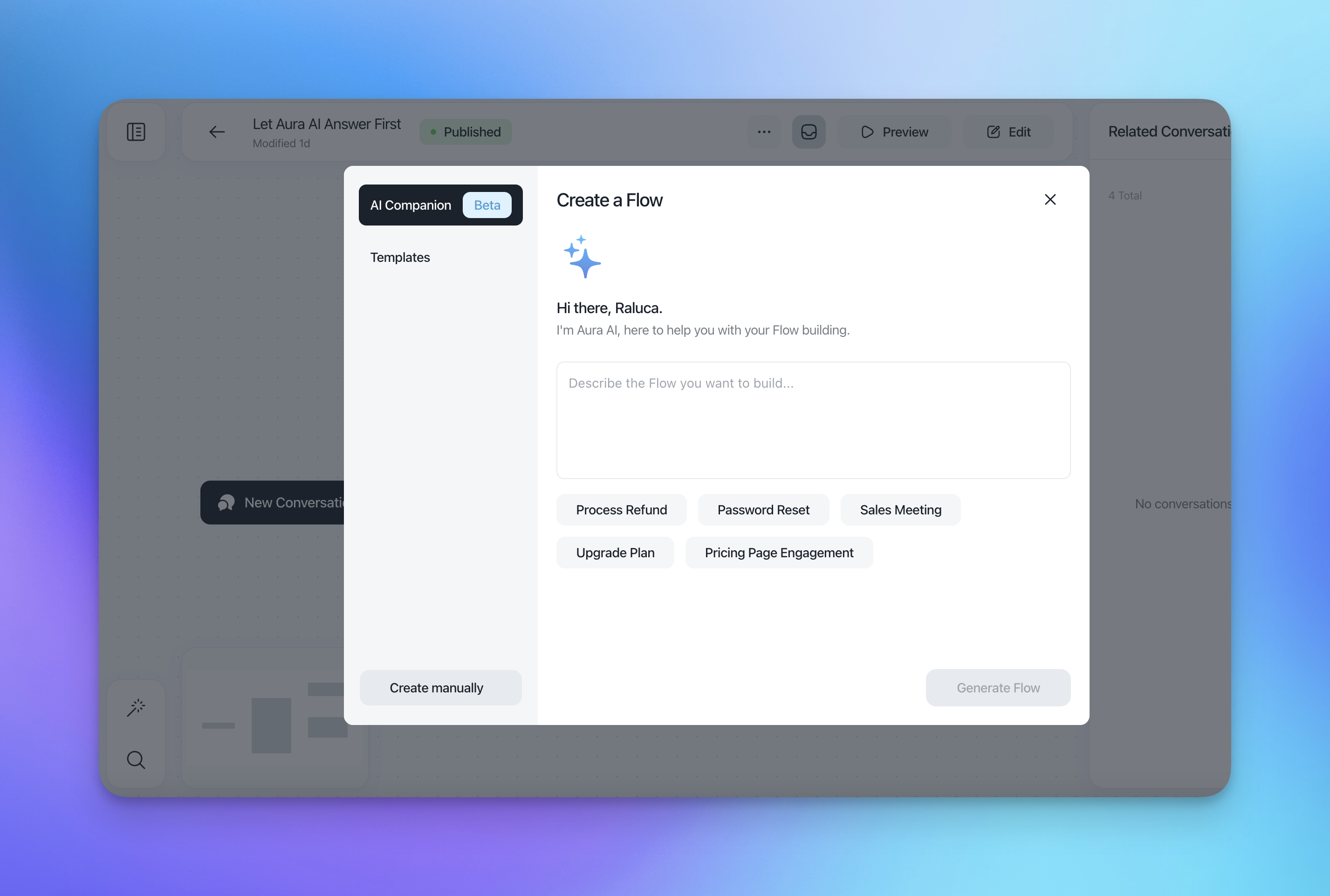
This is ideal for quickly scaffolding common use cases like password resets, refunds, or sales flows.
Organizing Flows into Folders
To keep things organized:
Create folders directly in the editor from the dropdown on the left
Move uncategorized flows into existing folders
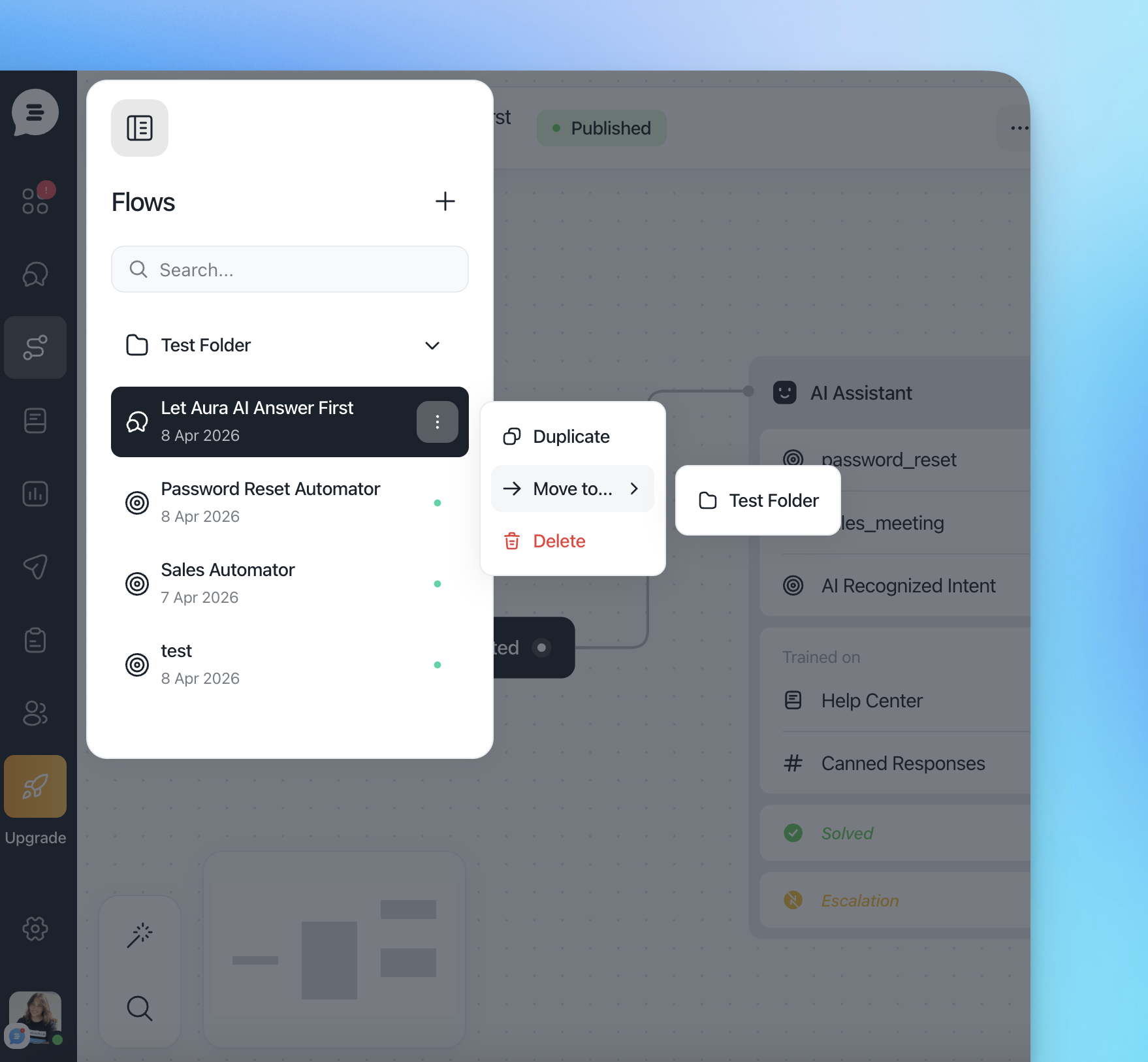
Move flows from a folder to another one or outside folders
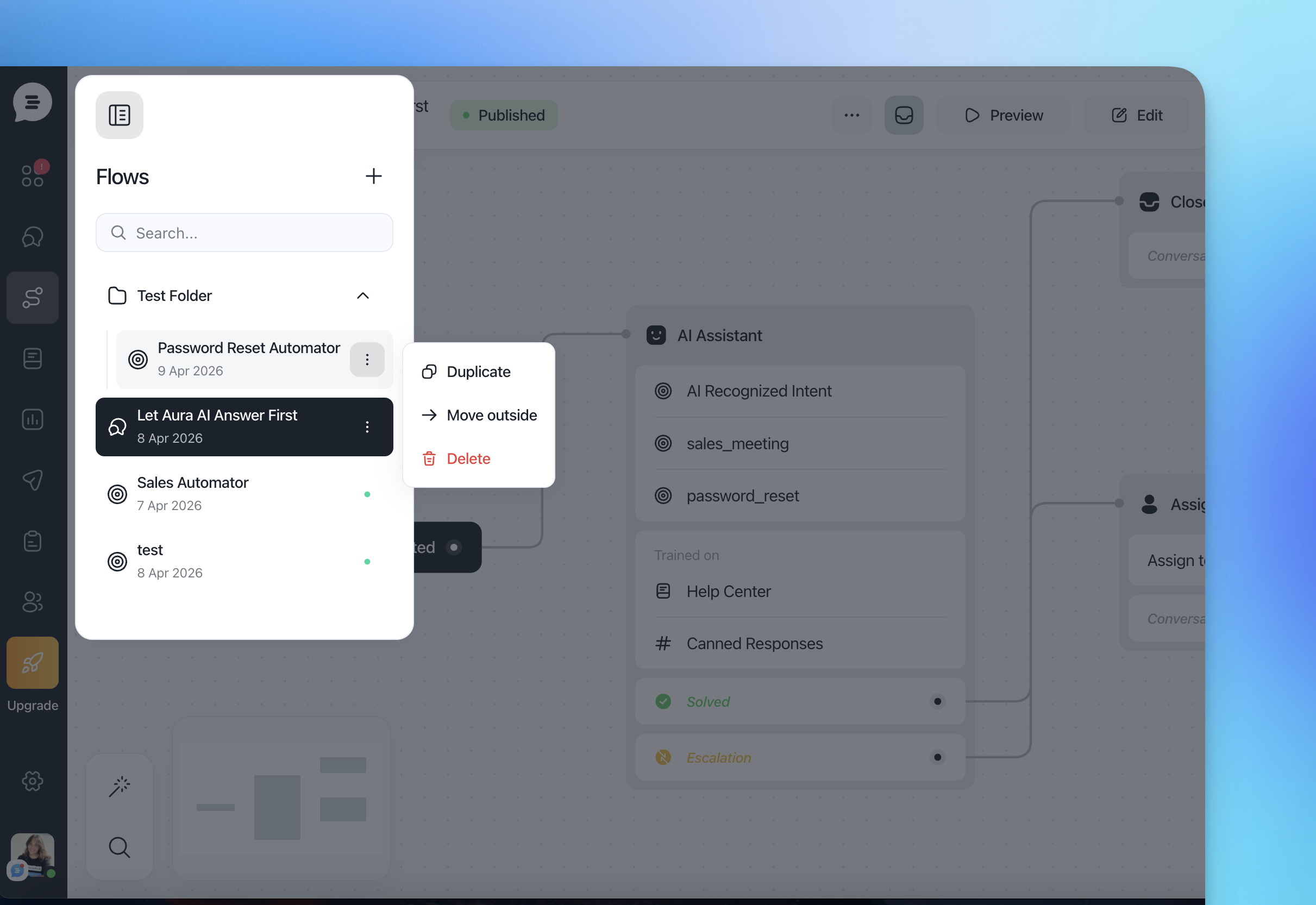
Use folders to group flows by use case, team, or environment
Flows can be reorganized at any time
This helps maintain clarity as the number of flows grows.