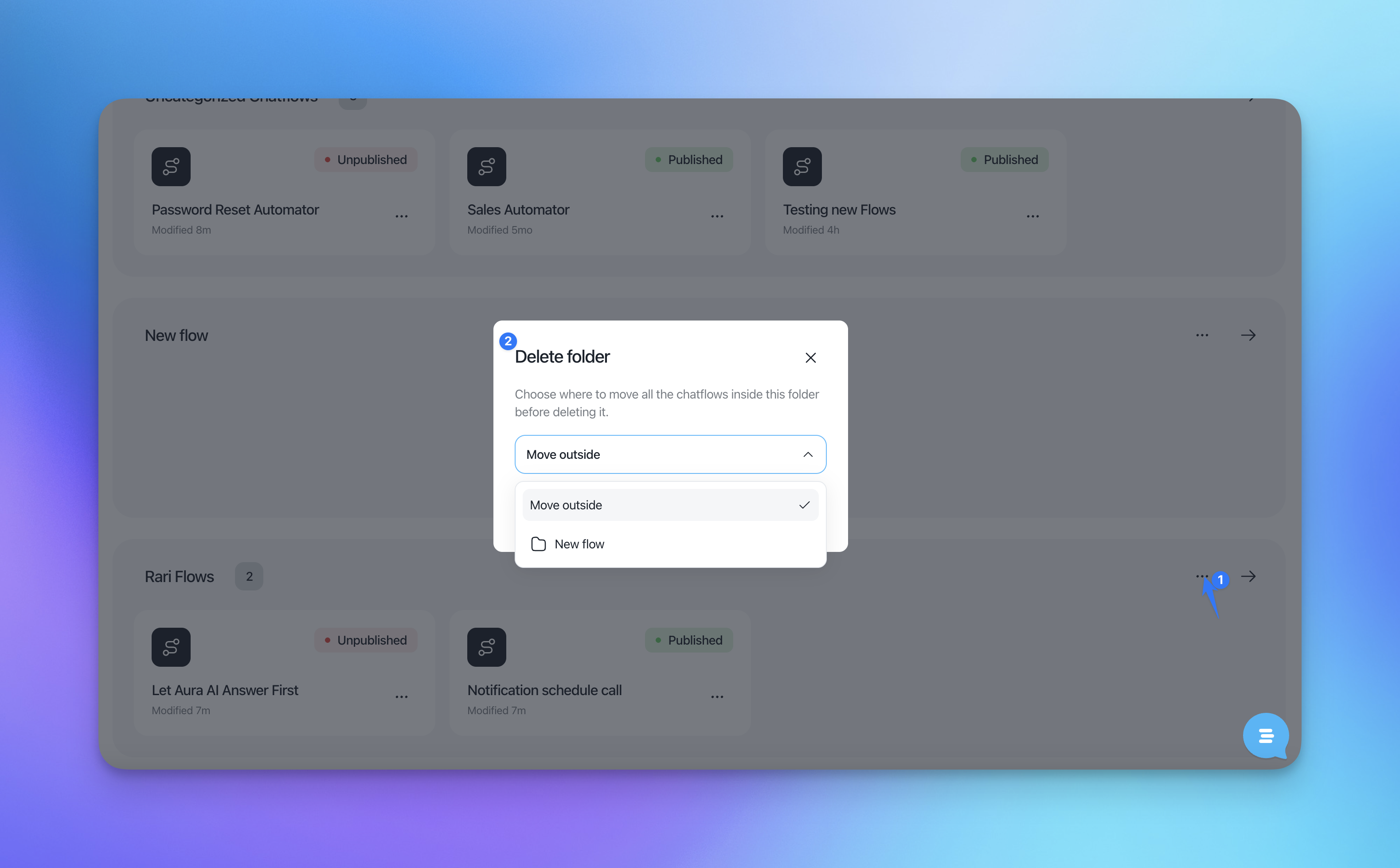
The Flows section is where you create, organize, and manage automated conversations across chat, popups, and campaigns.
It’s designed to help you build flows quickly, reuse proven patterns, and keep everything structured as your setup grows.
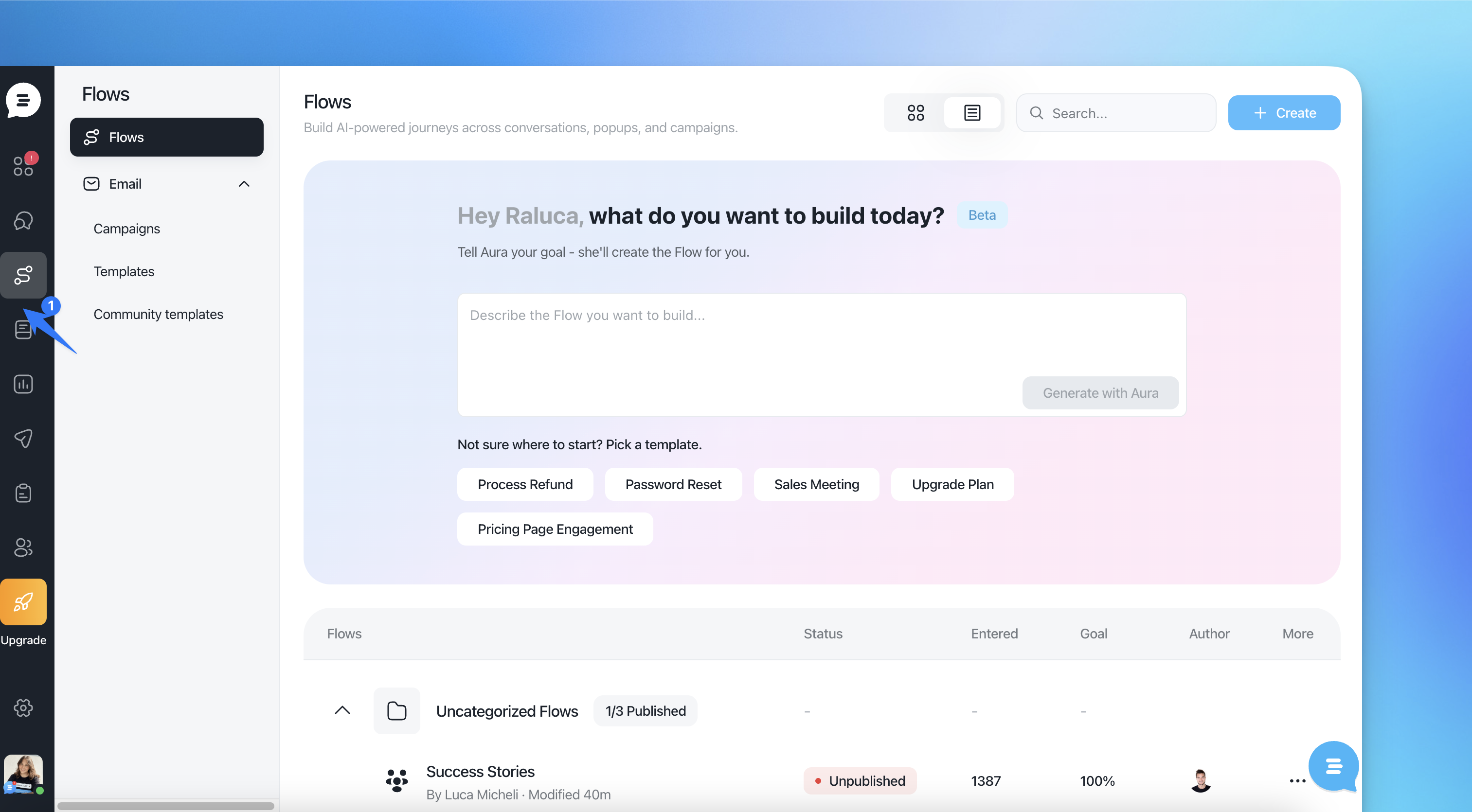
At the top of the Flows page, you can describe what you want to build and let Aura generate a flow for you.
You can:
Write your goal in natural language
Automatically generate a structured flow
Use the AI-generated flow as-is or customize it further
This approach is useful when you want to quickly turn a process or idea into a working automation.
Create Flows from Templates
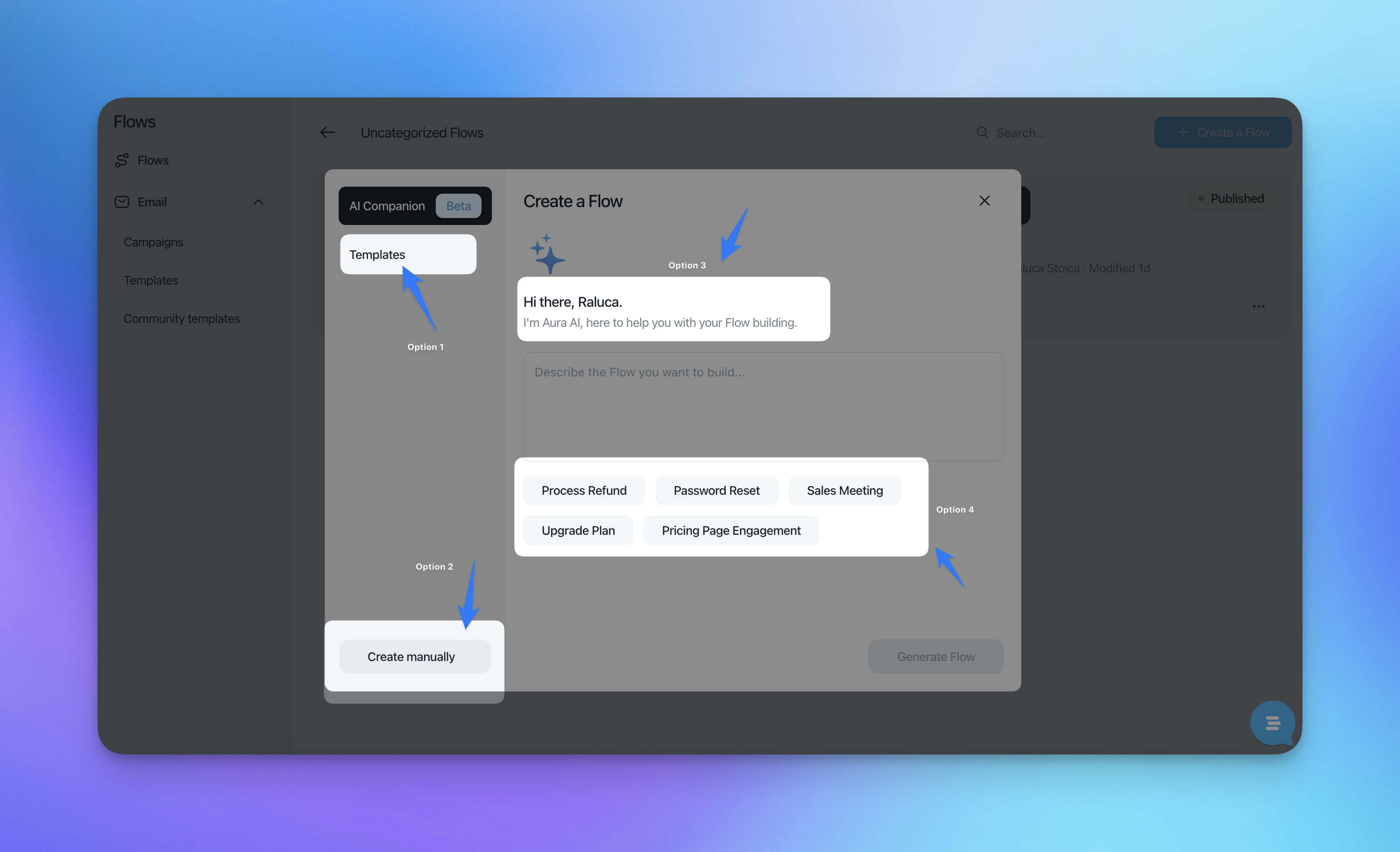
If you prefer a guided starting point, you can choose from pre-built flow templates.
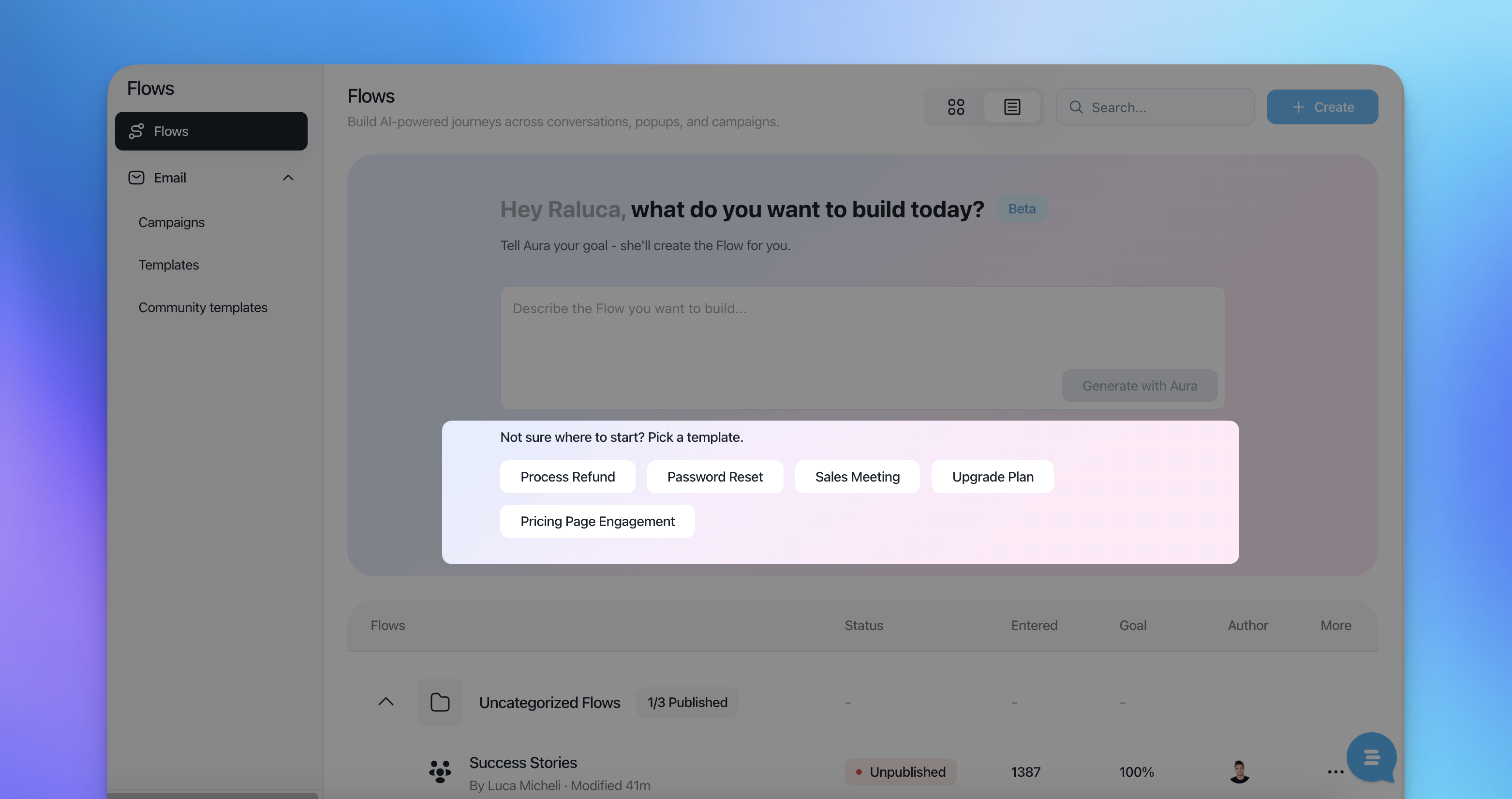
Templates cover common scenarios such as:
Password reset
Refund requests
Sales meeting booking
Trial extension
Pricing page engagement
AI-first support handling
Templates allow you to:
Follow proven conversation structures
Save time on setup
Adjust logic and messaging to fit your needs
You can also select Create your own to start from a blank flow, by creating manually.
Organize Flows with Folders
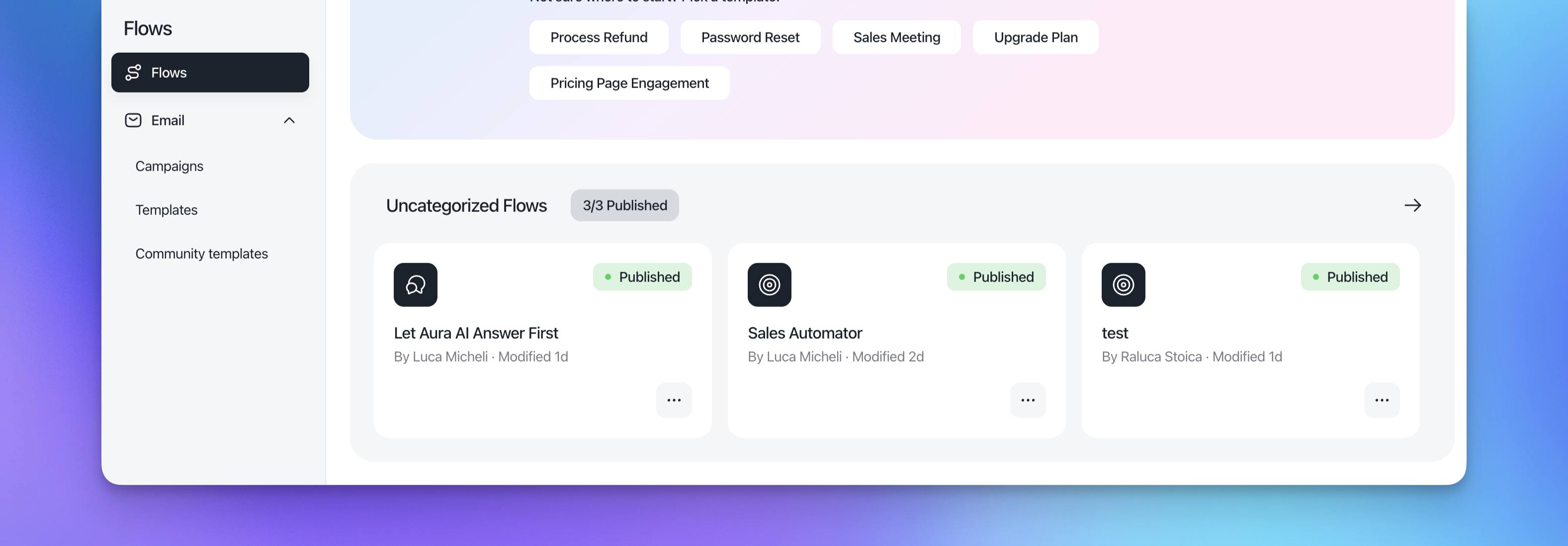
Flows are organized using folders, helping you keep everything structured and easy to navigate.

Folders allow you to:
Group flows by use case, team, or funnel stage
Scroll through folders when managing many flows
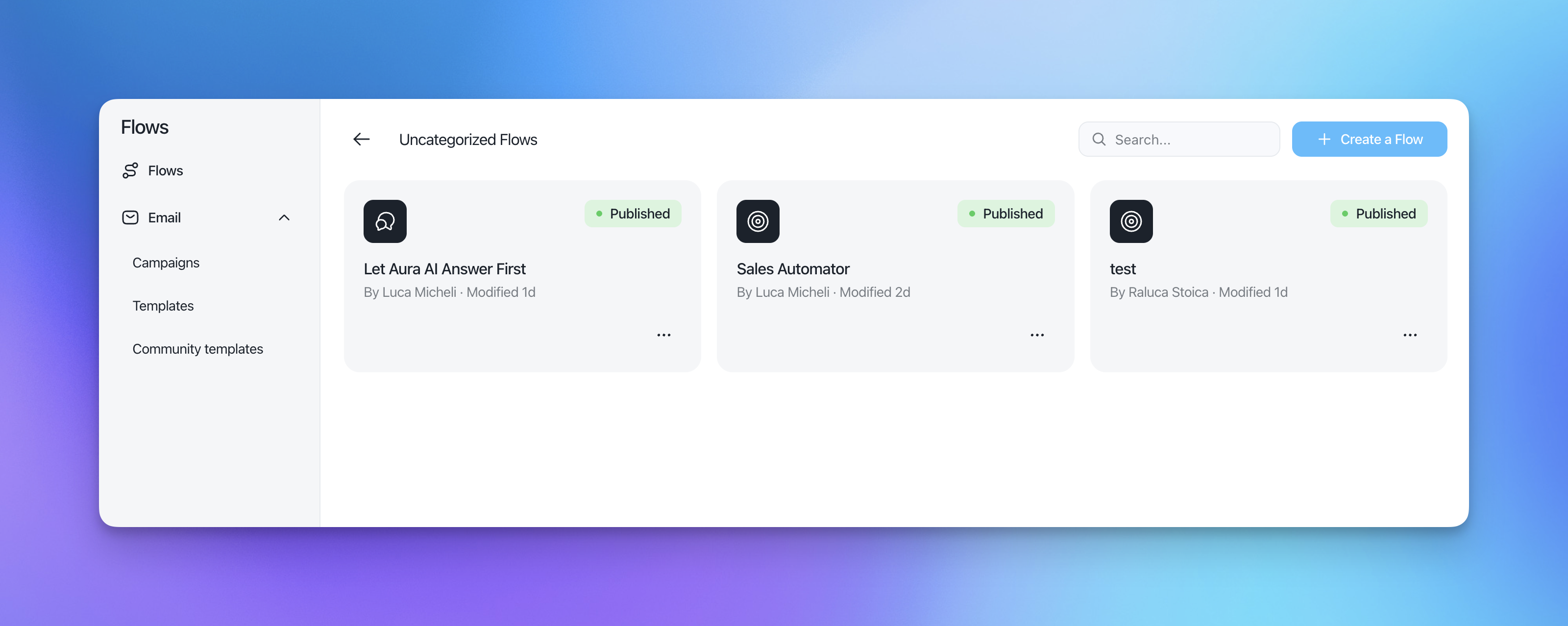
Keep uncategorized flows in a default folder until you move them
Each flow clearly shows its publication status.
Move Flows with Drag & Drop
You can move flows between folders using drag and drop.
This makes it easy to:
Reorganize your setup at any time
Adapt your structure as your automation grows
Keep related flows together without extra configuration
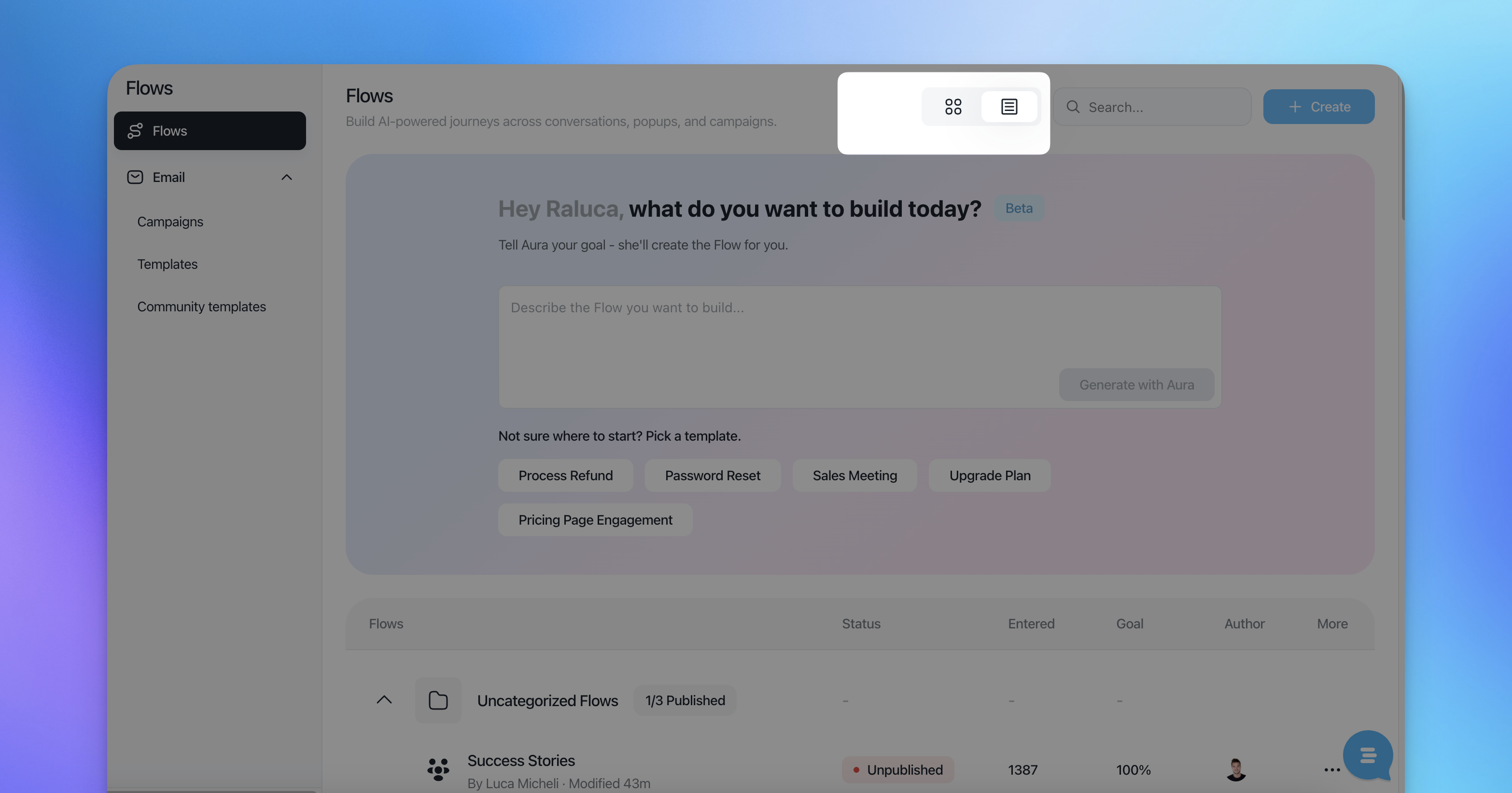
Select the visualization
You can select between grid and table view from the top
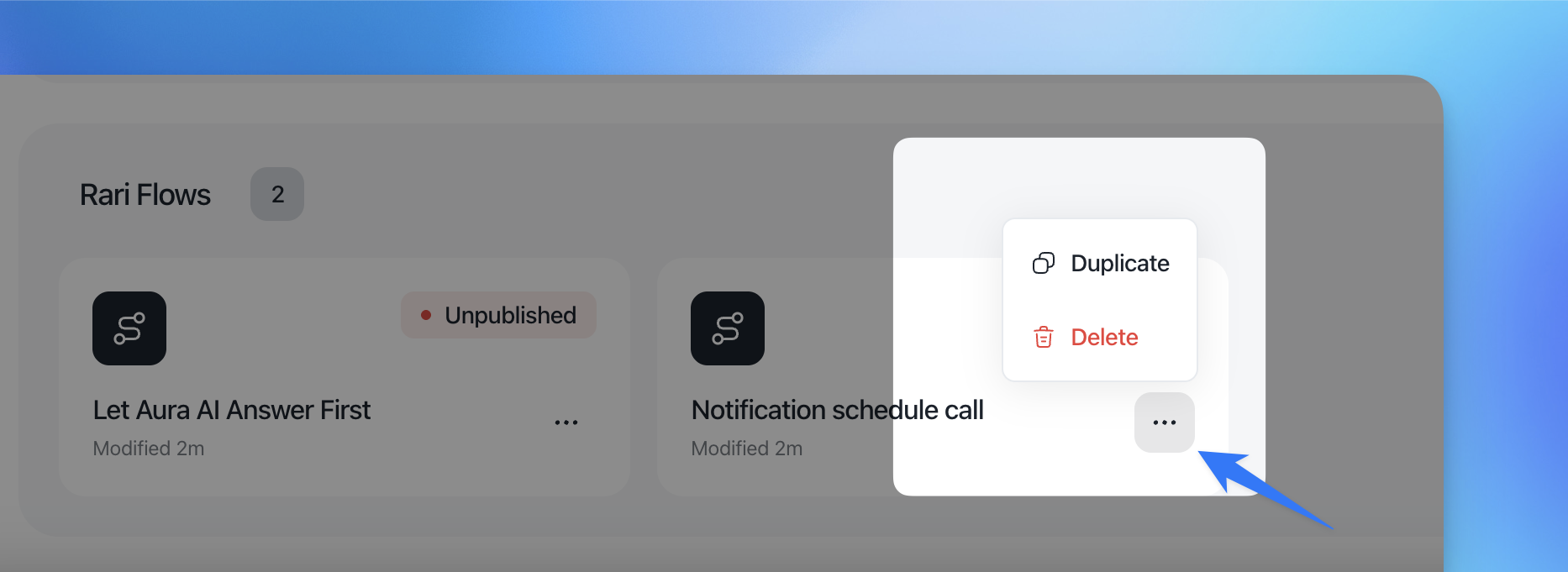
Duplicate or Delete Flows
From the flows list view, you can manage flows directly by:
Duplicating a flow to reuse its logic
Deleting flows that are no longer needed
This helps speed up iteration and keeps your workspace clean.
Working Inside a Folder
When you open a folder, you can manage all flows within it.
From inside a folder, you can:
See all flows in that folder
Search flows by name
Create a new flow:
From scratch
From available templates
Folders act as focused workspaces for building and managing your flows.
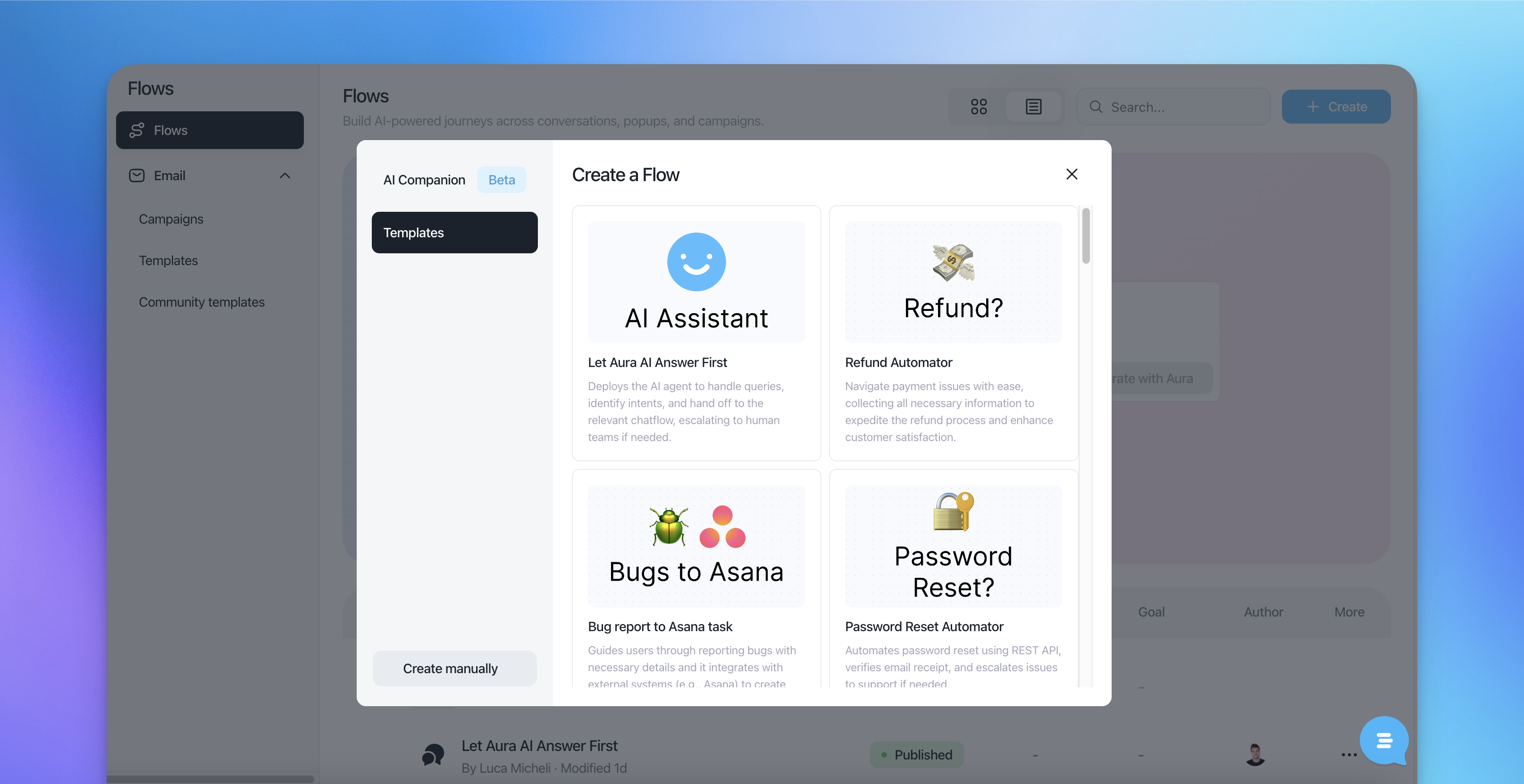
Delete Folders
Folders can also be deleted directly from the folder view.
Deleting a folder does not delete the flows inside it, you'll be asked where to move outside or in a specific folder