
The "Conversation Closed" trigger in Customerly is a powerful tool to automate flows and ensure post-conversation processes run smoothly. Whether you need to send data to an external service or initiate specific tasks, this guide explains how to set it up.
What is the conversation closed trigger?
The Conversation Closed trigger activates whenever a conversation in your Customerly inbox is marked as closed. This feature is ideal for:
• Automating follow-up actions after closing a conversation.
• Passing conversation data to external services via REST API integrations.
• Keeping your systems updated with the latest conversation statuses.
How to set up a flow with the conversation closed trigger
Follow these steps to create a flow using the Conversation Closed trigger:
1. Create a New Flow: Click on the "+" button to create a new flow.
2. Choose Starting Point:
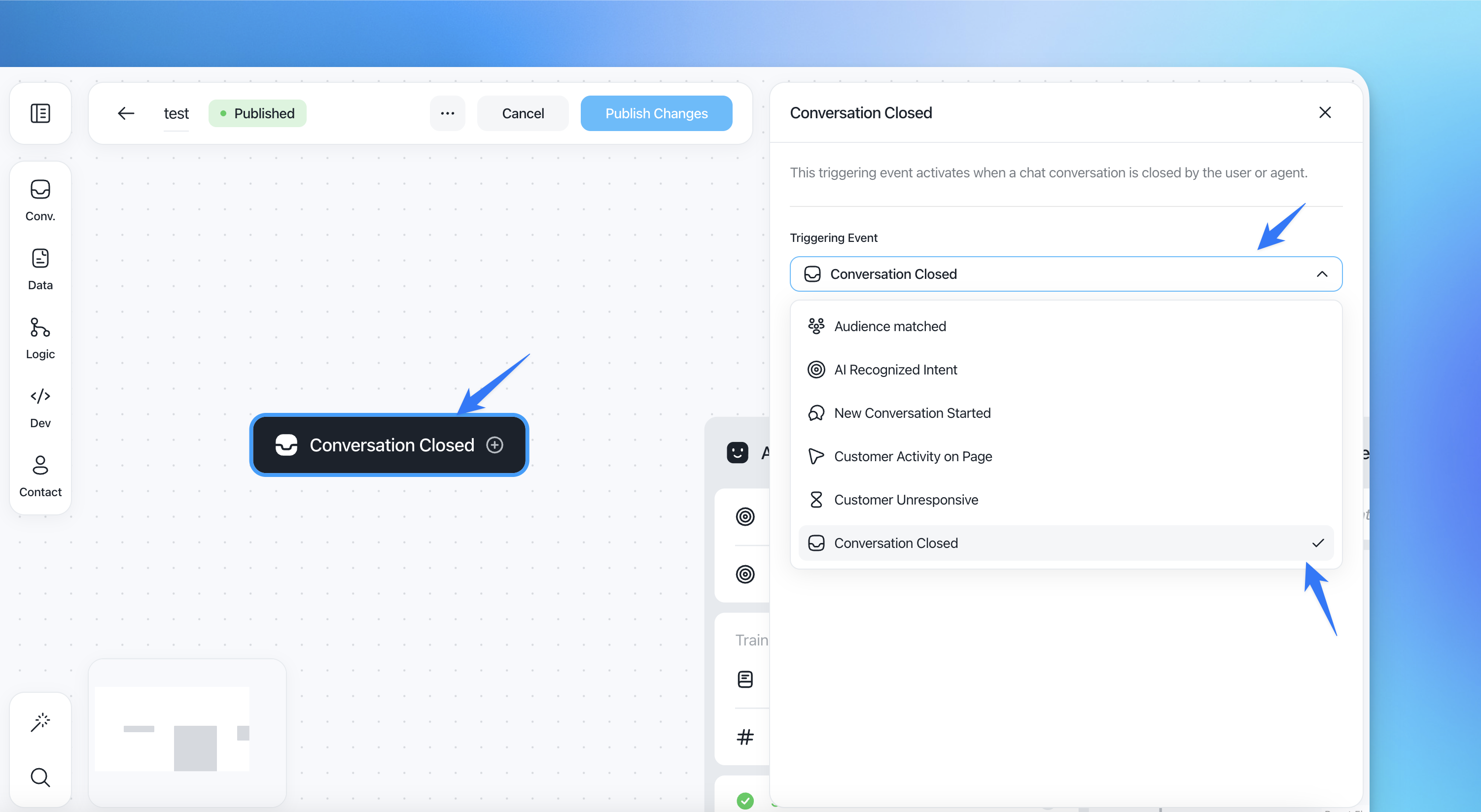
• Select Conversation Closed as the triggering event from the list of options.
• This ensures the flow will initiate every time a conversation is marked as closed.
3. Add Actions to the Flow:
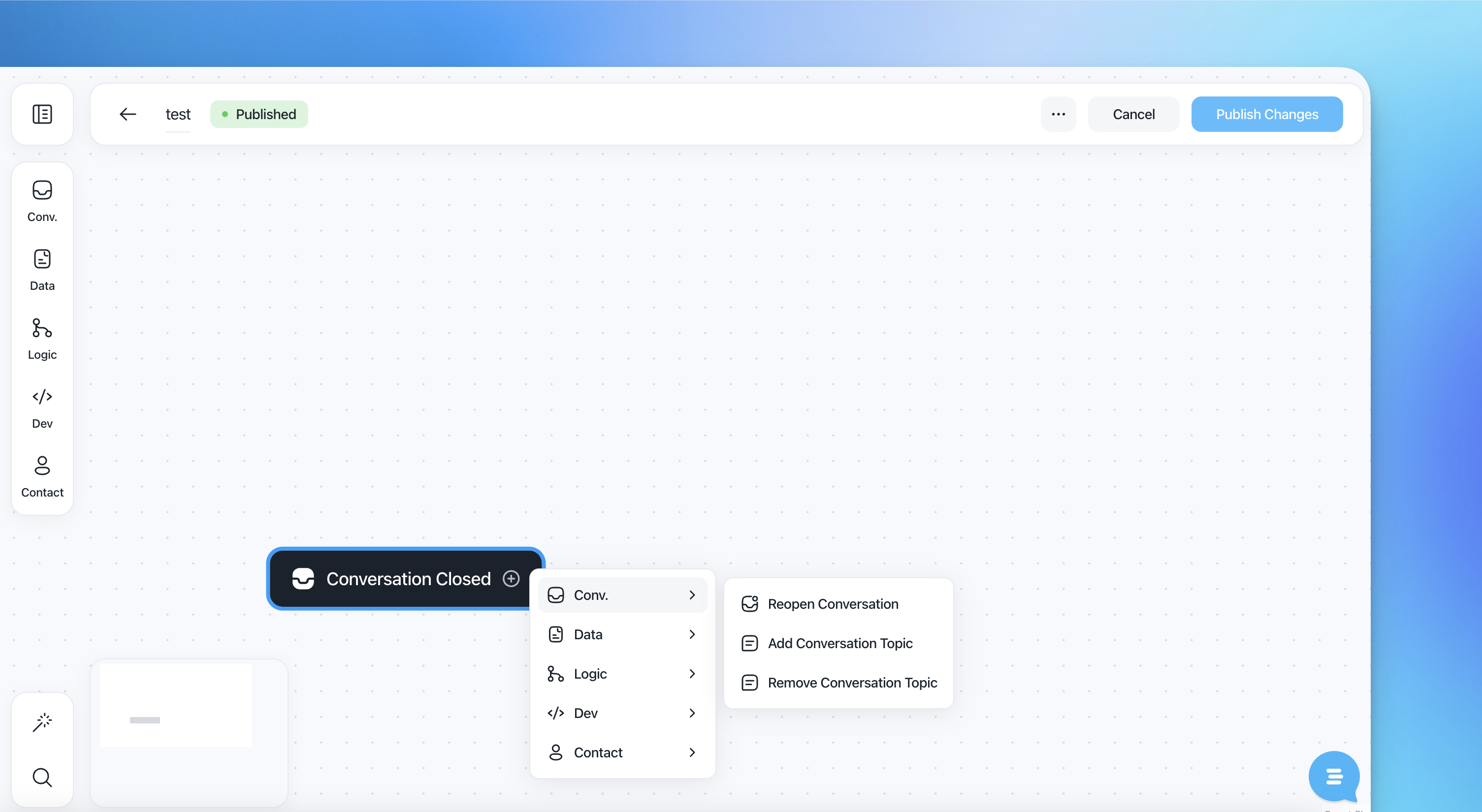
After selecting the trigger, add the actions you want the flow to perform.
For example, you can add a REST API action to send conversation data to an external endpoint.
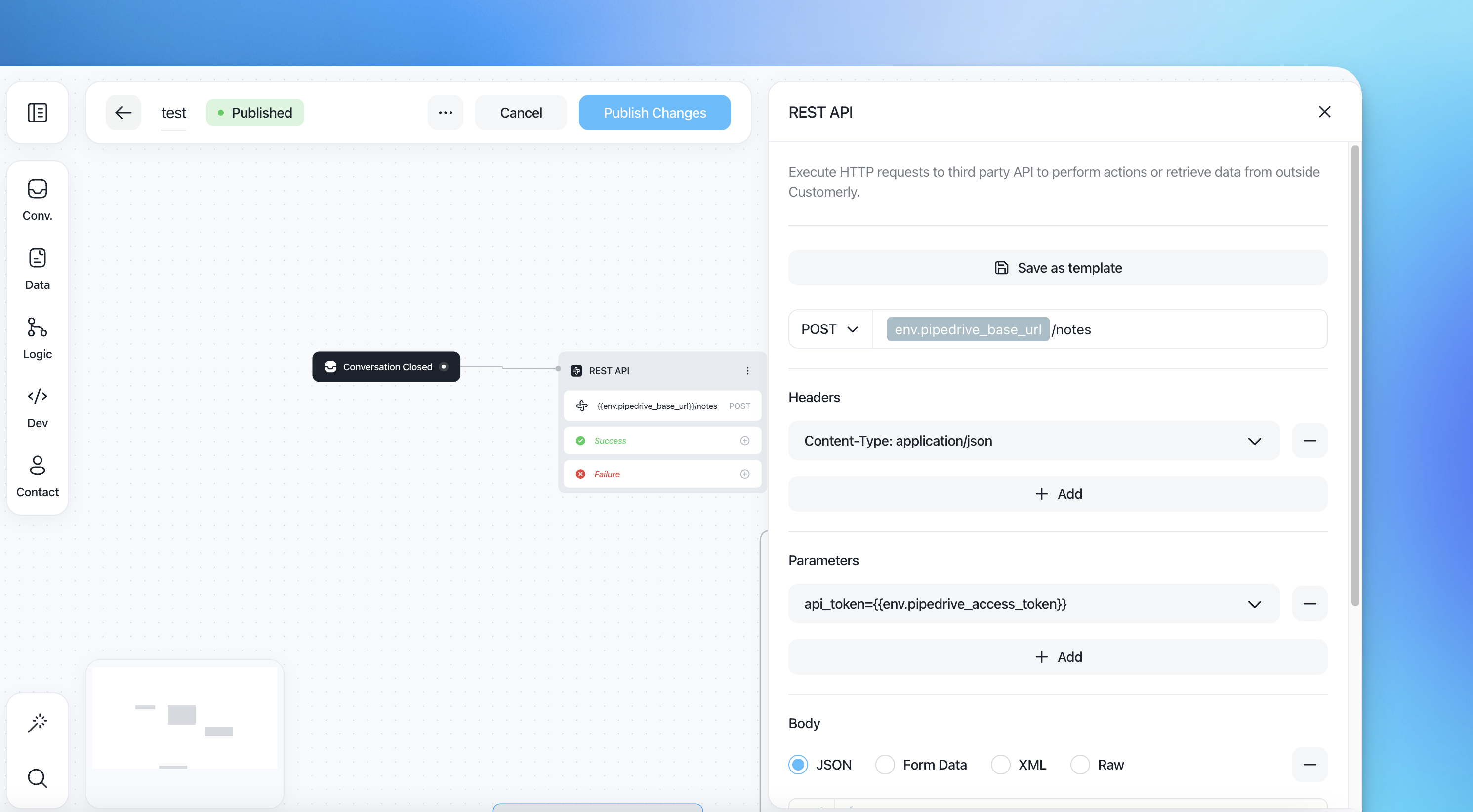
Configure the REST API details:
• API URL: The endpoint for the external service.
• HTTP Method: Select POST, PUT, or the appropriate method.
• Headers: Include any necessary authentication tokens.
• Payload: Use dynamic fields to include data such as conversation ID, tags, customer information, and messages.
4. Save and Activate:
• Once you've tested the flow, save it and activate it to start using the trigger.
Example use case: sending data to an external service
Let's say you want to log conversation details in a CRM system every time a conversation is closed. You can set up the flow to:
• Trigger when a conversation is closed.
• Send the data (e.g., customer name, conversation content, and resolution time) to your CRM via a REST API action.
Tips for using the conversation closed trigger effectively
• Use Filters: Apply conditions to ensure only specific conversations trigger the flow (e.g., based on tags or properties).
• Secure Your Integration: Use authentication methods like API keys to protect your external services.
• Monitor Activity: Regularly review flow logs to ensure everything is functioning correctly.
With the "Conversation Closed" trigger, you can automate and optimize your post-conversation flows, saving time and ensuring seamless data integration with other tools.