
Triggering events are specific conditions or actions that initiate a Flow, allowing for targeted and timely interactions with customers based on their behavior, requests, or audience membership. Flows support six triggering events:
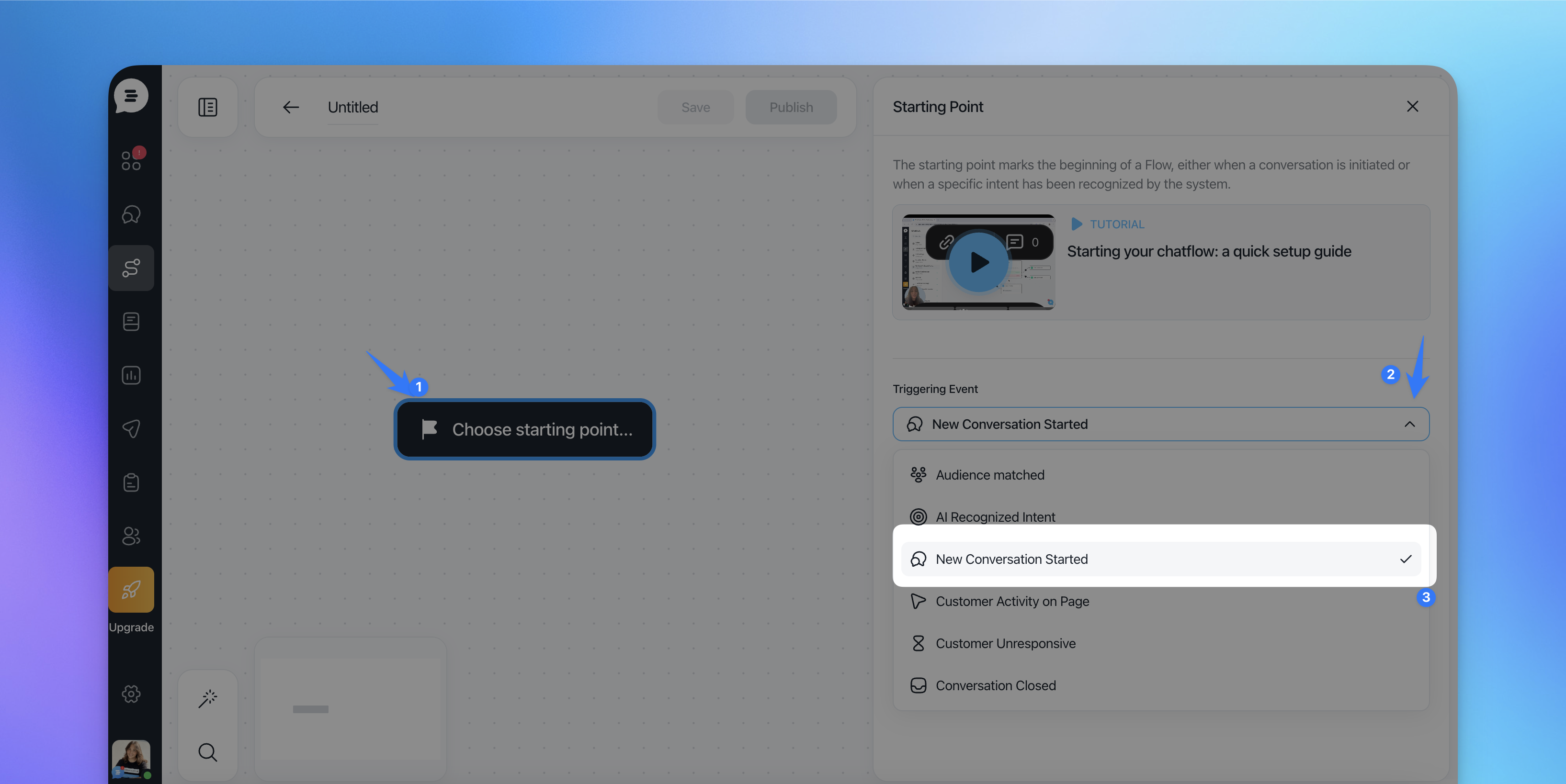
1. New Conversation Started
This trigger activates a Flow when a new conversation begins. It is ideal for engaging customers right from their initial contact.
2. Recognized Intent (requires a Flow with AI Assistant Enabled)
This trigger activates a Flow when the AI Assistant recognizes a specific intent from the customer's query. Intents are predefined patterns that match certain customer requests or questions.
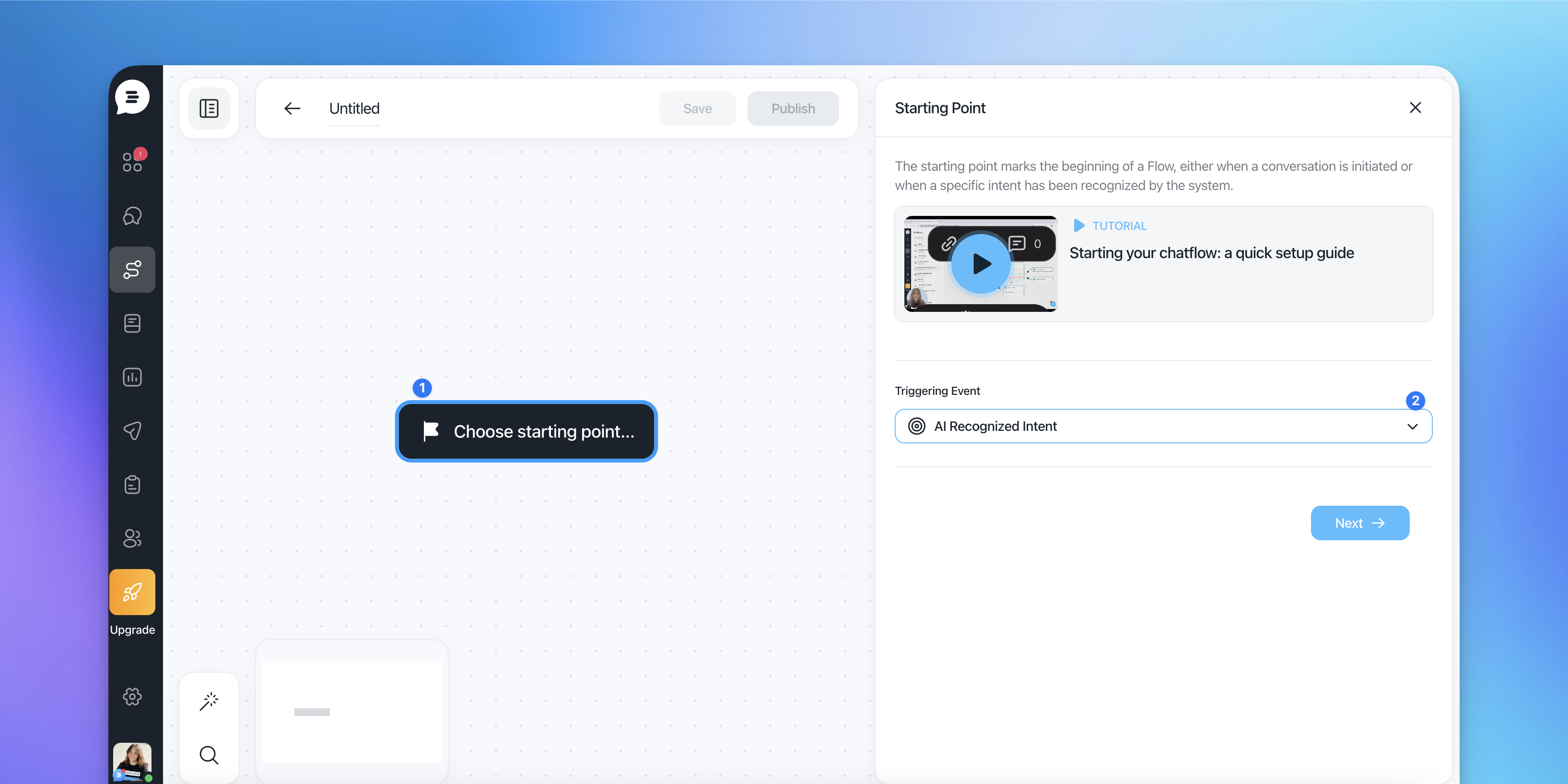
Use Case: When customers ask about specific services, such as scheduling a demo or requesting a refund, this trigger ensures they are directed to the appropriate Flow.
Example: A customer asks, "Can I get a demo?" and the Flow for scheduling a demo is triggered.
3. Customer Activity On Page
This trigger starts a Flow when a customer performs specific actions on your website, such as visiting a particular page, clicking a button, or spending a set amount of time on a page.
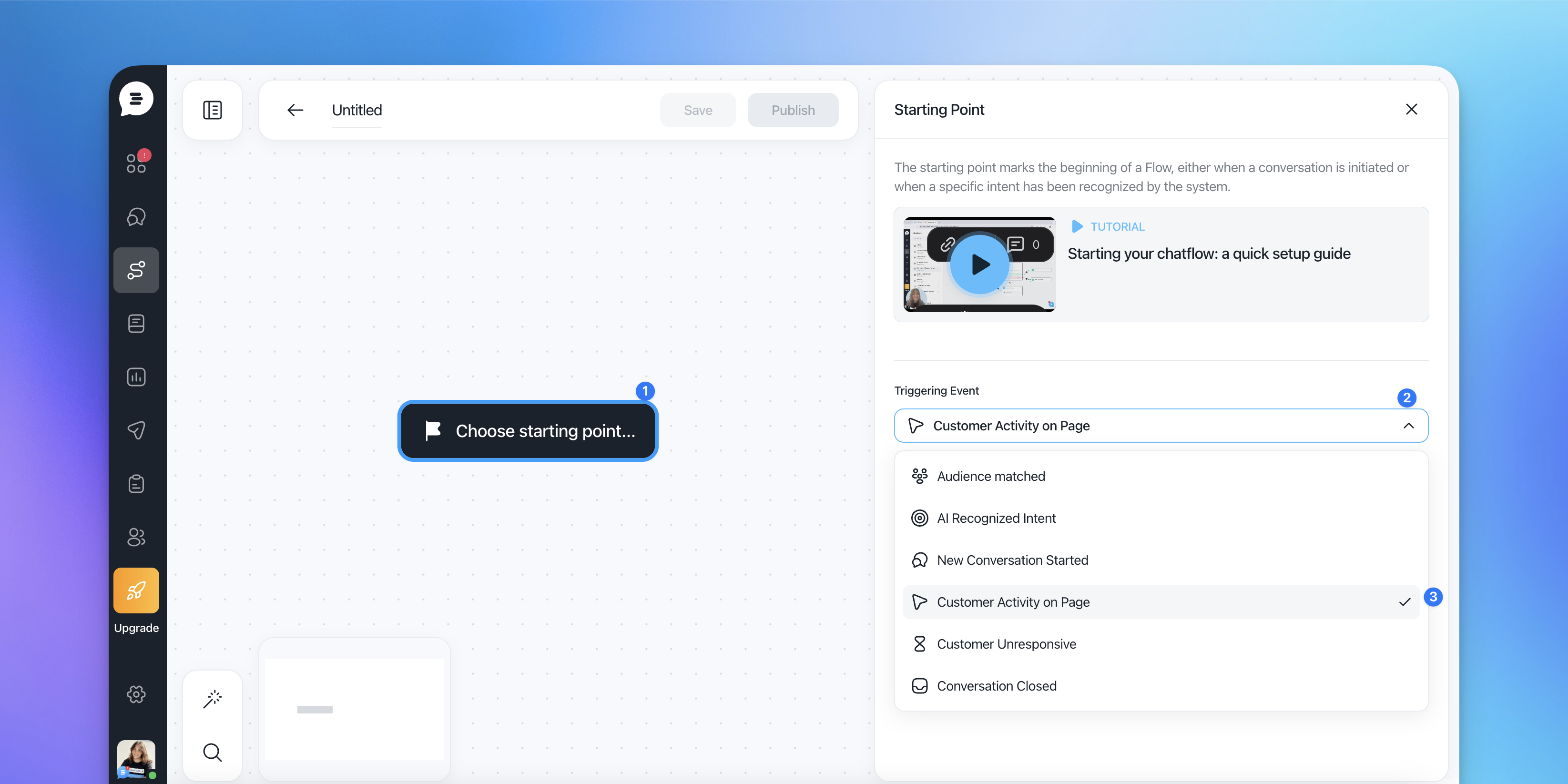
Use Case: Initiating a proactive Flow to offer assistance when a customer is browsing a pricing page.
4. Customer Unresponsive
If a customer becomes inactive during a conversation, this trigger can activate a Flow to re-engage them.
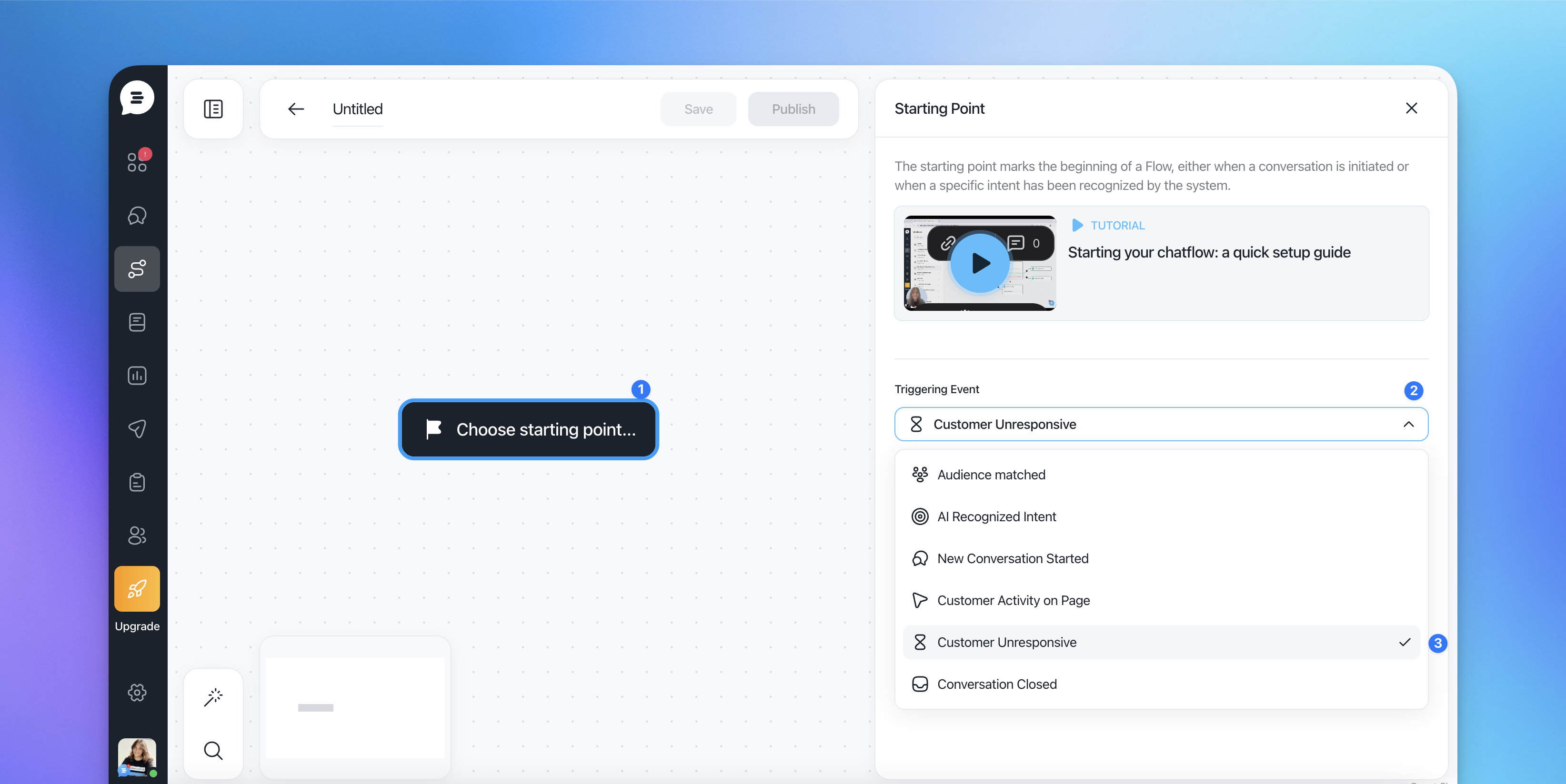
Use Case: Sending a follow-up message if the customer hasn't replied for a specific duration.
5. Conversation Closed
This trigger activates a Flow when a conversation is marked as closed. It is commonly used to pass conversation data to an external service or trigger follow-up actions.
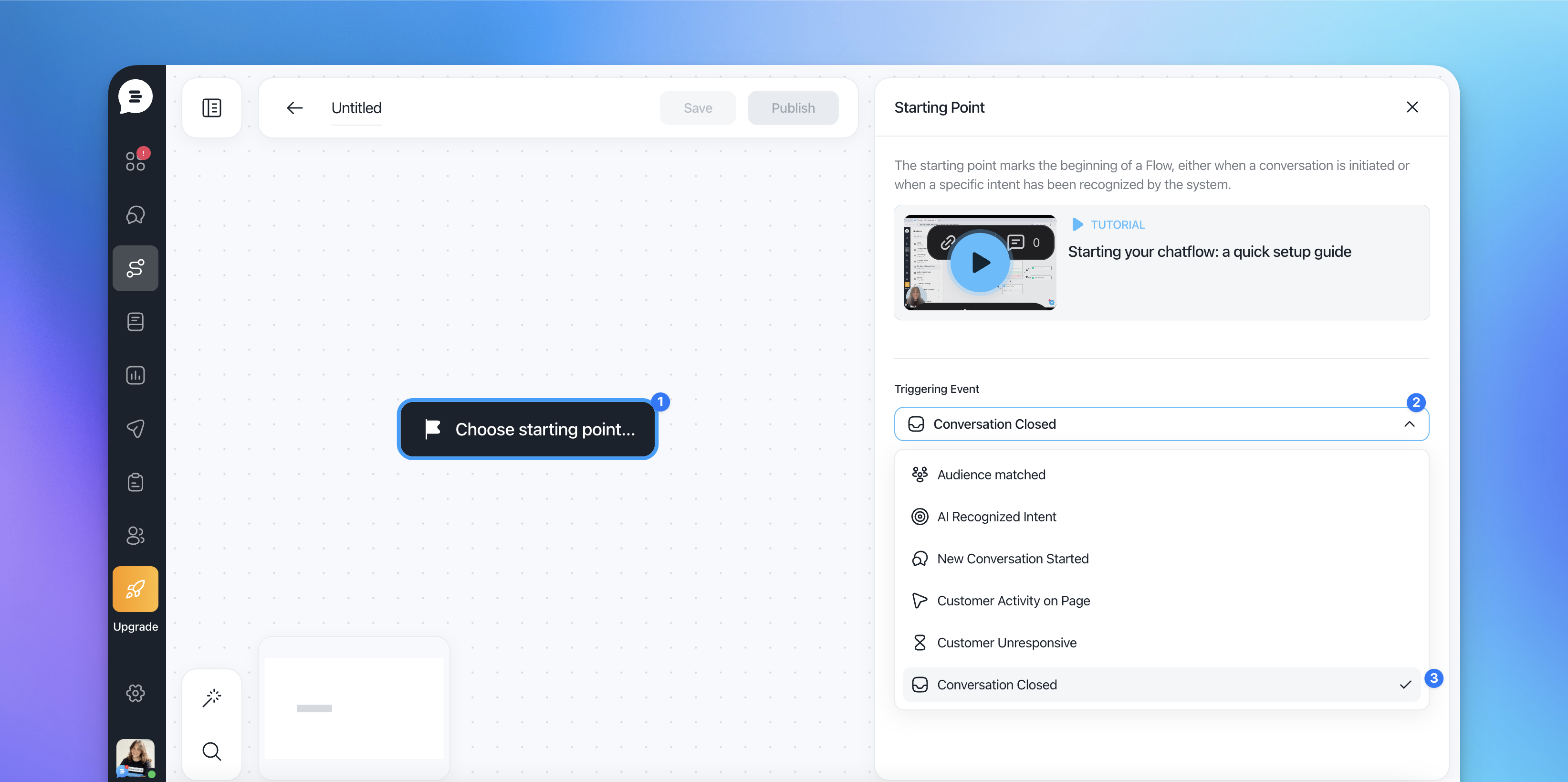
Use Case: Sending data to a CRM or creating an automated follow-up survey.
6. Audience Matched
This trigger activates a Flow when a contact matches specified audience filters. It is the primary entry point for automated outbound actions such as email sequences, chat message campaigns, tag assignments, property updates, and more.
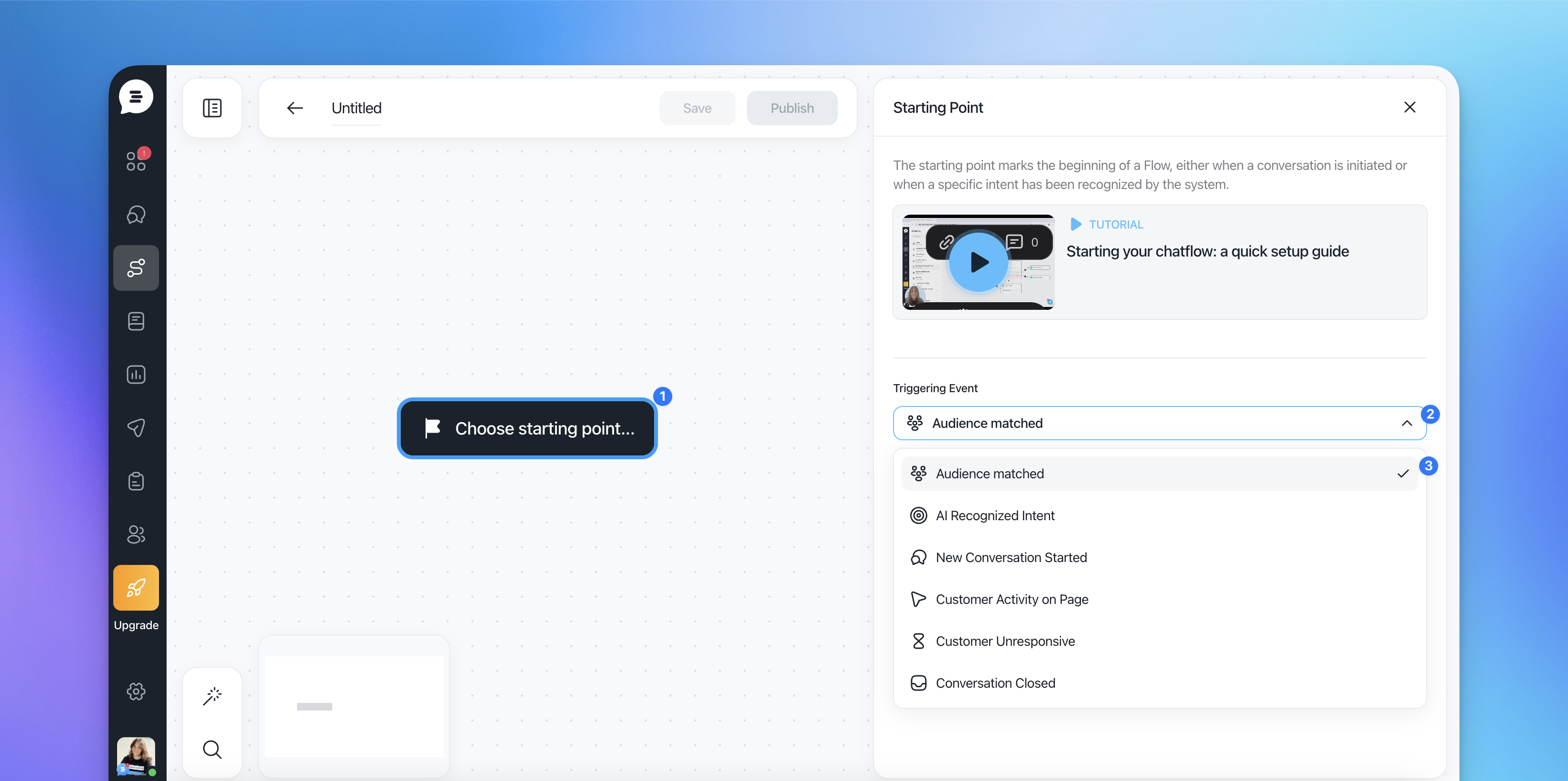
Audience filters can be based on:
Contact properties (e.g., "First seen at within last 7 days", "Plan equals Pro")
Events (e.g., "Completed onboarding")
Tags (e.g., "Has tag: trial-user")
Lists (e.g., membership in a specific contact list)
Segments (e.g., matching a predefined segment)
Use Case: Triggering an onboarding email sequence for all users who signed up within the last 7 days, or automatically assigning a tag to contacts who match certain criteria.
Example: A Flow is configured with the audience filter "All users where First seen at within last 7 days." When a new user signs up and matches this filter, they automatically enter the Flow and receive the configured sequence of emails, chat messages, or other actions.
The "Audience Matched" trigger replaces what was previously a separate entry point configuration. Contacts are inserted automatically into the Flow every time they satisfy the audience condition, making it work seamlessly with both existing and future contacts.
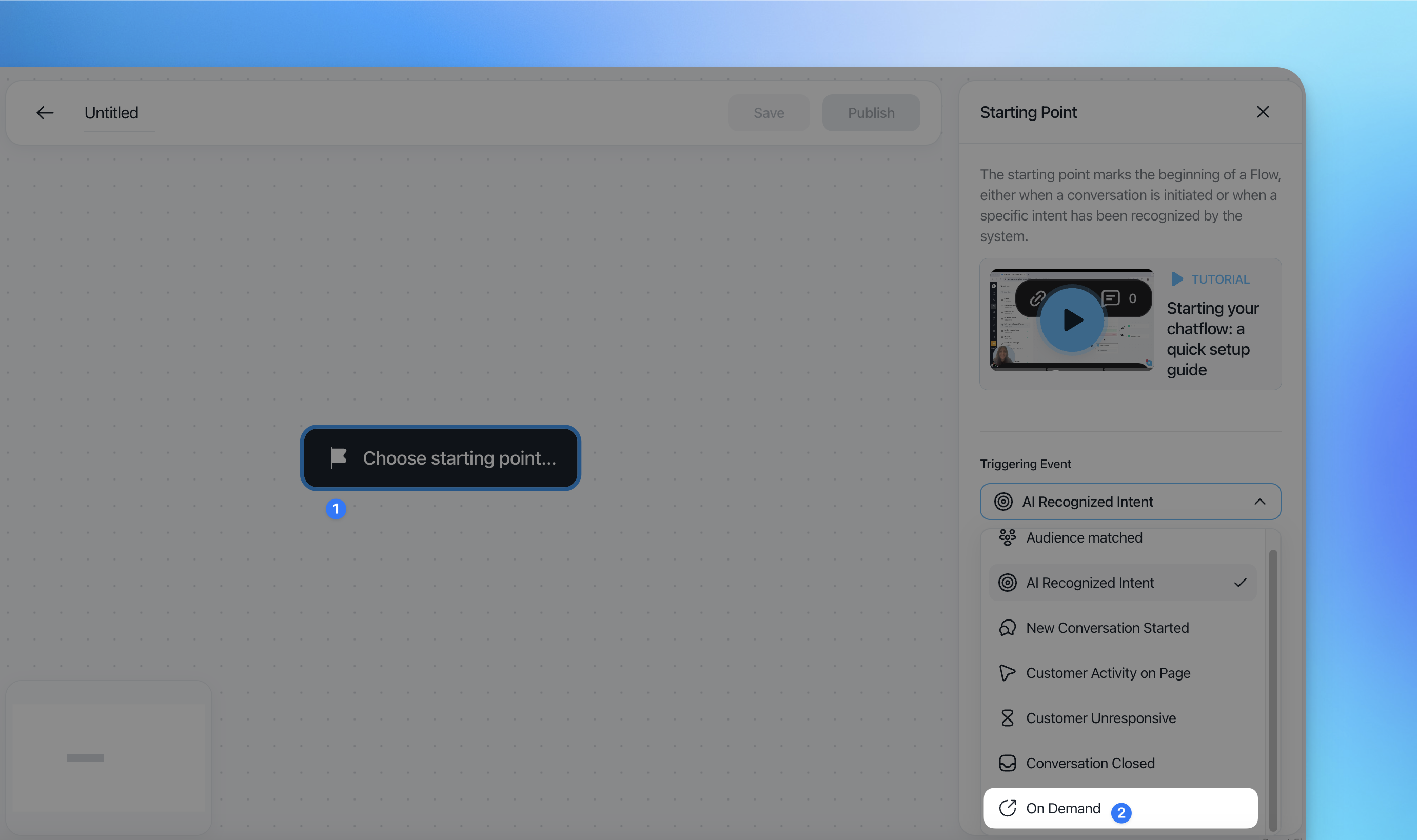
6. On Demand: The On Demand trigger lets you start any Flow manually, either directly from a conversation in your inbox or by calling it from another Flow using the Launch Flow step.
Setting Up Triggering Events
Defining The Event Condition
1. Identify The Trigger:
Determine whether the Flow should start with a new conversation, recognized intent, customer activity, audience match, or other supported events. This depends on the type of interaction you want to automate.
2. Specify The Audience:
Define which group of customers the trigger applies to. This can be segmented by criteria such as subscription status, user type, specific lists, properties, events, or tags.
Configuring The Flow
- New Conversation Trigger: Set the trigger to activate for new conversations and specify the audience. For instance, direct all new conversations from non-subscribed users to the AI Assistant.
- Recognized Intent Trigger: Define the intents that should trigger the Flow. Provide examples of phrases or questions that represent each intent to help the AI recognize them accurately.
- Customer Activity On Page: Specify the page or action that will trigger the Flow. For instance, set a trigger for users who view your pricing page for over 30 seconds.
- Customer Unresponsive Trigger: Define the inactivity duration and configure the message or action to re-engage the customer.
- Conversation Closed Trigger: Add actions such as a REST API request to send data externally when a conversation is closed.
- Audience Matched Trigger: Configure the audience filters that determine which contacts enter the Flow. Select the contact type (All leads, All users, or All contacts) and add filter conditions such as properties, events, tags, or list membership. Contacts matching these filters will automatically enter the Flow.
- On Demand: When building a Flow, you can set its triggering event to On Demand. This means the Flow will not start automatically — it will only run when explicitly launched by a teammate from the inbox, or called by another Flow.
Example Scenarios: Using Triggering Events In Practice
1. AI-First Support For Non-Subscribers
- Trigger Event: New Conversation Started.
- Audience: Non-subscribed users.
- Flow: The Flow directs these users to the AI Assistant, which handles their queries. If unresolved, the conversation escalates to a support agent.
2. Sales Demo Request Handling
- Trigger Event: Recognized Intent (e.g., "I want a demo").
- Flow: When the AI Assistant identifies the intent, it triggers a Flow that gathers customer details, schedules the demo, and provides relevant information.
3. Proactive Assistance On Pricing Page
- Trigger Event: Customer Activity On Page.
- Flow: A Flow proactively offers assistance, such as answering pricing questions or providing special offers, to customers browsing the pricing page.
4. Re-Engaging Inactive Customers
- Trigger Event: Customer Unresponsive.
- Flow: If a customer doesn't reply for 5 minutes, a follow-up Flow sends a friendly reminder message or offers further assistance.
5. Logging Conversation Data On Closure
- Trigger Event: Conversation Closed.
- Flow: Data such as customer name, conversation ID, and resolution details are sent to a CRM or analytics platform via a REST API action.
6. Automated Onboarding Email Sequence
- Trigger Event: Audience Matched (e.g., "All users where First seen at within last 7 days").
- Flow: New users automatically enter the Flow and receive a series of onboarding emails with wait times between each step. Conditional checks (If/then) verify whether the user completed specific actions before sending the next email.
7. Tag-Based Re-engagement Campaign
- Trigger Event: Audience Matched (e.g., "All users where tag is inactive-30-days").
- Flow: Contacts matching the tag filter receive a re-engagement email series, and upon opening or clicking, their tags are updated automatically.
Benefits Of Flow Triggering Events
- Relevance: Ensures interactions are timely and contextually appropriate based on customer actions, requests, or audience membership.
- Efficiency: Automates the initiation of Flows, reducing manual intervention and ensuring consistent engagement across both chat and email channels.
- Customization: Allows for tailored customer experiences by segmenting audiences and defining specific triggers.
Best Practices
- Clear Definitions: Clearly define the conditions and criteria for each trigger to ensure accurate activation of Flows.
- Regular Updates: Regularly review and update triggering events based on customer feedback and changing business needs.
- Testing: Test triggering events to ensure they activate the correct Flows and provide the intended customer experience.
By effectively managing and updating triggering events, you can automate and enhance your customer support and outreach processes, creating a better experience for both your team and your customers.