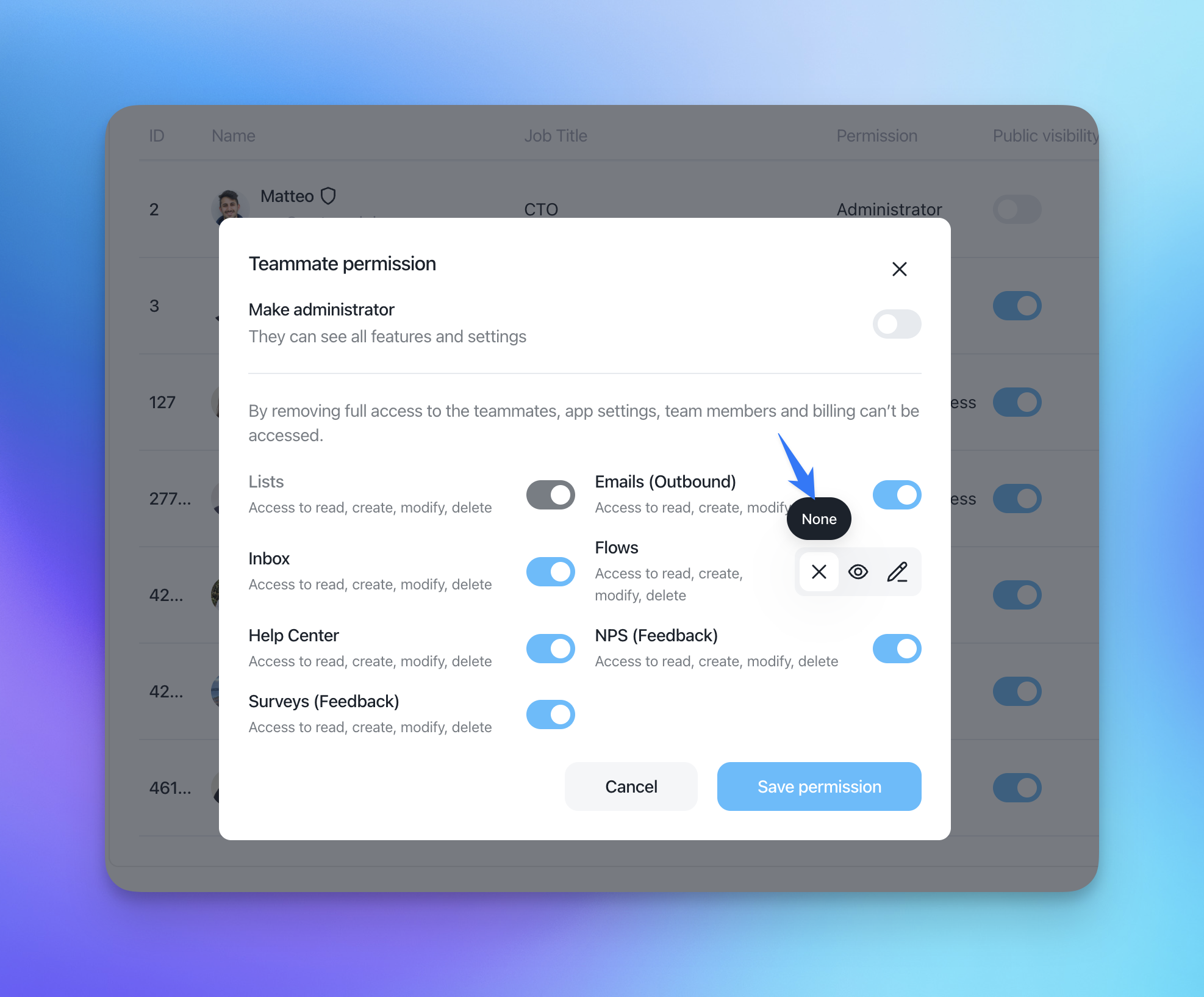
Since each person in our Customerly community has a different privacy policy and is granted access to certain business operations for their team members, we took it into full consideration and allow you to manage access of each teammate to a different part of the project in Customerly.
What should I do to manage access to the project for my teammate?
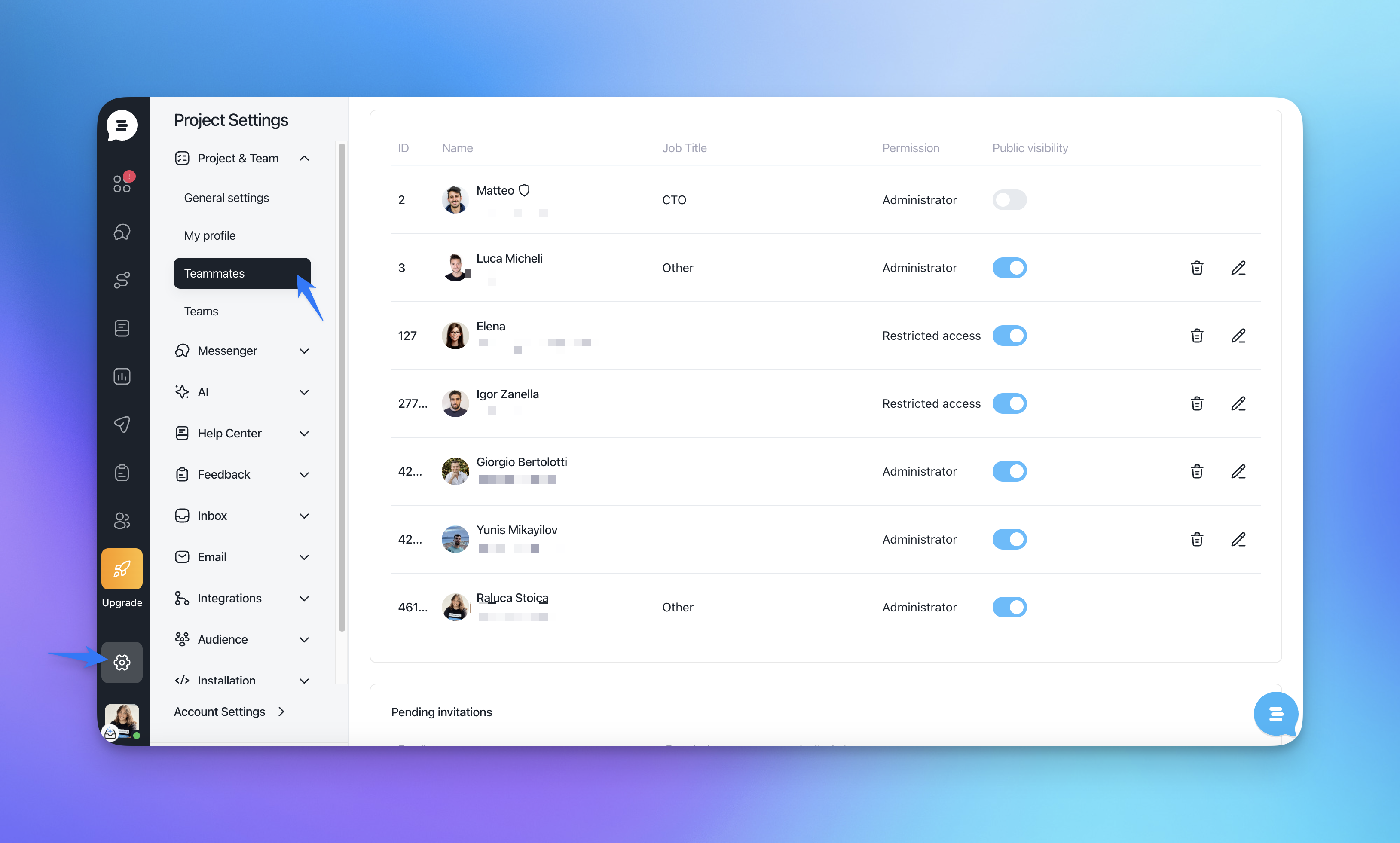
Go to the project settings on the left sidebar and click on "Teammates" under "Project & Team".
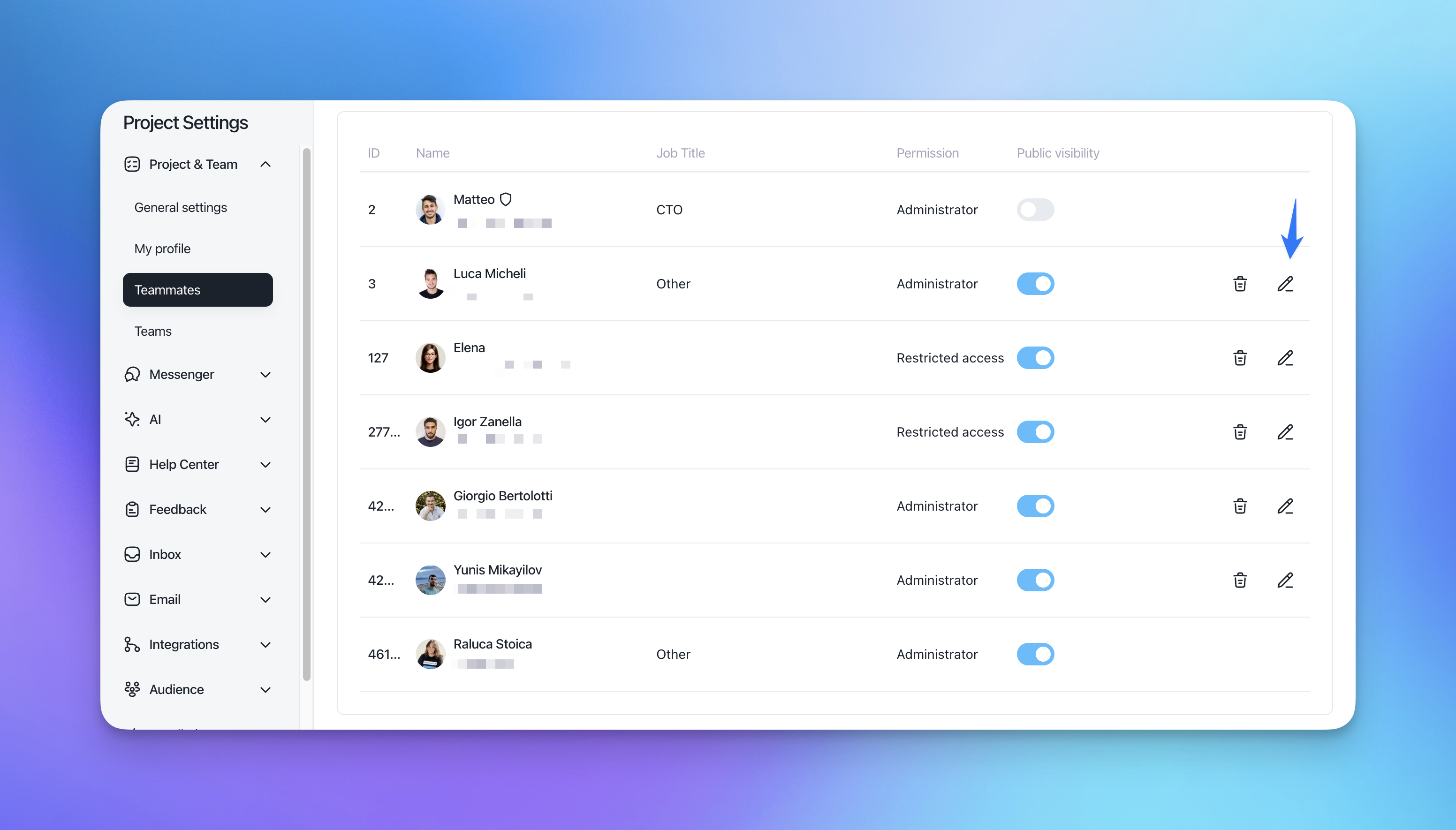
Click on the edit button.
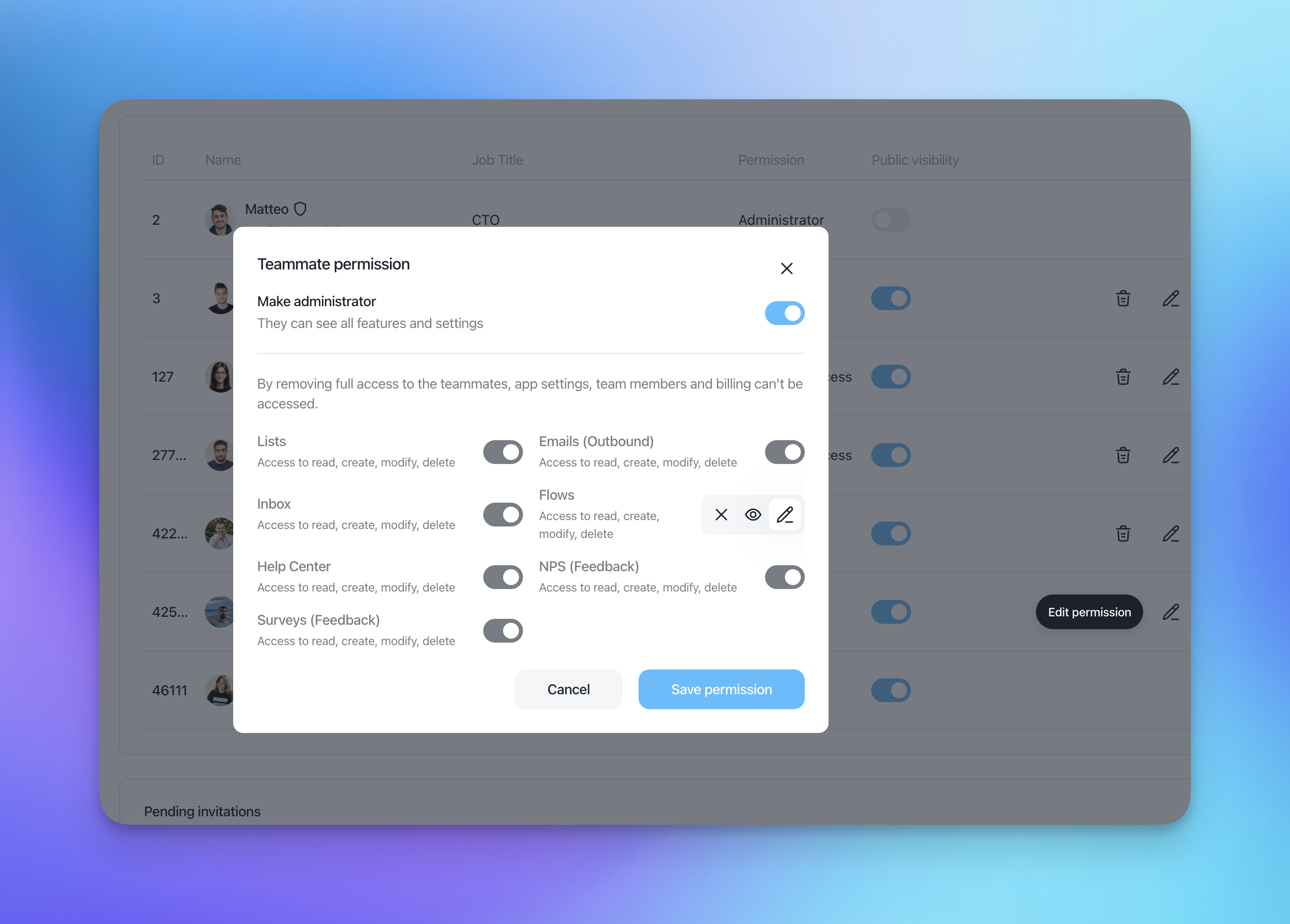
If you previously gave full access to all the features and settings to your teammate, switch a toggle to the left.
Then toggle off the settings and features you want to deny access to.
Then click on "Save permission".
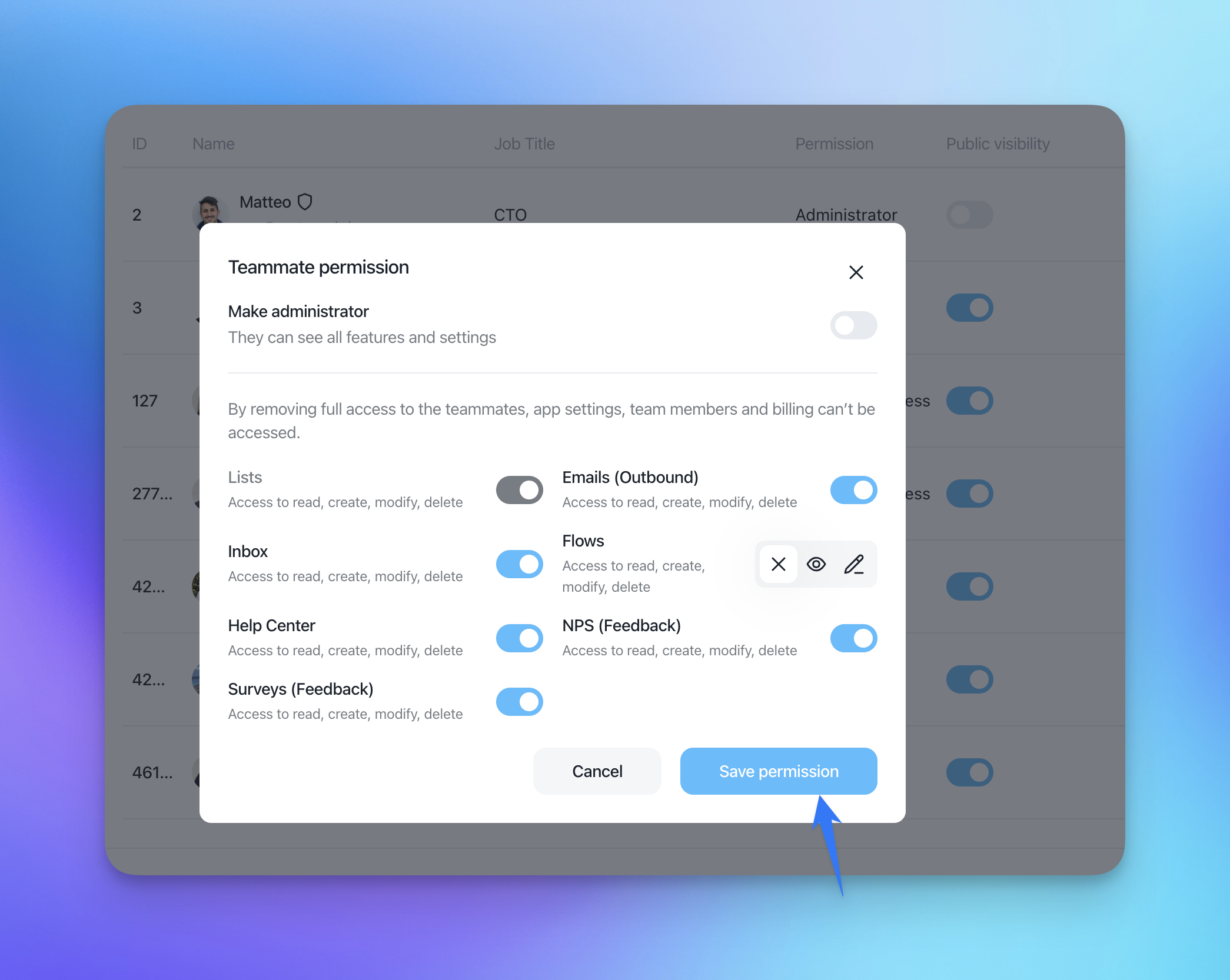
Flows permissions
When a teammate has Administrator access, they automatically receive full edit permissions for Flows, along with all other features. However, if you change their Flows permission to either "None" (X) or "View only" (eye icon), this will remove their Administrator status entirely.
This happens because Administrator access requires full permissions across all features. Restricting even a single feature, like Flows, means the teammate no longer qualifies as an admin, so the system will switch them to a custom permission set.
If you want to restore their admin access later, simply toggle "Make administrator" back on — this will also reset Flows (and all other features) to full edit access.
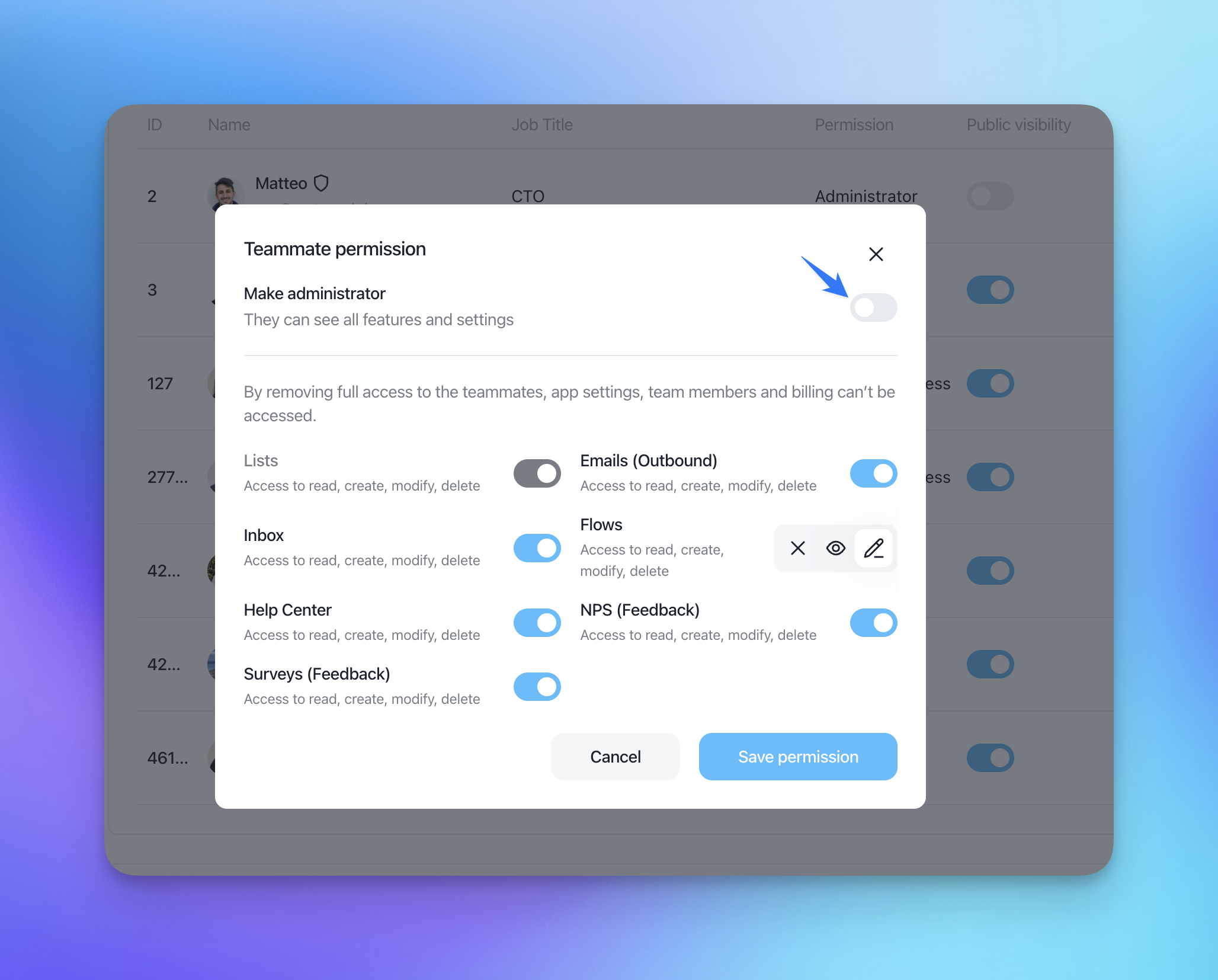
With View only permissions, the teammate will be able to see and visualize existing Flows but won't be able to create, edit, or delete them. If you need them to have no access at all, select "None" (X) to hide Flows from their view entirely.