
Creating an appealing email template is a part of successful email marketing. The way you create and design your email will impact your customers' trust, and how they see your brand and it will help make more deals.
How do I create and design the email template?
Go to Flows on the left sidebar.
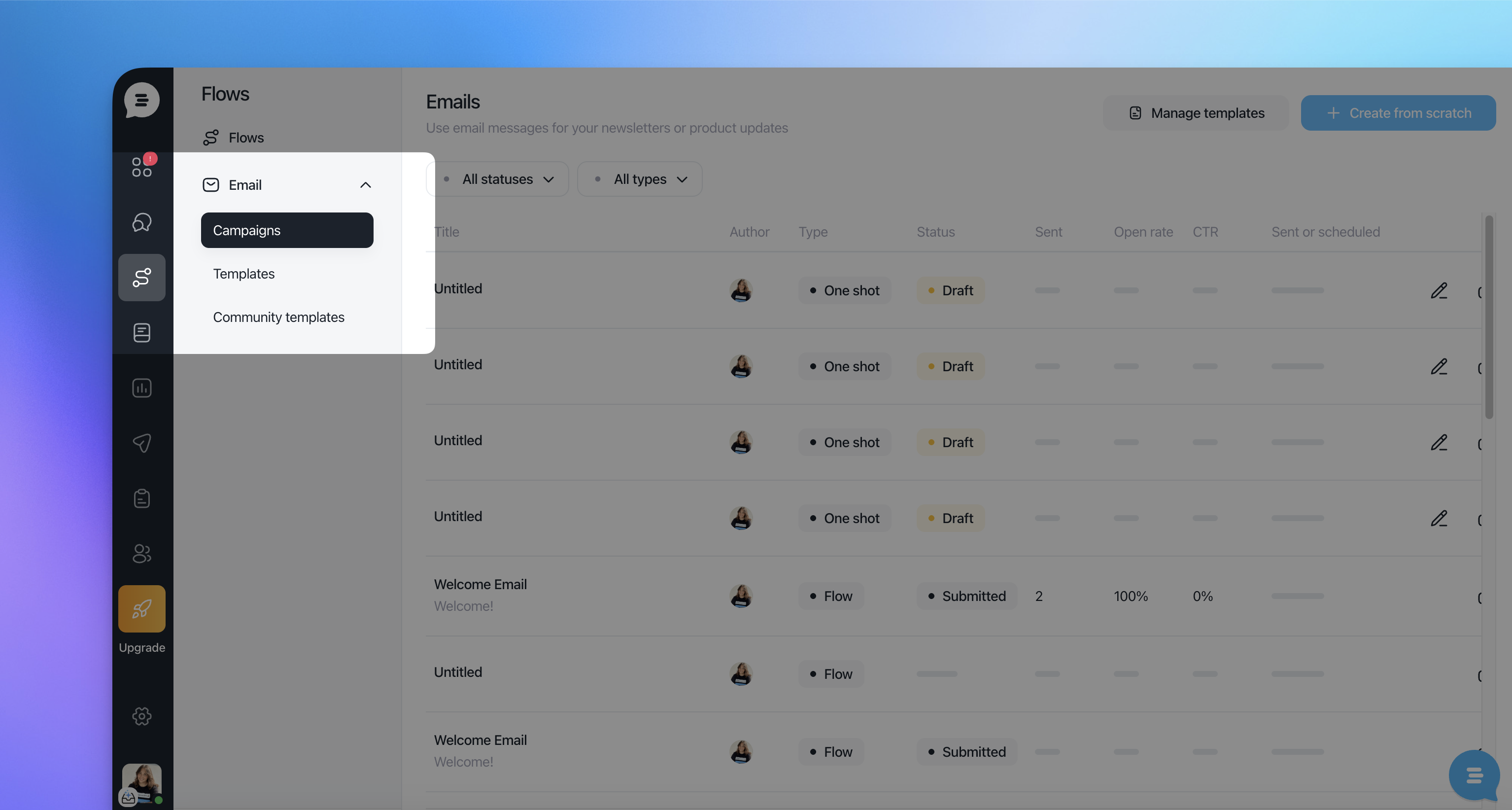
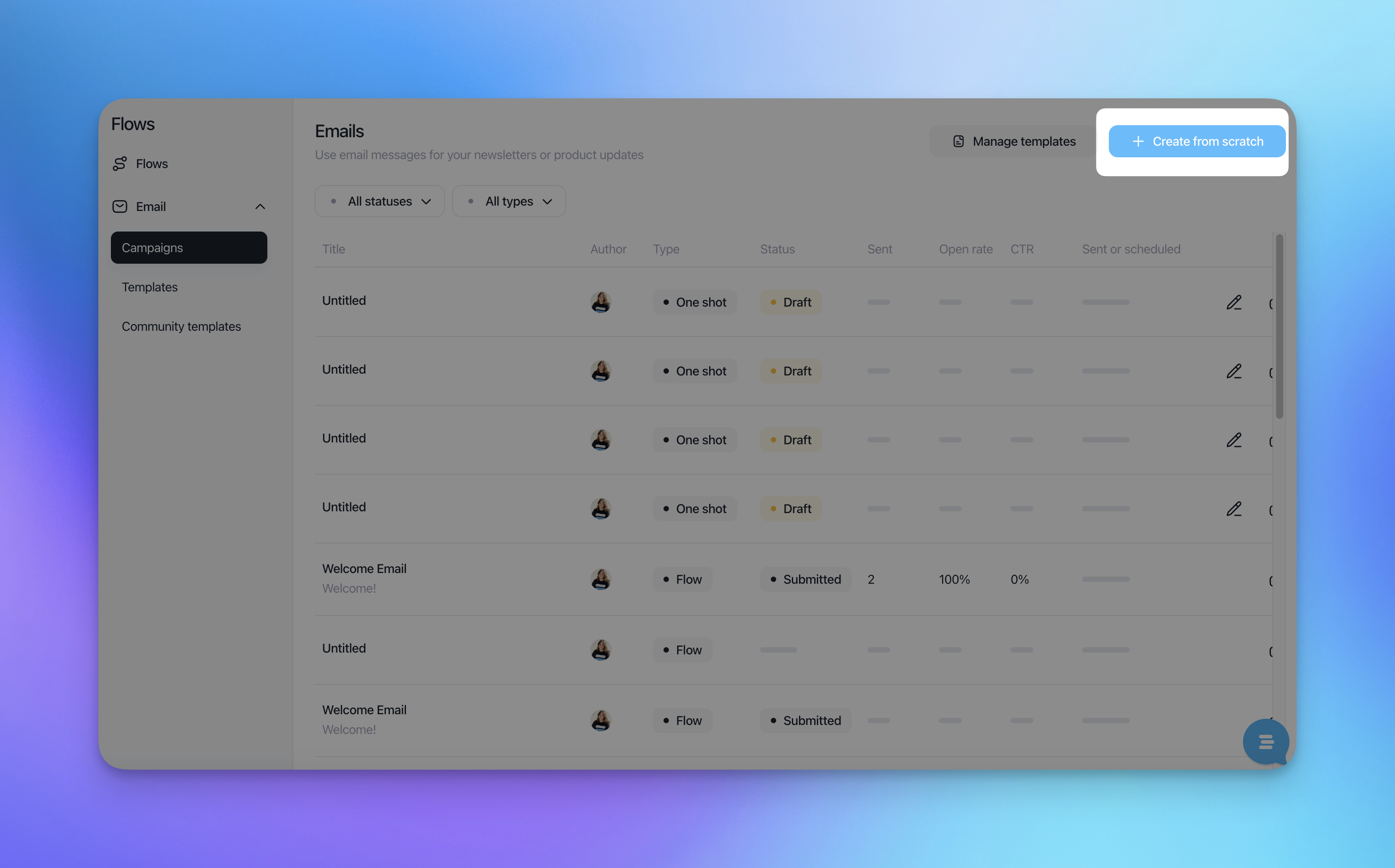
Click on "Create from scratch".
Once you clicked on "Create from scratch", you will see a default email template we prepared for you with some tips, make sure you read it. Delete its elements by clicking on them and hitting the trash icon on the right.
Or retype the text and redo the content.

On the content section of the right sidebar, you will have the content items you can drag and drop to fulfill your sections such as buttons, text, images, links to social media pages, and so on.
Note: when you start working with the template editor, you will notice that all the tools are on the right side and your email template field is on the left. To use any of the tools on the template, click on the text tool "A", drag and drop it onto the template where you want to have your text. The same goes for all the other tools in the editor.
If you click on the "Blocks" section you can add blocks to structure your text and the content.

To edit the body of your template, click on "Body" on the right. Change the text, background color, content width, links color, and underline links.
To add images to the email template, click on "Images". Here you can search for any image, we offer thousands of them. All images are licensed under Creative Commons Zero.

If you decide to add your own image, click on "Uploads" on the right and click on "Upload image" or drag and drop an image there. Once the image is uploaded drag and drop it on your email template.
