
If you want to send targeted emails to your audience, you can do it seamlessly within your Outbound messages in your Customerly account. Start delivering beautiful emails to your leads and users to conduct a series of sales emails, and deals, keep in touch with your contacts to make sure they come back to you, or simply help your contacts get to know you better, your services, and your product.
How do I send an email to my contacts?
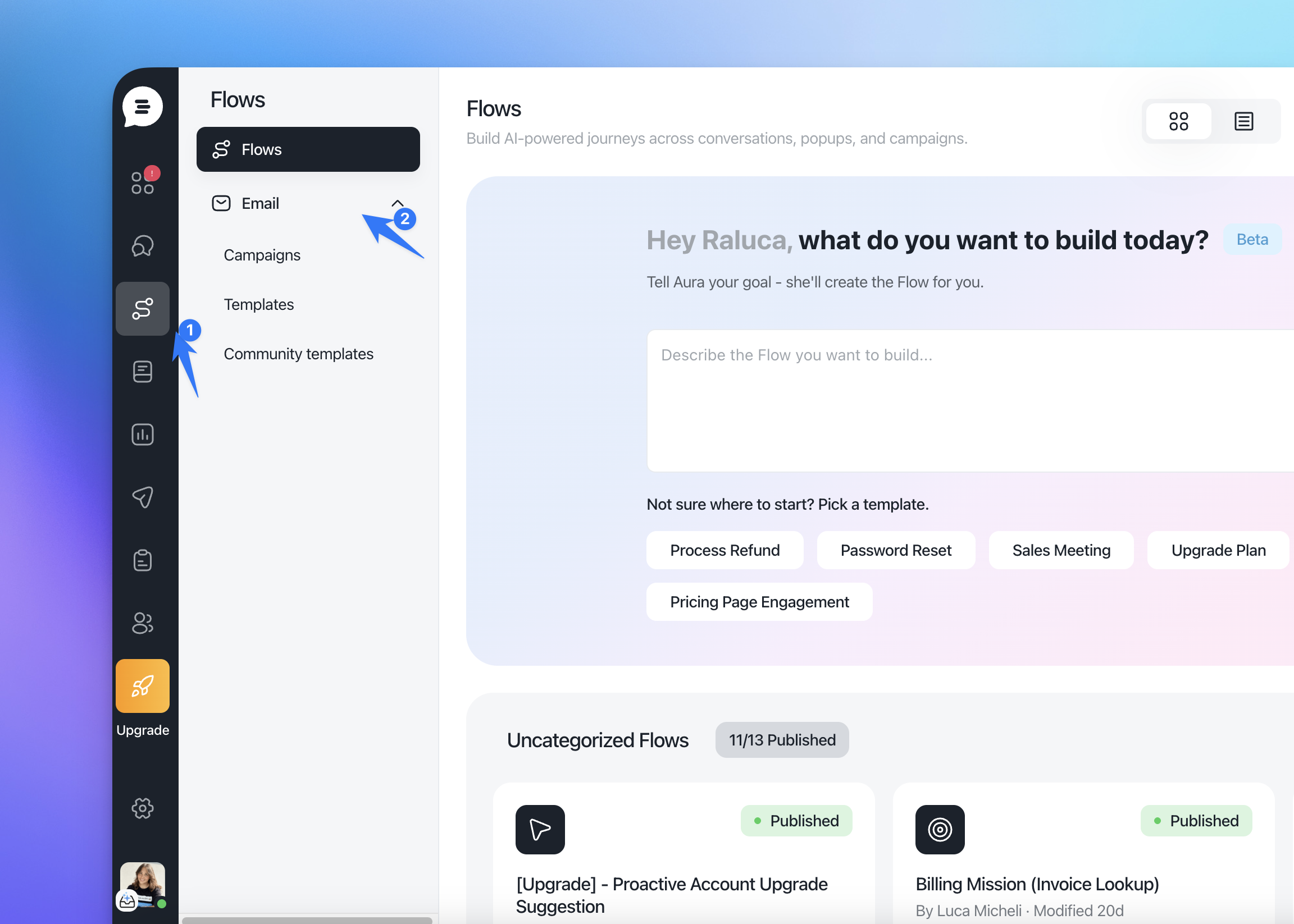
First, go to the Flows > Emails
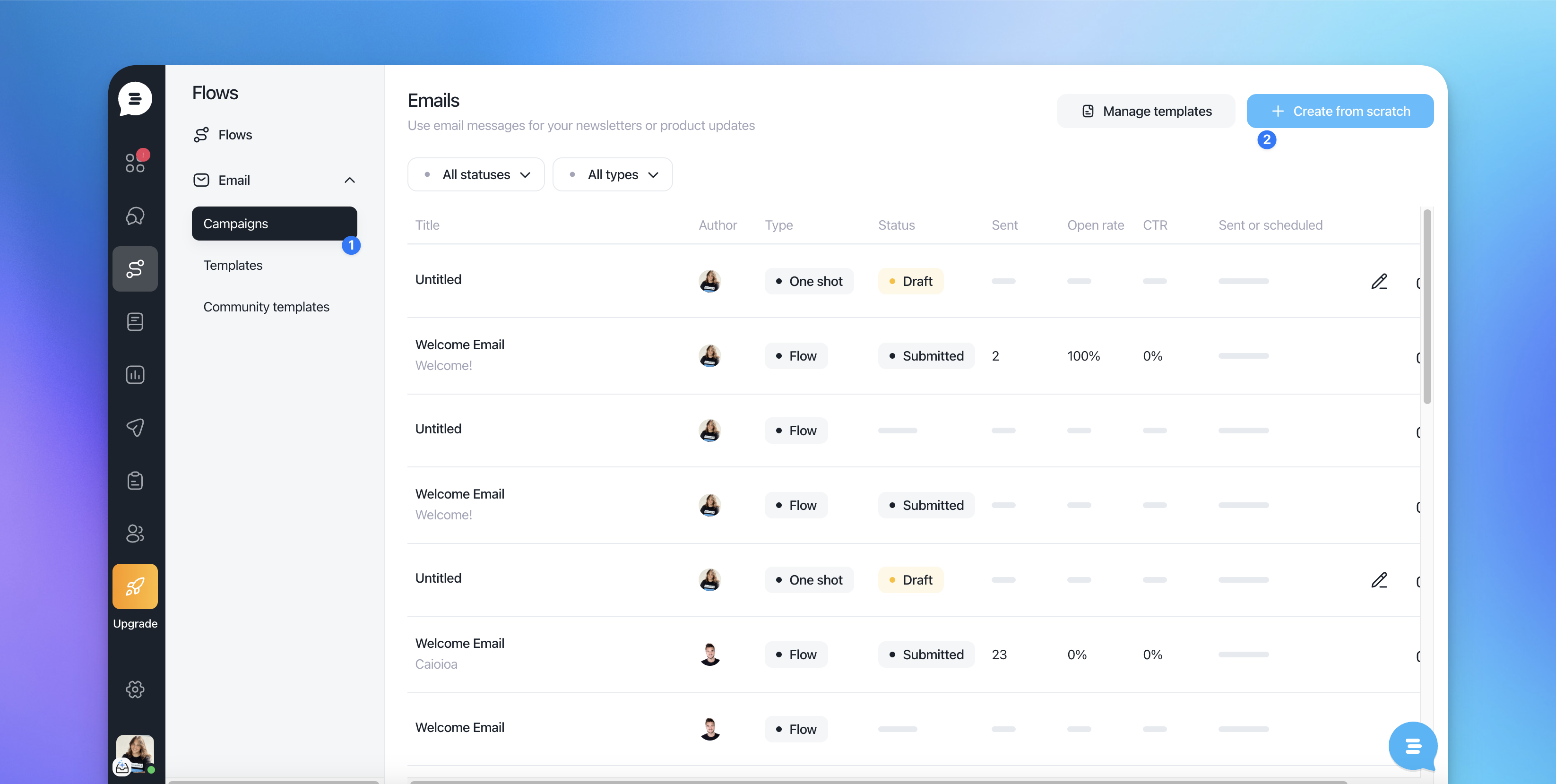
Then click on "Campaigns" > Create from scratch
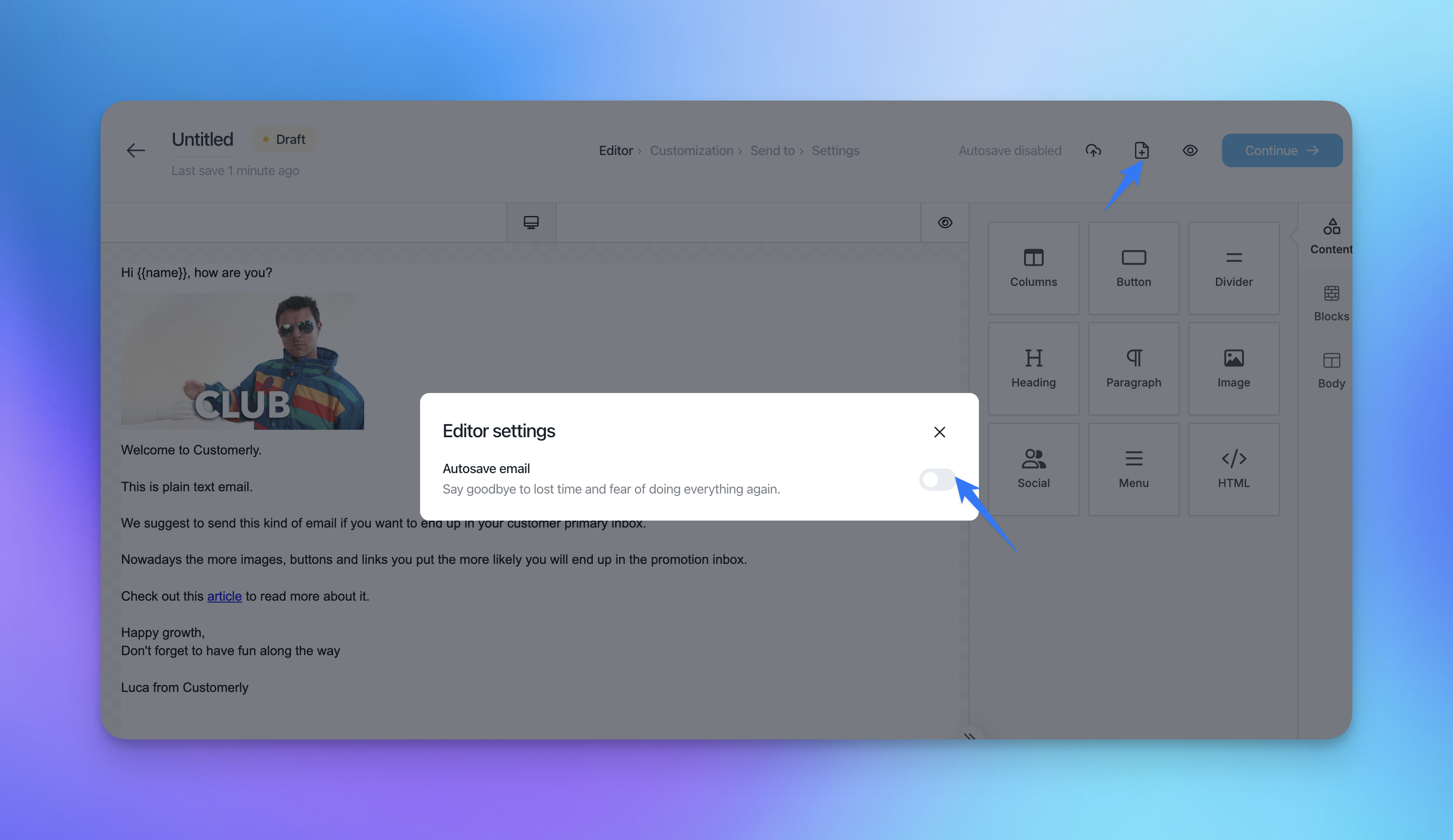
Note: you can enable the autosave feature. It means that from the moment you start creating an email, it will be saved every second.
Use an existing template you have already created
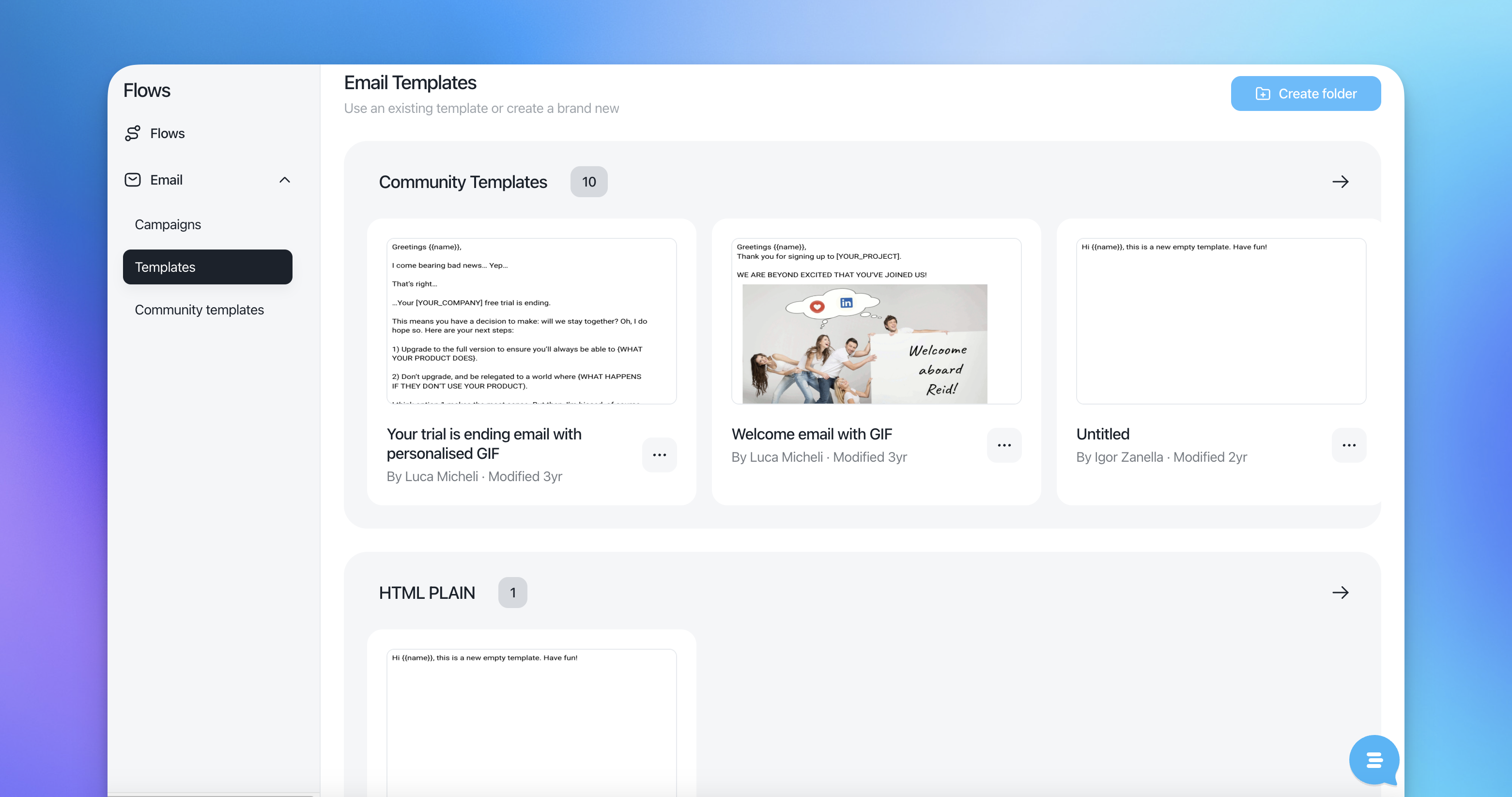
Click on a template you like > click edit or use this template.
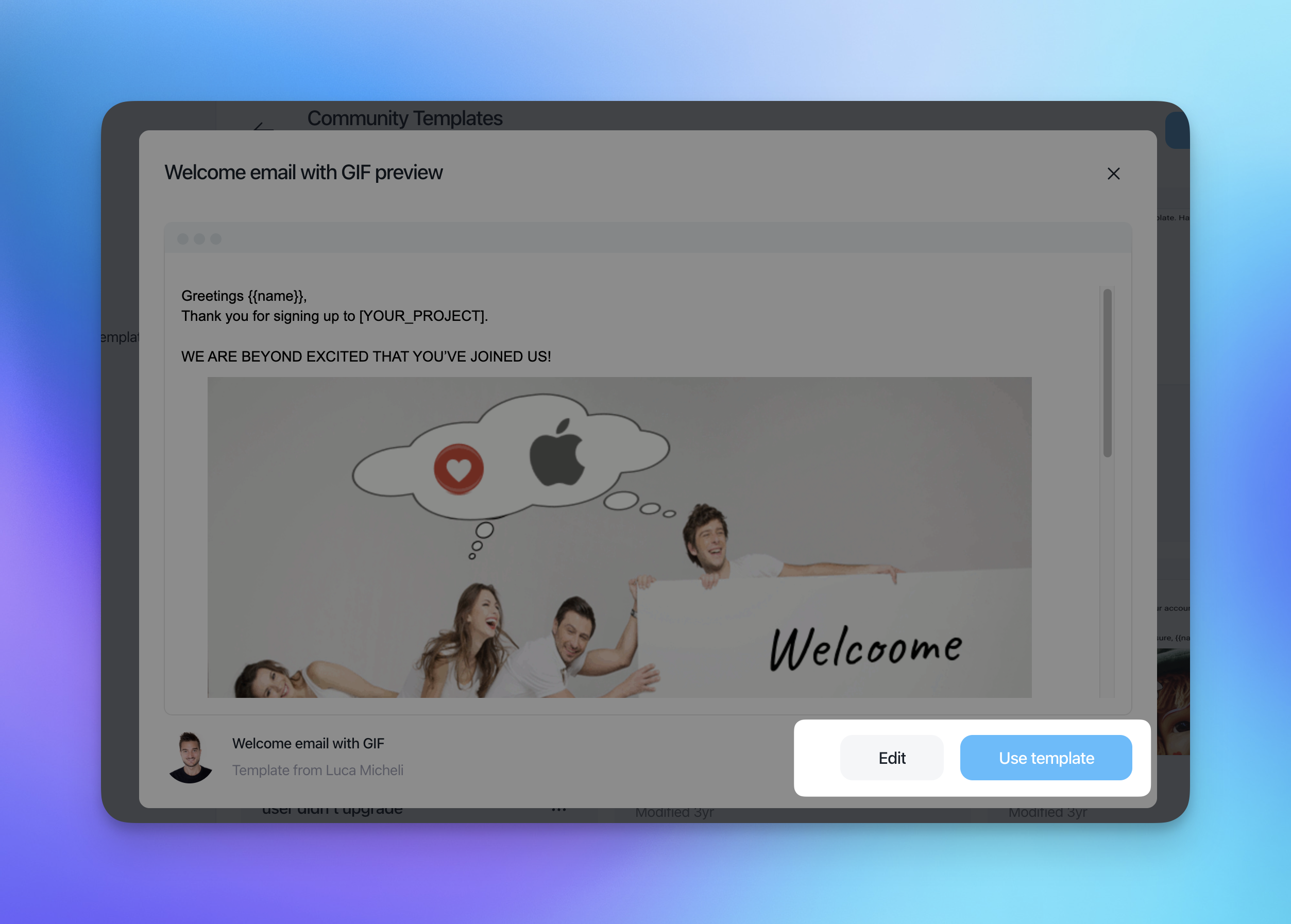
If you click "edit" you'll be prompted to modify and to save the template again.
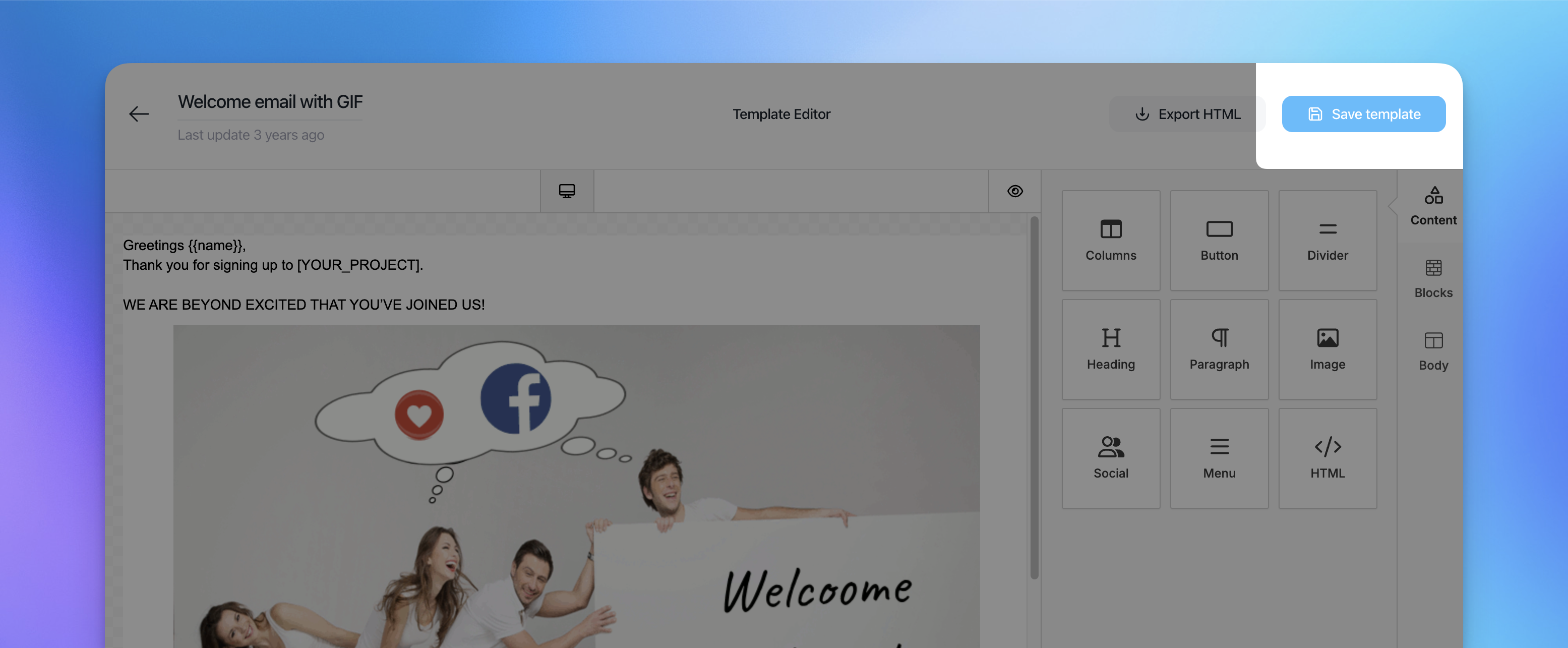
Once you edited the template, click "Continue" in the top right corner.
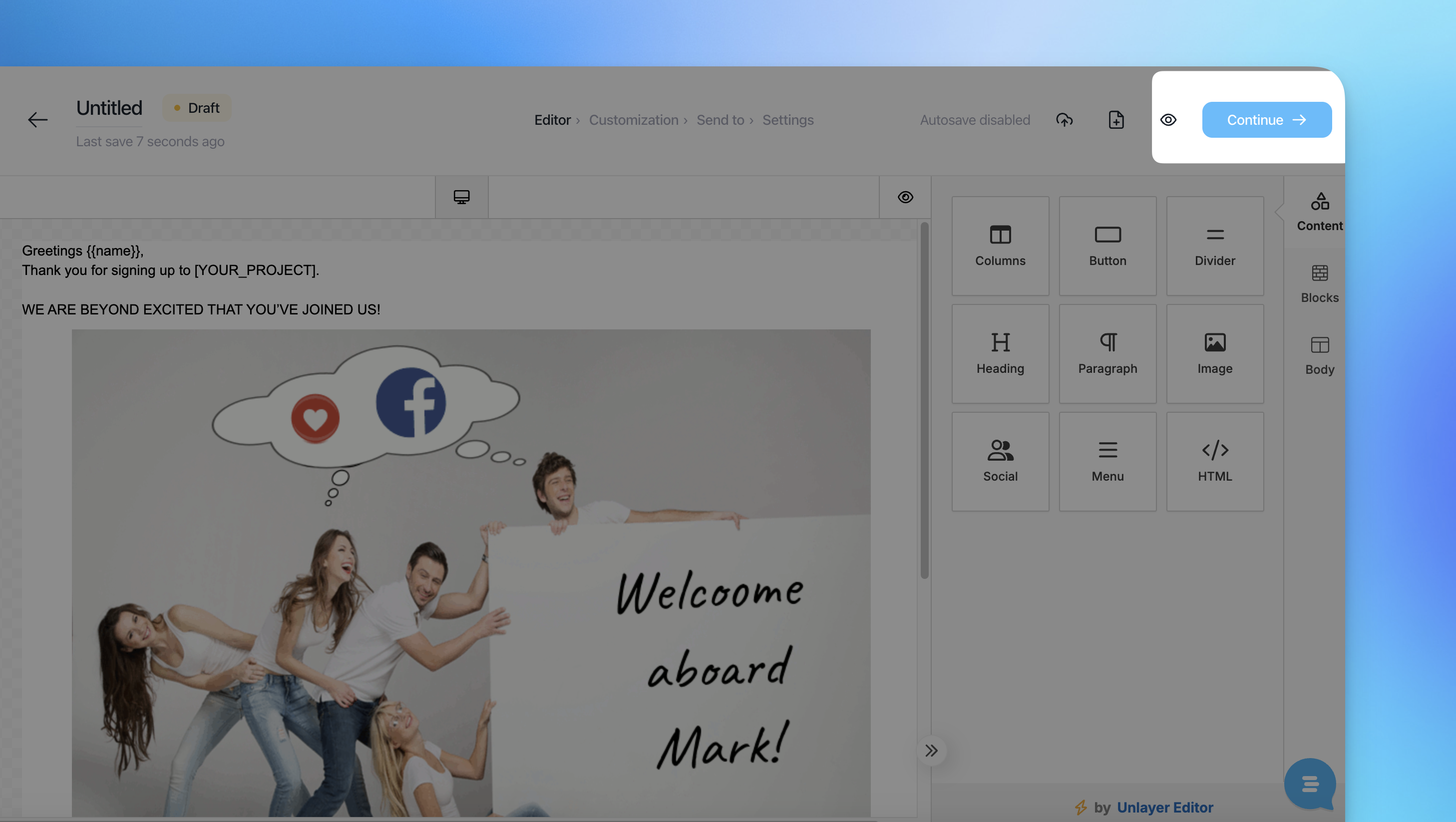
Give a subject to your email.

Tip: subjects are extremely important if you want to communicate to your customer what your email is about. You have to encourage your customers to click on it since you have an important deal or a message in your email. Remember: your subject line is like a book cover, make the most out of it.
If you click on a plus button, you will be able to add a contact property, for example, your contact's name {{name}} which will be replaced with an actual name of your contact.

Add a preview text. It will be shown just below the subject, this text will influence the open rate as well.
Click on a plus button if you want to add a contact property in there as well.
Note: you can see the preview of your email on the right side of your screen.

Next what you need to do is to decide how you want your email to be delivered.
Type in a name, for example, we want an email delivered to a contact to show "Victoria from Customerly" and type in a support email that will be shown under. Make sure your domain is verified, if not, Customerly will let you know with the "Click here to verify your domain".

Switch a toggle if you don't want a Customerly watermark to appear at the bottom of the email.
Click "Continue" in the top right corner.
Next: decide to who you want to deliver your email. Add your filters to create a new list with AI, or use an existing one. For example, we started selecting "All Leads" where "belong to" "Inactive users" list.
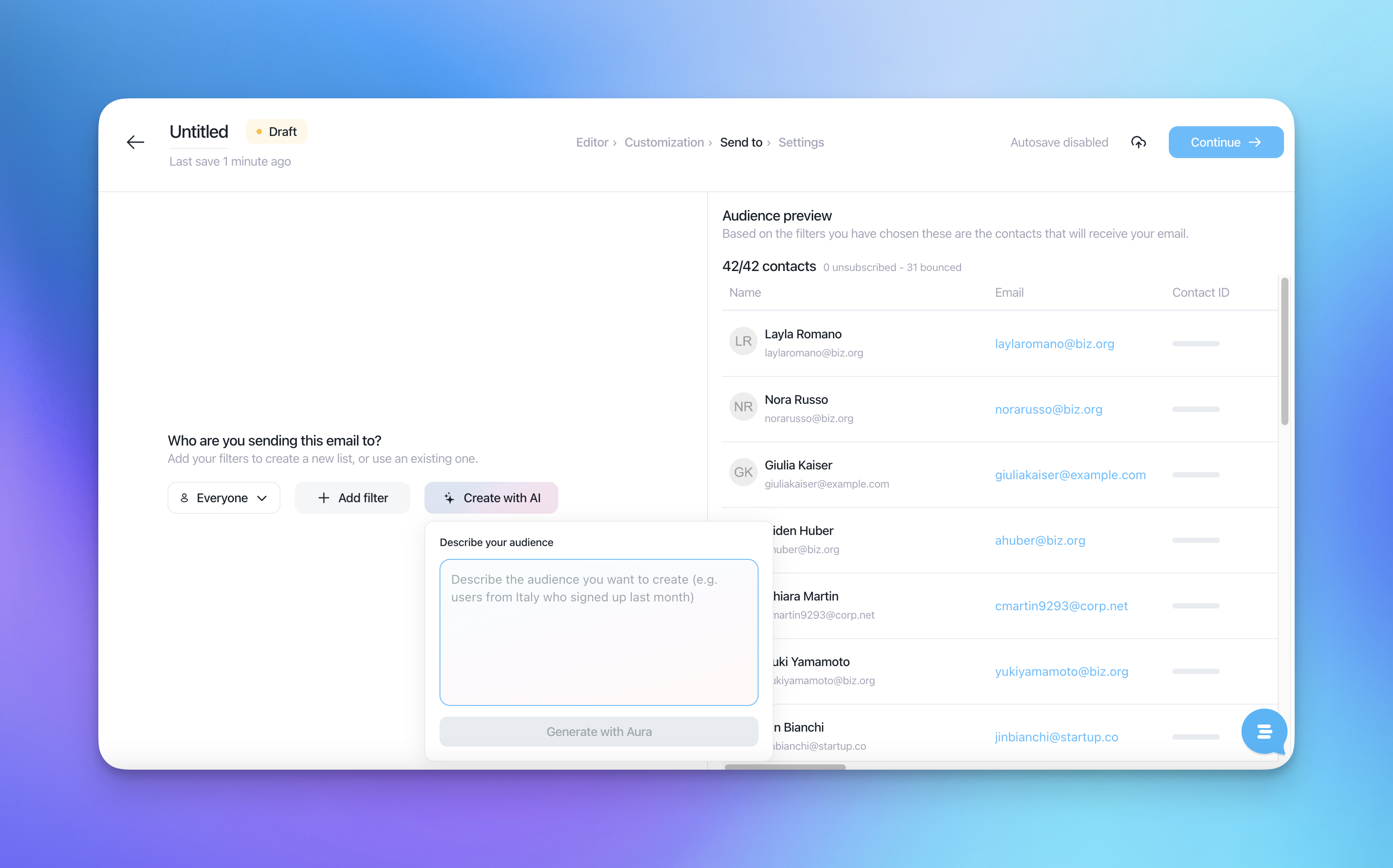
Click "Continue" in the top right corner
Enter an internal name of your email to easily find it on your Emails page

Customize who should receive the replies and when the email should be sent
Switch a toggle near "Assign replies" and select a teammate or a team where you want to assign email replies

Switch a toggle near "Schedule for later". Select a sending date and sending hour.

Once your email is all set, you can:
Send preview email to any email address by clicking on "Send preview".

Enter your email address, click enter, then enter a different email address if you want to send it to multiple emails.

Save your email as a draft
Click on "Send now" to send your email to contacts, then confirm the second time when a different confirmation pop-up appears.
If you scheduled the email, click on "Schedule" or "Send now" when you don't have a schedule.

Ta-da! Your email was sent!